

Managing users
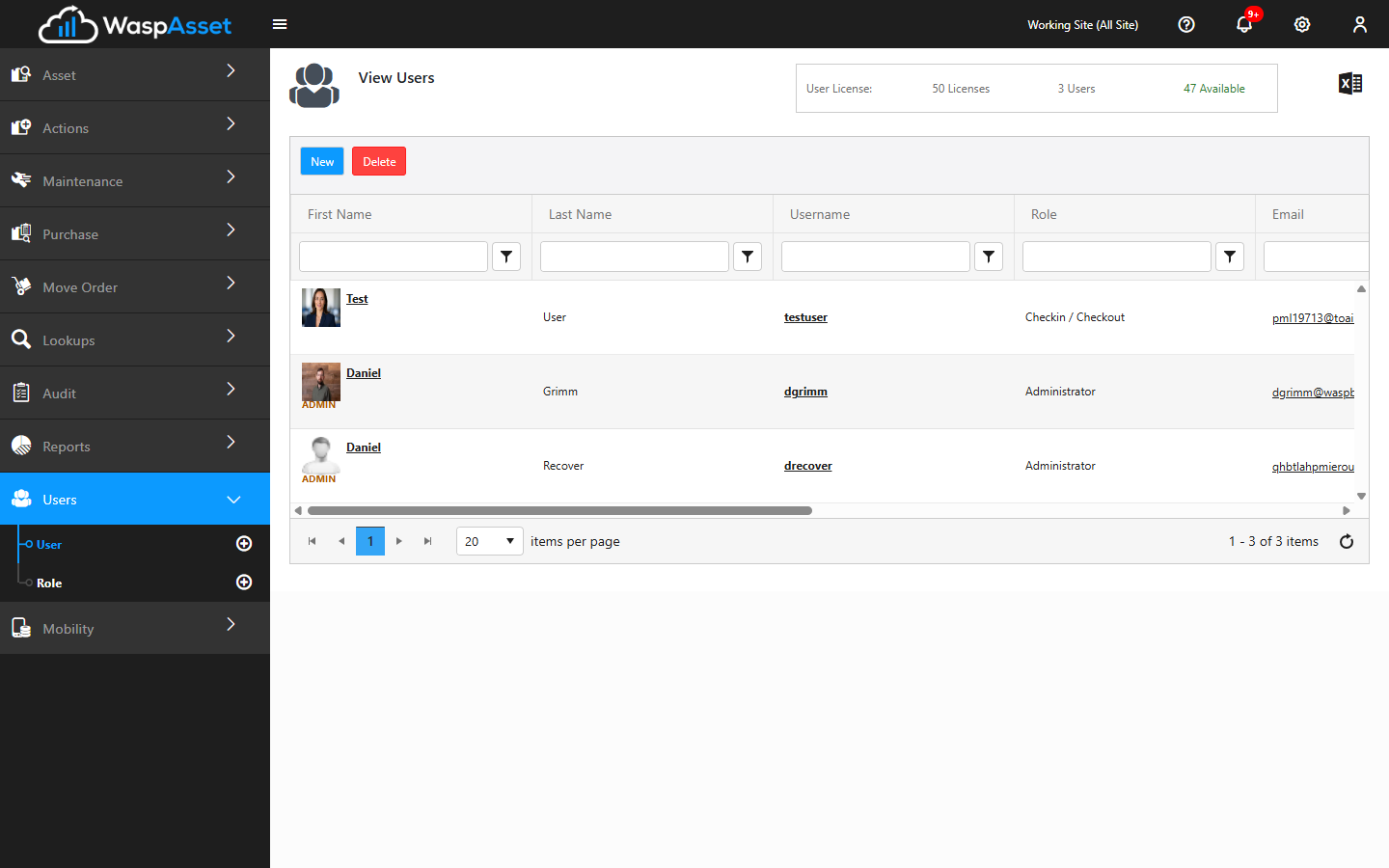
The User page is where you invite people to Wasp Asset, assign them a role, keep their profiles up to date, and turn access on or off. You’ll find it under Users → User in the left sidebar.
Before you begin
Section titled “Before you begin”- Permission to manage users. Adding, editing, and deactivating users is controlled by your role. If your role doesn’t grant user access, the page shows a message instead of the list. See Roles & permissions.
- A free license. Every active user consumes a license. If all your licenses are in use, free one up (by deactivating someone) or add more before inviting a new person.
- Working email settings. Invitations are sent by email, so your account needs valid email (SMTP) settings. See Settings & options.
- At least one role to assign. It’s easiest to set up the roles you need first, so you can pick the right one while inviting.
View your users
Section titled “View your users”Open Users → User to see everyone in your account. Each row shows the person’s name, user name, role, email, when they were created, and when they last logged in, along with their current status (active, disabled, or pending an invitation).
The top of the page also shows your license usage — how many user licenses you own, how many are in use, and how many are still available. If you use read-only licenses, those are counted separately.
Add (invite) a user
Section titled “Add (invite) a user”- Click New at the top of the user list.
- Fill in the person’s First Name, Last Name, and Email. The email address is where their invitation is sent.
- Optionally add a Title, a Department, and who they report to.
- Choose a Role — this controls what the person can see and do. (See Roles & permissions.)
- Attach a profile photo if you’d like.
- Click Invite.
The new user receives an email invitation to set their password and sign in. Until they accept, they show as pending in the list.
Assign or change a role
Section titled “Assign or change a role”Every user has a role that defines their permissions. You can set the role when you invite someone, and change it later by opening their profile and choosing a different Role. You can also grant Application Admin to give someone full administrative access.
To manage the roles themselves — what each one can see and do — go to Roles & permissions.
Edit a profile
Section titled “Edit a profile”Click a person’s name (or user name) in the list to open and edit their profile. From there you can update their details, photo, department, manager, and role. Two useful actions live here too:
- Reset Password sends the person a password-reset email so they can choose a new one.
- Resend Invite re-sends the original invitation to anyone still pending — handy if they never received it or the link expired.
Deactivate or delete a user
Section titled “Deactivate or delete a user”To temporarily remove someone’s access without losing their history, deactivate them: click their status in the list and confirm the change. Their status switches to disabled, and a license is freed up. You can reactivate them the same way later.
To remove a user entirely, select the checkbox next to their name and click Delete. You can select several people at once. Pending and inactive users can be deleted; you’ll be asked to confirm.
Troubleshooting
Section titled “Troubleshooting”- The invitation never arrived. Ask the person to check their spam or junk folder first. If it’s genuinely missing, open their profile and click Resend Invite. Repeated failures usually point to an email (SMTP) problem — see Settings & options.
- I can’t invite anyone / the New button is blocked. You’ve likely run out of licenses. Deactivate a user you no longer need, or add licenses, then try again.
- A new user can’t see part of the app. Their access comes from their role, not their user account. Adjust the role’s permissions, or assign a different role. See Roles & permissions.
- I can’t edit another administrator. Only an Application Admin can change another Application Admin’s account. Ask an existing admin to make the change, or have your own account granted Application Admin.
Related
Section titled “Related”- Roles & permissions — control what each user can see and do
- Settings & options — set up the email that delivers invitations
- Changing the theme — personal display preferences each user controls
- Departments & employees — the departments and managers you can assign to a user
- Wasp Asset public API — authenticate and integrate with your data programmatically