

Work orders
A work order is a tracked maintenance job. It groups one or more assets together with the tasks to perform on them, who’s responsible, the dates involved, and the cost — and it carries a status so you always know where the job stands, from open through to complete.
Before you begin
Section titled “Before you begin”- Edition — Work Orders are available in the Complete edition.
- Permissions — you need create access to raise a work order and edit access to change one. Marking tasks complete and closing a work order require the perform maintenance privilege. See Roles.
- Helpful to have ready — the assets you’re servicing, the people who’ll be assigned, and (optionally) a reusable task library, so the job’s time, cost, and instructions pre-fill.
- Work Order add-on — some features go beyond the base edition and need the Work Order add-on: marking a task Required, tracking actual time with each task’s Start Timer / End Timer, and the Date Started column on maintenance history. If you don’t see these, ask about adding this to your license.
What’s on a work order
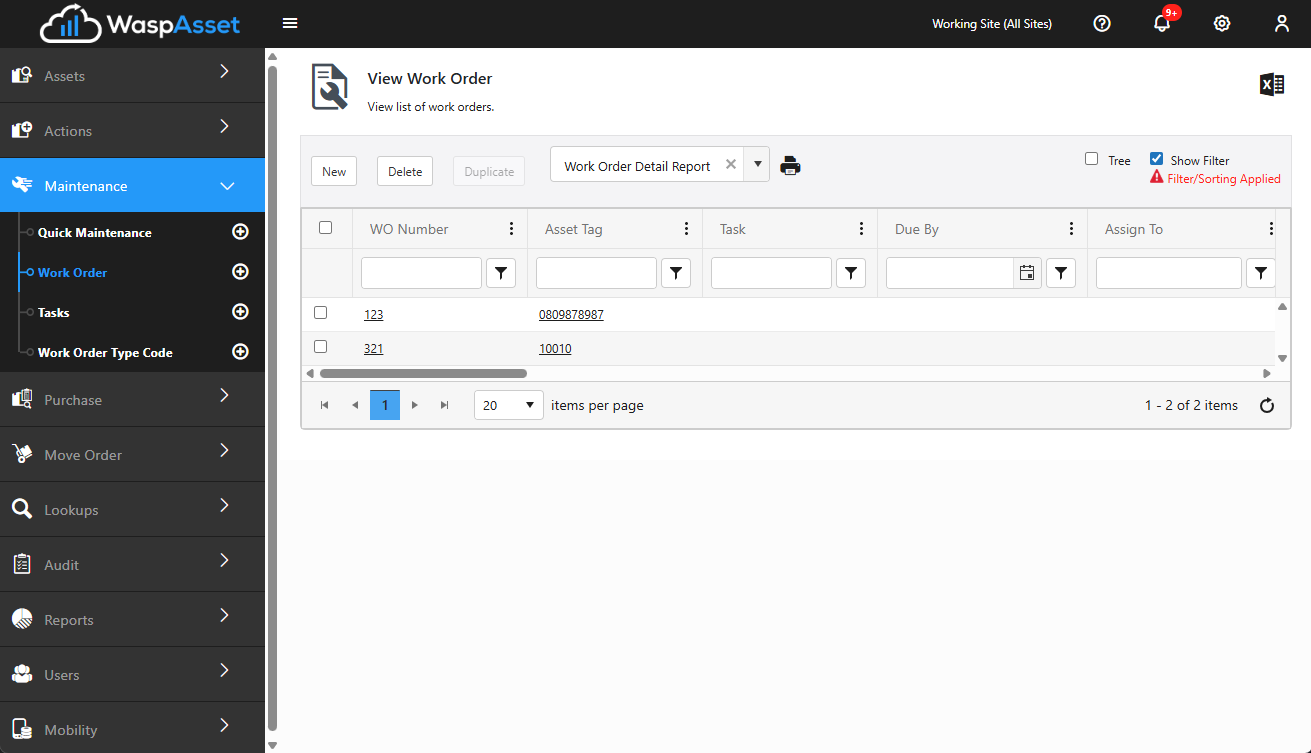
Section titled “What’s on a work order”When you open Maintenance and choose Work Order, a new work order includes:
- A Work Order Number — assigned automatically, or typed in yourself if your number series allows it.
- An Owner — the person responsible for the work order overall. This is required.
- A Work Order Type — the Work Order Type Code that categorizes this job. This is required.
- A Priority (for example, to flag urgent jobs ahead of routine ones) and a due date.
- The asset or assets the work applies to, each with its own condition and notes.
- The Tasks to perform on each asset (see Tasks), each with its own assignee, due date, time, cost, and instructions.
- A running cost total built up from the tasks.
- A status — plus, when you change status, a status reason you can select to record why.
The work order screen is organized into tabs: the main Work Order tab for assets and tasks, an Attachment tab for supporting files, and a Schedule tab if the work should recur.
Create a work order
Section titled “Create a work order”- Open Maintenance and choose Work Order.
- Confirm or enter the Work Order Number. If your account assigns numbers automatically, this is filled in for you; you can type your own only if your number series allows it.
- Choose an Owner and a Work Order Type (both required), and set a Priority and due date if you use them.
- Add the asset(s) the work order covers. A work order can span more than one asset — add each one by asset tag, and give it a condition or notes if needed.
- Add one or more Tasks to each asset. Choosing an existing task pre-fills its time, cost, and instructions, which you can adjust. Assign each task to the responsible person and give it its own due date, notes, and instructions.
- Set any other details, and use the Attachment tab to attach supporting files (quotes, photos, manuals).
- Choose a save action to set the work order’s status (see below).
The work order lifecycle
Section titled “The work order lifecycle”A new work order starts out as a draft. Use the save button’s dropdown to move it through its stages:
- Open — the work is planned and ready to be carried out.
- Re-Open — reactivate a closed work order if more work is needed.
- Close — the work is finished; the work order is completed and closed.
As you perform the work, mark each task complete. When all tasks are done and you close the work order, it becomes part of the asset’s maintenance history.
Schedule a recurring work order
Section titled “Schedule a recurring work order”Use the Schedule tab to have Wasp Asset generate this work order automatically on a repeating basis (for example, monthly) — handy for planned, periodic maintenance. Set the recurrence and start date on the tab before saving.
Troubleshooting
Section titled “Troubleshooting”- The Work Order Number field is locked. Your account assigns numbers automatically. Look for the edit (pencil) control if you need to override it, or leave it blank to let the system assign the next number.
- I can’t save the work order. Check that you’ve chosen an Owner and a Work Order Type — both are required. If no type codes exist yet, an administrator needs to add one first; see Tasks.
- I can’t close the work order. Every task must be marked complete first, and closing requires the perform maintenance privilege.
- The delete icon is missing next to an asset or task. Assets and tasks can only be removed while the work order is a draft or Open. Once it’s moved past that, remove them by re-opening the work order instead.
- A task’s cost didn’t update the total. The work order’s cost total rolls up from its tasks — check that each task has its cost entered and the task is saved on the order.
- The scheduled work order didn’t generate. Confirm the schedule’s start date has passed and the recurrence is set on the Schedule tab.
Related
Section titled “Related”- Tasks — build the reusable tasks a work order is made of
- Quick Maintenance — for one-off service that doesn’t need a full work order
- Receipts — the printable documents you can produce for a work order
- Maintenance overview — how the maintenance features fit together