

Adding an asset
This page walks you through adding a new fixed asset — entering its tag and description, choosing its type and location, recording purchase and cost details, and saving. Adding a multi-quantity asset is covered at the end.
Before you begin
Section titled “Before you begin”- Your role needs permission to create assets. If the New Asset button is missing or greyed out, ask whoever manages your account to grant asset-create access.
- It’s worth having your asset types set up first. Choosing a type while you add an asset pre-fills defaults like category and depreciation, so you type less and stay consistent.
- Have the asset’s details handy — its tag (unless your company auto-generates them), where it lives, and any purchase or cost information you want to record.
Start a new asset
Section titled “Start a new asset”- Open the Fixed Asset list from the Asset sidebar.
- Click New Asset in the top right.
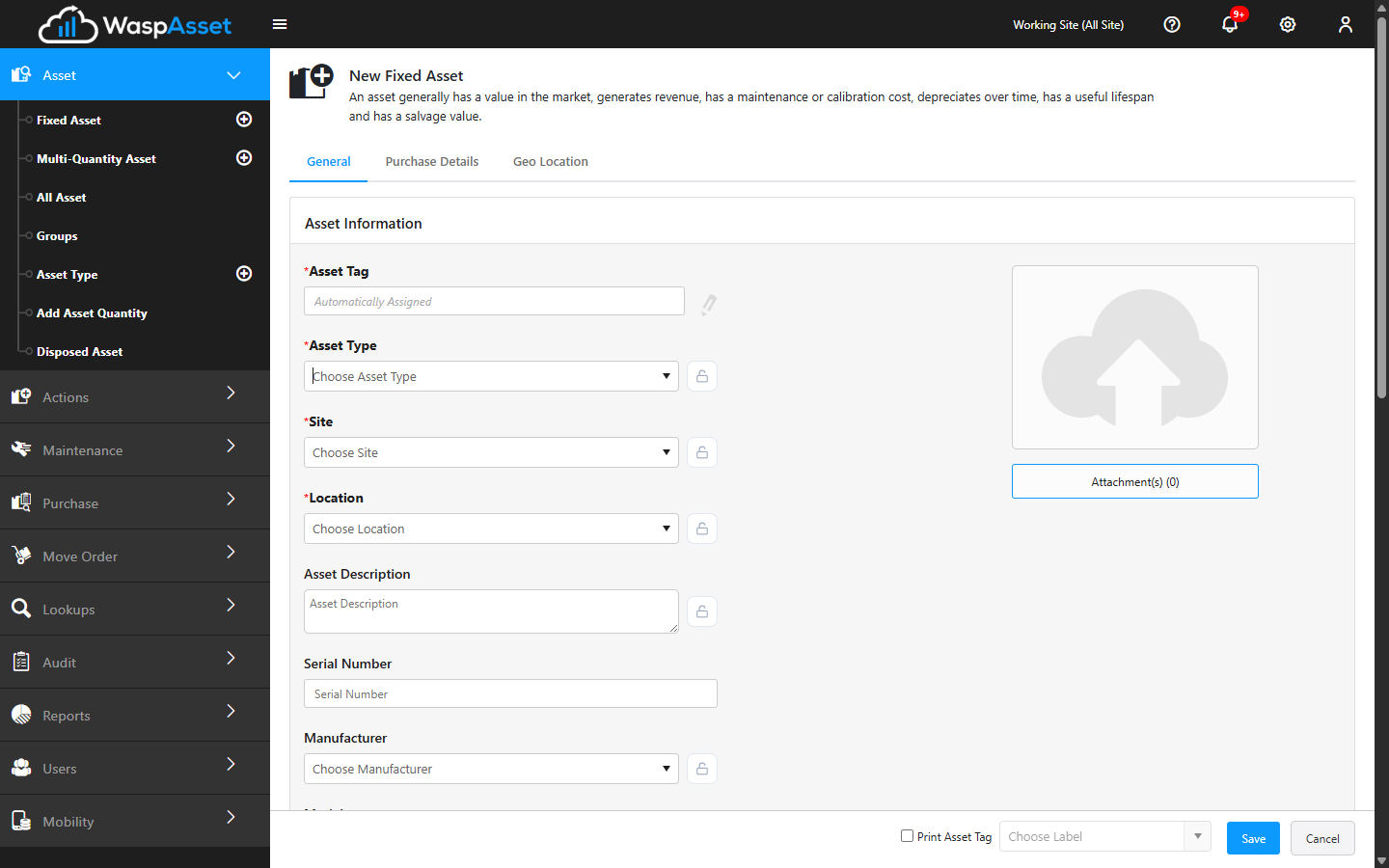
The Add Fixed Asset page opens with a set of tabs across the top. You’ll do most of your work on the first tab, General.
Fill in the General tab
Section titled “Fill in the General tab”The General tab holds the core information about the asset. The most common fields are:
- Asset Tag — the unique identifier for the asset. If your company auto-generates tags, this is filled in for you and shows a placeholder; otherwise, type or scan the tag.
- Asset Type — start typing to pick a type. The type acts as a template and can pre-fill defaults like depreciation. See Asset types.
- Site and Location — where the asset lives. Choose the site (building/campus) and then the location within it.
- Description — a short description of the asset.
- Serial Number — the manufacturer’s serial number, if you track it.
- Manufacturer and Model — who made it and which model.
- Category — a classification, usually set from the asset type.
- Condition — the asset’s state, such as New or Good.
- Owner — the employee who owns or is responsible for the asset.
- Department — the department responsible for the asset.
- Warranty Provider, Warranty Begin Date, Warranty End Date — track the asset’s warranty coverage, if you keep this information.
Further down the tab, a Check Out Settings section lets you turn on Checkout Defaults for this asset and set a default check-out length and lead time (the time an asset needs to sit before it can be checked out again after a check-in) — handy if this particular asset always goes out for the same amount of time.
Add purchase and cost details
Section titled “Add purchase and cost details”Click the Purchase Detail tab to record how and when the asset was bought. Typical fields include Purchase Cost, Purchase Date, and PO Number, along with depreciation settings such as the depreciation begin date and salvage value.
Explore the other tabs (optional)
Section titled “Explore the other tabs (optional)”You can fill in Custom Field and Geo Location while you’re creating the asset. Depending on your edition and settings, you may also see Maintenance, Contract, and Funding tabs — but these stay hidden until after you’ve saved the asset for the first time, so don’t worry if you don’t see them yet. See Asset details & tabs for what each tab does.
When you’re done:
- (Optional) Tick Print Asset Tag and pick a label if you want to print a barcode tag right away.
- Click Save.
To leave without saving, click Cancel. If you’ve made changes, Wasp Asset warns you before discarding them.
Adding a multi-quantity asset
Section titled “Adding a multi-quantity asset”Multi-quantity assets are added by quantity rather than one tag at a time. Use Add Asset Quantity from the Asset sidebar (or the same option from the asset lists) to record how many you have at a location. For the difference between the two kinds of assets, see Fixed vs multi-quantity assets.
Troubleshooting
Section titled “Troubleshooting”- The Save button won’t complete. A required field is probably empty. Required fields are marked with an asterisk; if one on another tab is missing, Wasp Asset flags the tab so you can find it. Fill it in and save again.
- I can’t type in the Asset Tag field. Your company auto-generates tags, so the field shows a placeholder and fills in when you save. That’s expected — leave it as is.
- My asset type, site, or location isn’t in the dropdown. You can add a missing Site, Location, Manufacturer, Condition, or Owner right from its dropdown with the Add button. To add a new asset type, see Asset types.
- Depreciation isn’t calculating. Depreciation needs a Purchase Cost on the Purchase Detail tab. Add the cost, then see Calculate Depreciation.
- A field keeps clearing itself out when I add the next asset. Click the field’s lock icon so it stays filled in for the next new asset. Unlock it again once you’re done adding that batch.
- I don’t see the Contract, Funding, Maintenance, or Change Log tab yet. These only appear after the asset has been saved at least once. Save the asset, then reopen it to fill them in.