

Asset types
An asset type is a template that describes a kind of asset you track — “Laptop,” “Forklift,” “Office Chair.” Setting up good asset types once saves you time on every asset you add afterward, because new assets inherit the type’s defaults. This page explains how to view and create them.
Before you begin
Section titled “Before you begin”- Creating and editing asset types is permission-controlled. If New is missing or a type opens read-only, your role has view-only access to asset types — ask whoever manages your account.
- Decide up front whether the type is for fixed assets or multi-quantity assets; it shapes which settings apply (for example, only fixed types depreciate, and only multi-quantity types have minimum-stock levels). See Fixed vs multi-quantity assets.
- If you want assets of this type to capture information beyond the standard fields, set up your fields first. Use Form Customization (under the Settings gear) to create custom fields, rename existing fields, or mark fields as required — then they’re ready to attach to the type on its Custom Field tab. These are admin-only tasks.
What an asset type does
Section titled “What an asset type does”When you choose an asset type while adding an asset, it can automatically fill in defaults for you, such as:
- The Category the asset belongs to.
- Depreciation settings, so assets of that type start depreciating the same way.
- Any custom fields that apply to that kind of asset.
This keeps your data consistent and means whoever adds an asset doesn’t have to remember every setting.
Viewing asset types
Section titled “Viewing asset types”Open Asset Type from the Asset sidebar to see the list of types your company has set up.
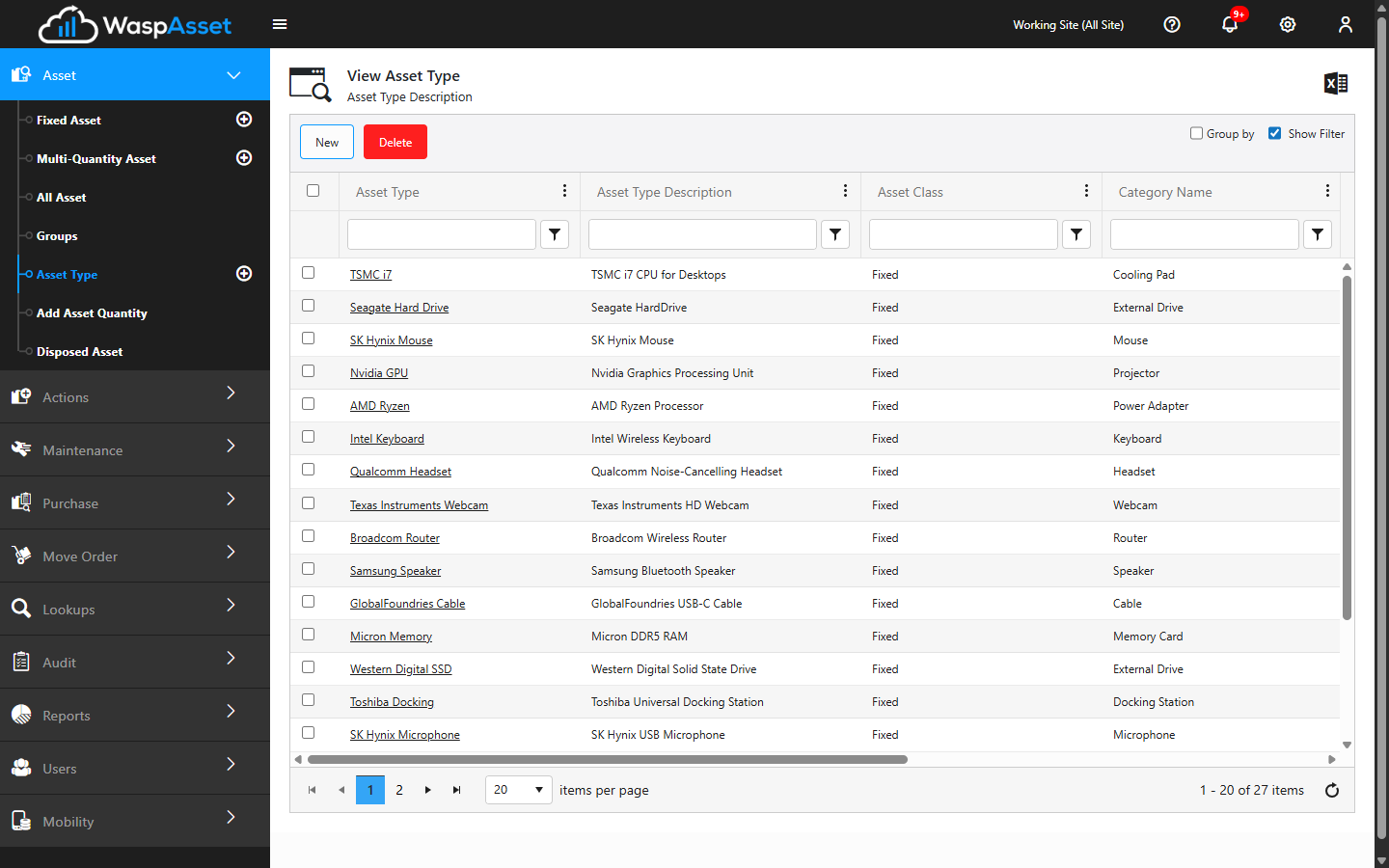
From this list you can:
- Sort and filter using the column headers, and Group By a column.
- Export to Excel to download the list.
- Click a type to open and edit it.
- Select one or more types and click Delete to remove them (if your role allows it).
Adding an asset type
Section titled “Adding an asset type”- On the Asset Type list, click New.
- Fill in the General tab, which is organized into a few sections:
- Asset Type Info — the type’s number, description, manufacturer, model, category, and default cost.
- Check Out Settings — turn on Set Default Check Out Length and/or Set a check out lead time (how long an asset needs to sit before it can be checked out again after check-in) so new assets of this type start with those defaults already set.
- Depreciation Settings — turn on Calculate depreciation for this asset and choose a depreciation method.
- Group Settings (Complete only) — turn on default group settings so assets of this type can be treated as a group: Is Group lets you associate other assets to this one as a group, Transact As Whole carries out an action on the whole group when you act on any asset in it, and Audit As Whole does the same for audits.
- Use the other tabs as needed:
- Custom Field — extra fields that should appear on assets of this type.
- Details — additional type-level details.
- Minimum Stock (Complete edition) — set reorder thresholds per site/location (for multi-quantity types). Click Add to add a minimum stock level for a site, or for a site and location together.
- Click Save.
Troubleshooting
Section titled “Troubleshooting”- I can’t add or edit a type. Asset-type management is gated by your role. If New is missing, or a type opens without a Save button, you have view-only access.
- New assets aren’t picking up the defaults I set. Defaults apply when you choose the type while adding a new asset — they don’t retroactively change assets that already exist. Set the defaults on the type, then add the asset.
- The Minimum Stock tab is missing. Minimum-stock thresholds apply to multi-quantity types only, and the tab needs the Complete edition — it isn’t available in Basic.
- Delete is greyed out. You can’t delete a type that still has assets assigned to it, and your role may not permit deletion at all.