

Moving an asset
Moving an asset changes where it lives — from one location to another, or into a group. Wasp Asset records the move so your location records always match reality.
Before you begin
Section titled “Before you begin”- Move must be enabled for your role. If it’s not in the Actions menu, ask your administrator.
- The destination needs to exist first. Set up sites and locations under Sites & locations, or create a group, if the place you want to move the asset to isn’t listed.
Move an asset
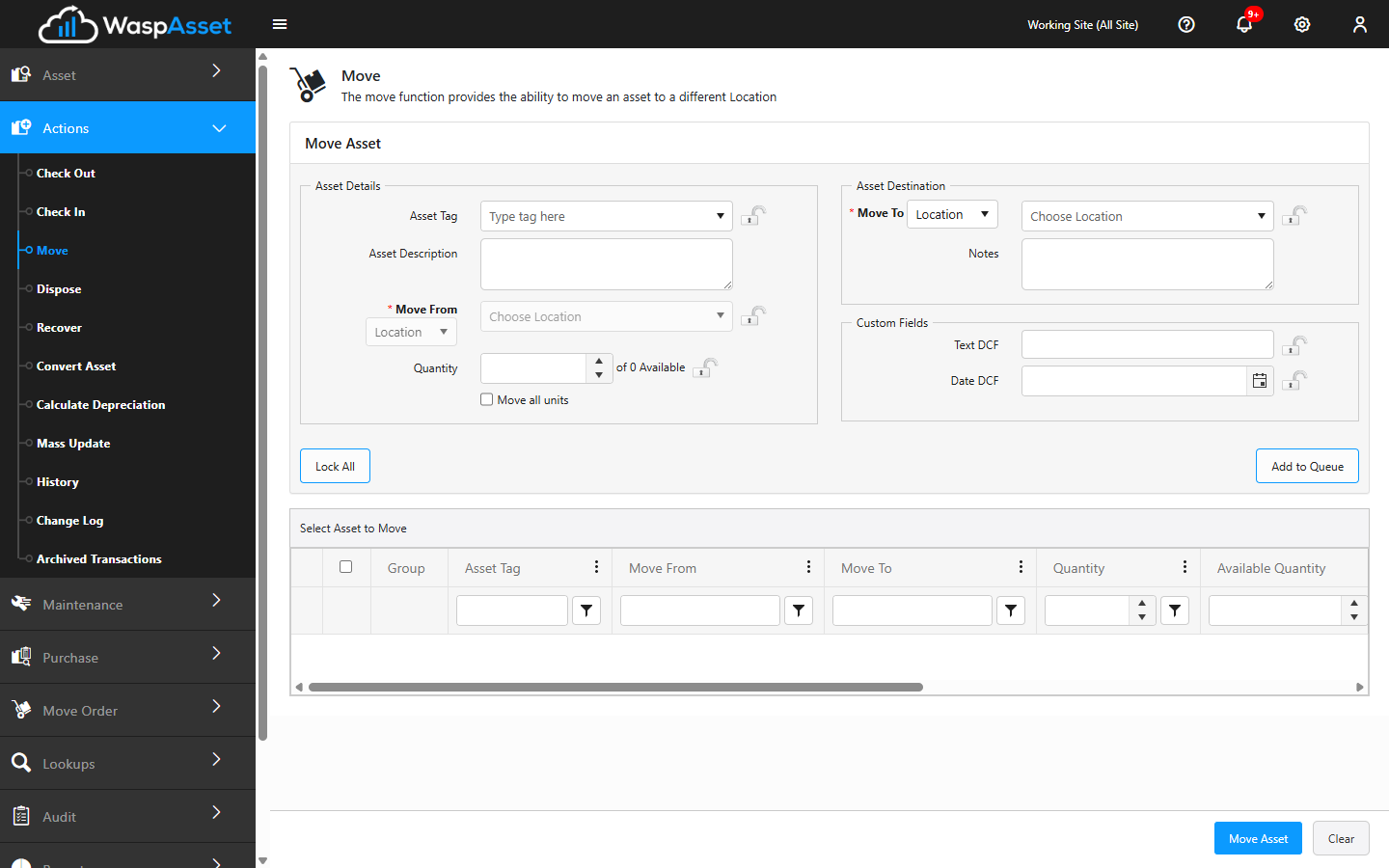
Section titled “Move an asset”- Open Actions → Move.
- Scan the asset’s barcode, or type its Asset Tag and pick it from the list. Its details, Condition, and current location fill in automatically — update the Condition if it’s changed.
- Under Move From, use the dropdown to pick Location or Group, then confirm where the asset is coming from.
- Under Asset Destination, use the Move To dropdown to pick Location or Group, then choose the destination.
- Add any Notes about the move — a reason or reference worth keeping with the record.
- Click Move to complete the transaction. The asset’s location updates immediately and the move is logged in History.
Multi-quantity assets
Section titled “Multi-quantity assets”For a multi-quantity asset, a Quantity box lets you move only part of the on-hand amount to the new location. Tick All Units to move the whole quantity at once.
Moving vs. move orders
Section titled “Moving vs. move orders”A Move relocates an asset right away. If you instead need to request a move for someone else to carry out and confirm, use a Move Order and then Fulfill it.
Troubleshooting
Section titled “Troubleshooting”- “Move To Location cannot be the same as the Move From Location.” The destination matches where the asset already is. Pick a location or group that’s genuinely different.
- I can’t find the destination. The site, location, or group may not exist yet. Add sites and locations under Sites & locations, or set up a group, then move the asset.
- I want someone else to do the move and confirm it. That’s a Move Order, not a direct Move — use one when the physical move happens later or elsewhere.
- Group options aren’t showing. Moving an asset into a group is a Complete-edition feature. If you don’t see a Group choice, your edition may only support location-to-location moves.
Related
Section titled “Related”- Move orders — request a move for someone else to fulfill
- Fulfilling a move order — complete a requested move
- Sites & locations — set up where assets can live
- Checking out an asset — assign an asset to a person instead