

Departments & employees
Departments and employees are how Wasp Asset connects assets to your people and organization. An Employee is a person you can check an asset out to, and a Department is an organizational unit an asset (or employee) can belong to. Setting these up lets you answer questions like “who has this laptop?” and “what does the Facilities department own?”
Before you begin
Section titled “Before you begin”- These lookups live under the Lookups menu and are usually maintained by an administrator; you’ll need a role with access.
- If you assign employees to departments, add the departments first so they’re available to pick.
- Employees you create here are people assets are assigned to — they are not sign-in accounts. See the note at the end of this page.
Departments
Section titled “Departments”A department is an organizational unit — for example, “IT”, “Facilities”, or “Sales”. You can assign assets to departments and organize employees within them.
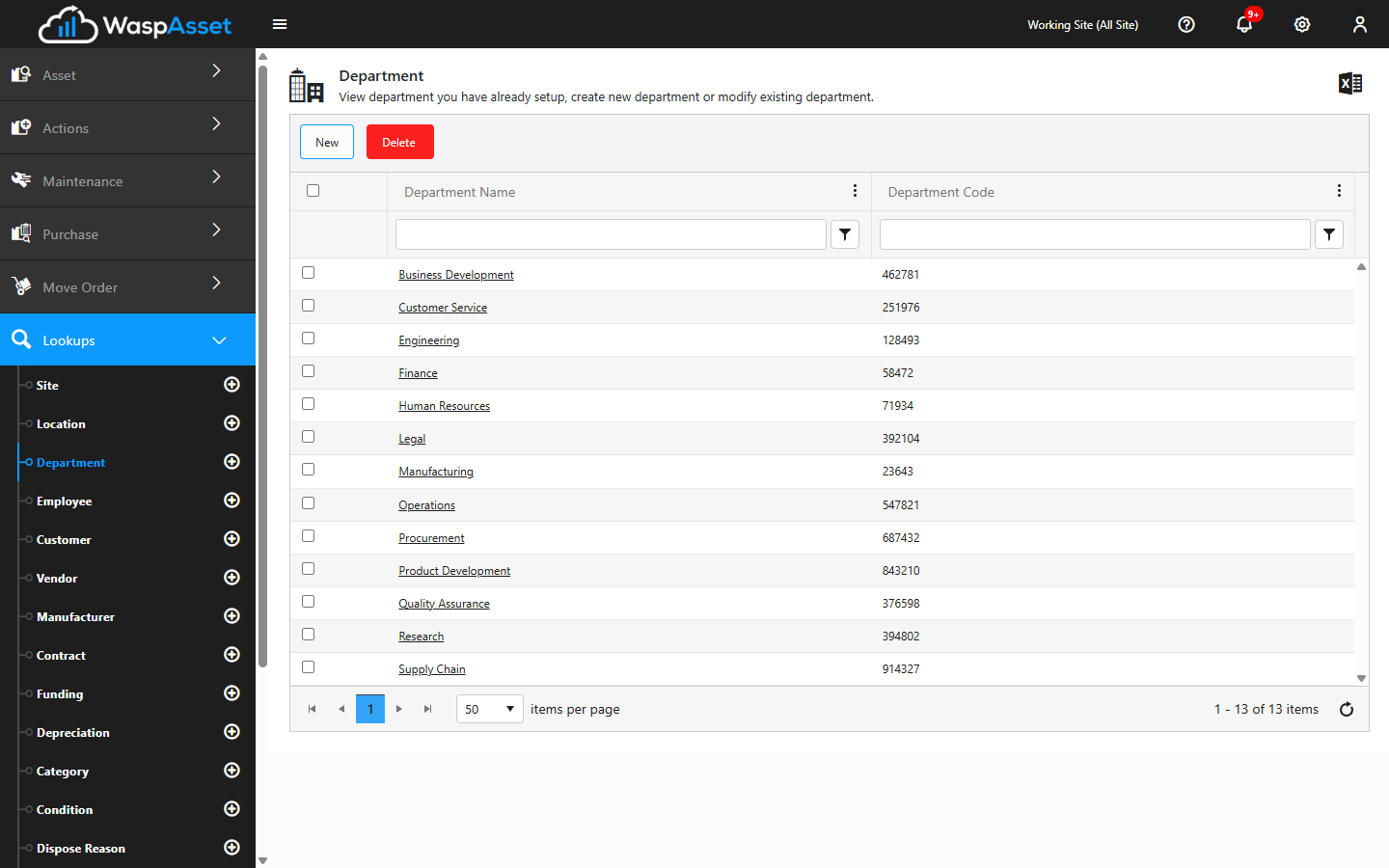
Add or edit a department
Section titled “Add or edit a department”- Open Department from the Lookups menu to see your list.
- Click Add to create a new department, or click an existing one to edit it.
- Fill in the details:
- Department Code — the short identifier for the department.
- Department Name — the full name.
- Click Save.
Employees
Section titled “Employees”An employee is a person in your organization that assets can be checked out to. Keeping employee records current means check-outs, responsibility, and history all point to the right people.
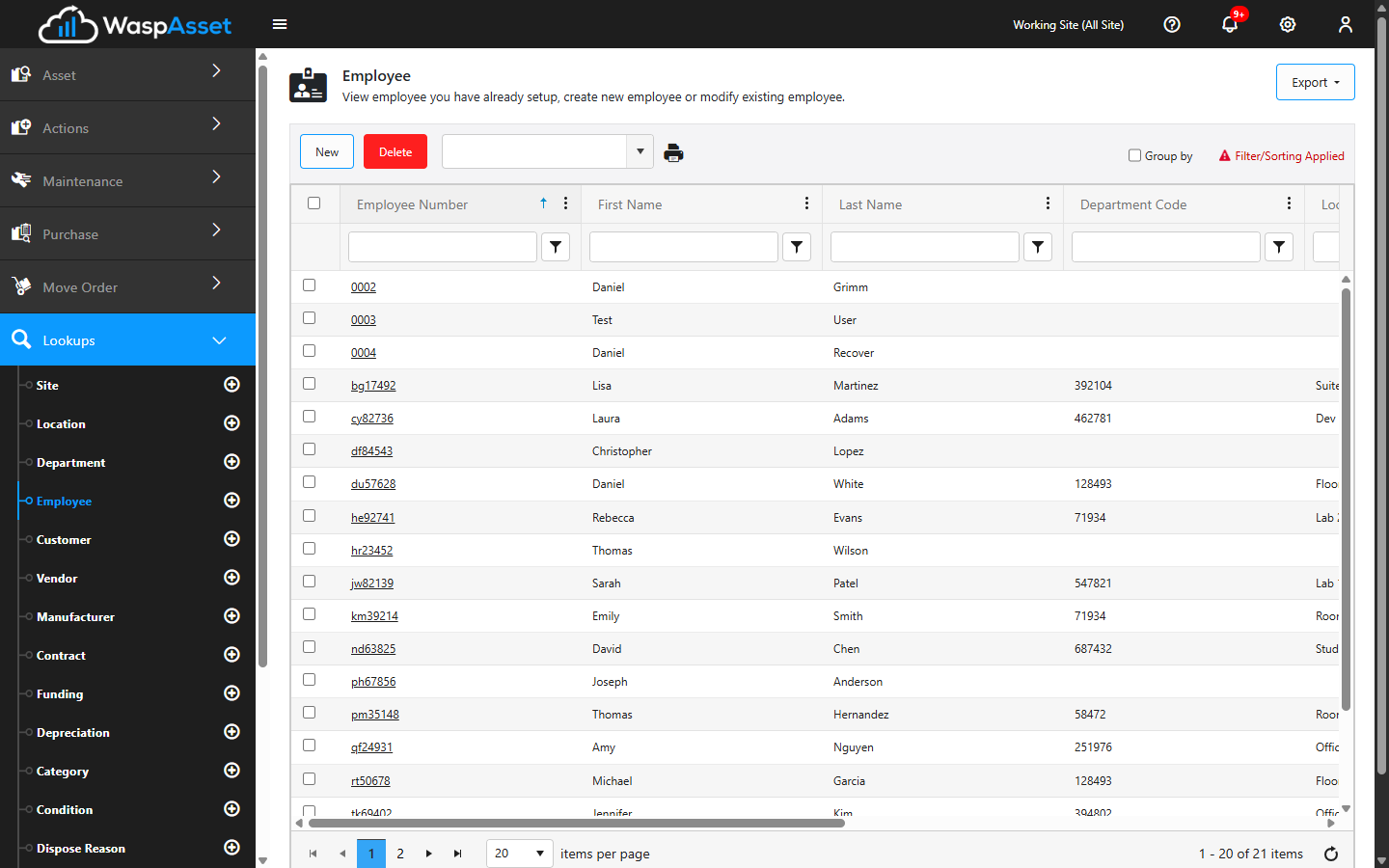
Add or edit an employee
Section titled “Add or edit an employee”- Open Employee from the Lookups menu.
- Click Add, or click an existing employee to edit them.
- Fill in the details, which include:
- First Name and Last Name.
- Employee Number — a unique identifier.
- Title and Email.
- Location and Department — where the employee is based and the department they belong to.
- Reports To — the employee’s manager, if you track reporting lines.
- Notes — any additional information.
- Optionally, add a Phone and an Address for the employee, and attach a photo.
- If your administrator has added custom fields for employees, fill those in too.
- Click Save.
Once an employee is saved, their record picks up two more tabs: Assigned Assets — a list of what’s currently checked out to that employee, with a Check In button so you can bring items back without leaving the page — and History, a log of past transactions for that employee.
Troubleshooting
Section titled “Troubleshooting”- My employee doesn’t appear when I check an asset out. Confirm the employee was saved and, if your check-out searches by number, that the Employee Number is filled in. A complete name and number make the employee easy to find.
- I can’t delete an employee or department. Both are protected while still in use. An employee can’t be deleted while they own or have checked out an asset, are set as another employee’s Reports To manager, or have a linked user sign-in. A department can’t be deleted while it’s still assigned to an employee or an asset. Reassign what’s attached first, then try again.
- The Department list is empty when adding an employee. Add the departments under Department first — an employee can only be placed in a department that already exists.
- Adding an employee didn’t let them sign in. Employees and sign-in Users are different things. Create a sign-in account under Users.
Related
Section titled “Related”- Check out — assign an asset to an employee.
- Check in — return a checked-out asset.
- Sites & locations — where employees are based.
- Users — sign-in accounts, distinct from employees.
- Lookups overview