

Quick maintenance
Quick Maintenance is the fastest way to record that service was performed on an asset. You pick the asset, note what was done, and save — no work order or planning required.
Before you begin
Section titled “Before you begin”- Edition — Quick Maintenance is available in the Complete edition.
- Permissions — you need create (or edit) access for maintenance to save a record. If you only have view access, the fields open read-only.
- The asset must already exist. Quick Maintenance records service against an asset that’s already in the system — it doesn’t create assets.
When to use quick maintenance
Section titled “When to use quick maintenance”Reach for Quick Maintenance when the work is already done (or is a simple one-off) and you just need a record of it — an oil change, a quick repair, a battery swap. If the job needs to be planned, assigned to someone, and tracked to completion, use a Work Order instead.
Log quick maintenance
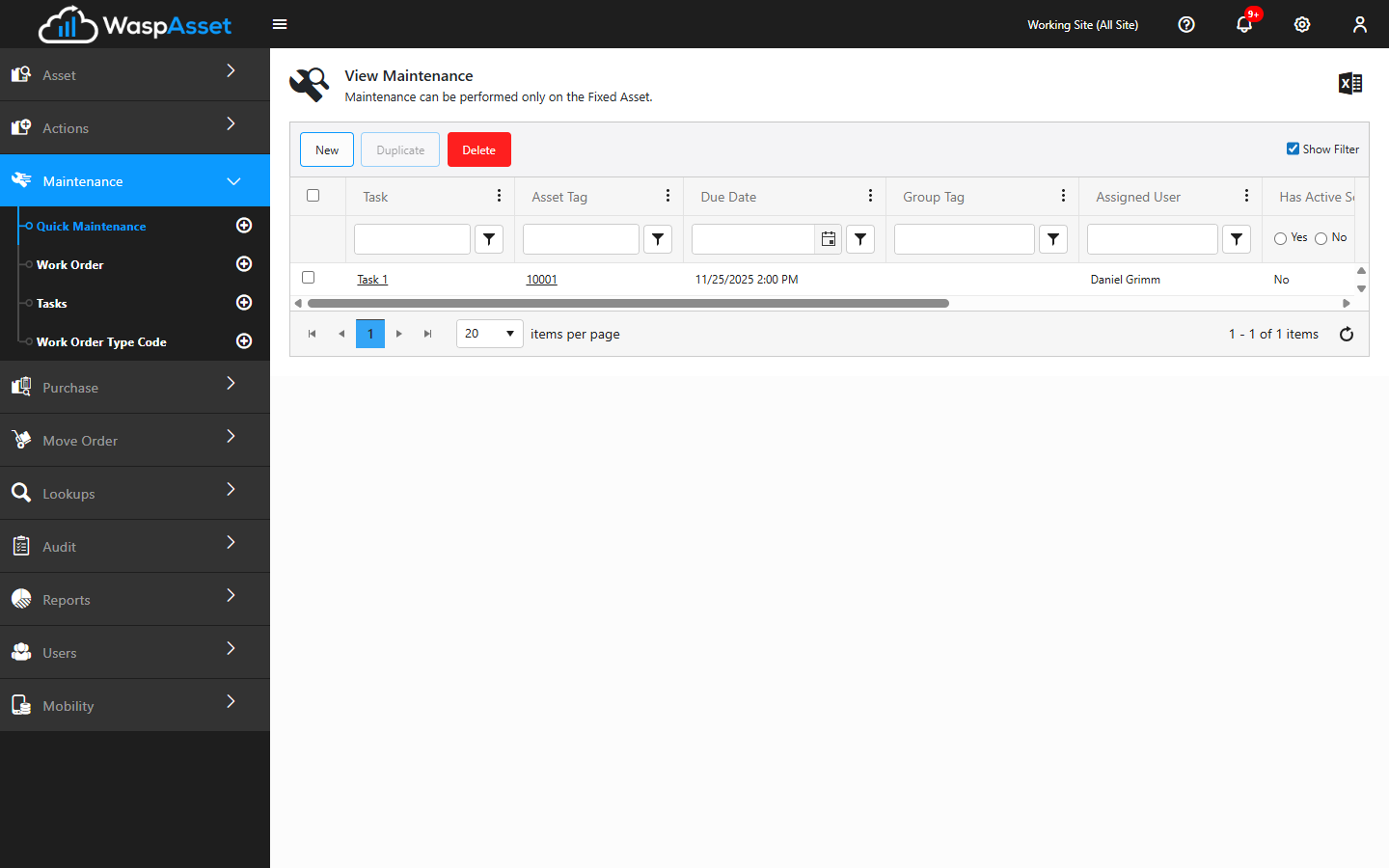
Section titled “Log quick maintenance”- Open Maintenance and choose Quick Maintenance.
- In the Asset Tag box, start typing and select the asset you serviced. This is required. Its description, location, serial number, and owner fill in automatically once the asset is chosen.
- Set the asset’s current Condition if it changed (for example, from Good to Damaged). Leave it as-is if the condition didn’t change.
- Add Maintenance Notes describing what was done — this is the free-text record of the service.
- Under the task details, choose an existing Task Name or type a new one for the work performed. Selecting an existing task fills in its instructions, time, and cost automatically.
- Set the remaining task fields:
- Assign To — the person responsible for the work. This is required.
- Time Required — how long the work took (or is estimated to take), entered as days, hours, and minutes.
- Cost — the cost of the service.
- Date Due — the date the work is due; defaults to today for a new record.
- Instructions — any notes the technician should follow (pre-filled from the selected task).
- Click the save button to record the maintenance. If you have permission to perform maintenance, the save button’s dropdown also offers Close - Complete (the work is finished) and Close - Incomplete (close the record even though the work wasn’t finished), so you can save a plain open record or close it out in one step.
Schedule recurring maintenance
Section titled “Schedule recurring maintenance”If this service needs to repeat, tick the Schedule Maintenance option before saving. A Schedule tab opens where you set how often it recurs (daily, weekly, or monthly) and when it starts, and Wasp Asset creates the maintenance record for you on schedule.
Troubleshooting
Section titled “Troubleshooting”- “Asset is not available” when I pick a tag. The asset may be disposed, checked out, or otherwise unavailable for service. Confirm the asset’s current status before recording maintenance against it.
- The save button won’t complete the work. Marking a record complete requires the perform maintenance privilege. Without it you can still save the record, but the Close - Complete and Close - Incomplete options are hidden.
- The Schedule tab looks locked. A child record generated from an existing schedule can’t have its recurrence edited — that’s controlled on the original scheduled record.
- My assignee doesn’t appear. Assignees come from your employee/user list; the person must be set up there first. See Departments and employees.
Related
Section titled “Related”- Work Orders — for planned, assigned, tracked jobs
- Tasks — build reusable tasks so their time, cost, and instructions pre-fill
- Maintenance overview — how the maintenance features fit together