

Labels
Labels are the barcode templates Wasp Asset uses whenever you print a tag — for assets, sites, locations, employees, or customers. The Labels page under Reports is where you browse those templates, name and describe them, and (with the right permission) customize their layout. You don’t print from this page — printing happens from the list or detail page for whatever you’re tagging, using a Print Tag (or similarly named) button there.
Before you begin
Section titled “Before you begin”- Labels live under Reports and share its access. If Reports doesn’t appear in the left sidebar, ask your administrator to grant report access to your role.
- Have your blank label stock (sheets or roll) on hand, and know its size, so you can match it to a template wherever you print.
- A quick test print on plain paper before committing a full sheet saves labels and time.
Open Labels
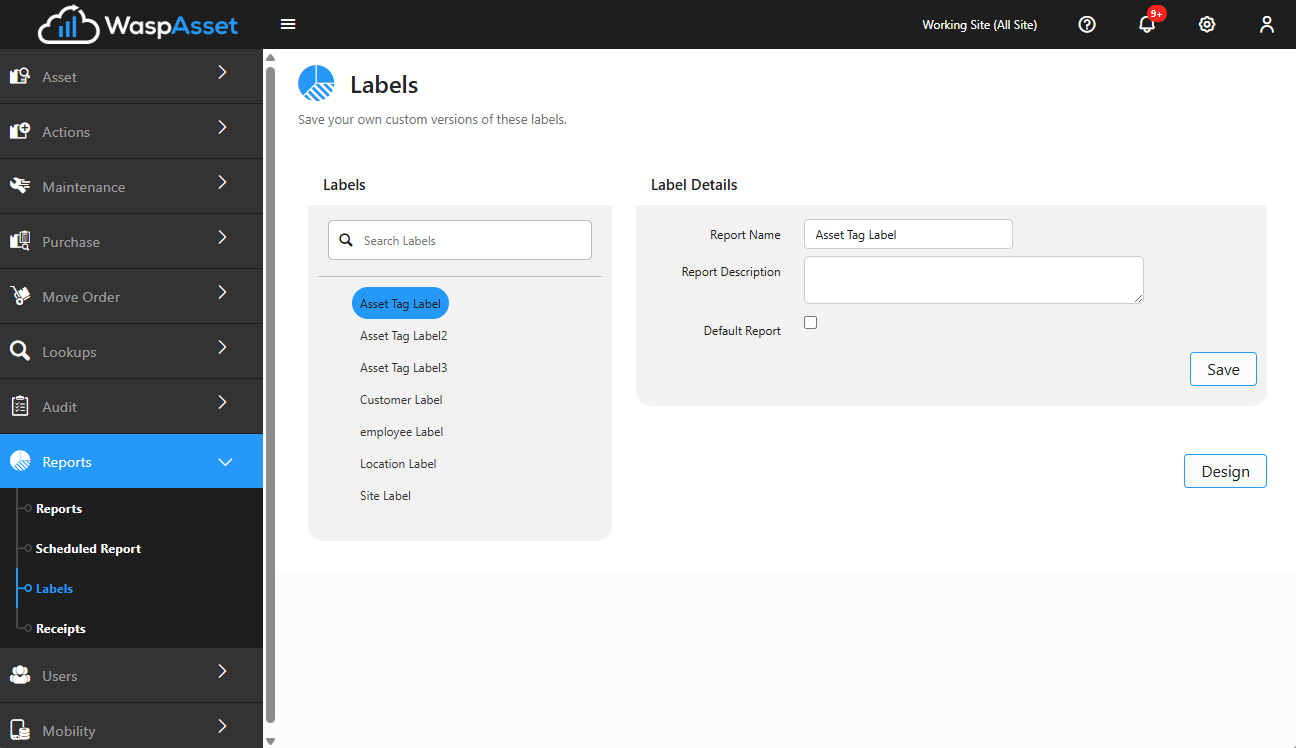
Section titled “Open Labels”From the left sidebar, open Reports and choose Labels. A search box and flat list of label templates appears on the left; select one to see its details on the right.
Browse the templates
Section titled “Browse the templates”Find the label layout you want to review or customize:
- Search for a template by name, or browse the list.
- Select a template to load its details on the right.
Wasp Asset ships label templates for several kinds of records, including asset tags (the barcode you scan for check-out, audits, and more), site labels, location labels, employee labels, and customer labels.
Name, describe, and set a default
Section titled “Name, describe, and set a default”With a template selected, you can:
- Edit the Report Name and Report Description so the template is easy to identify in the list, then click Save.
- Tick Default Report to make this the template that’s pre-selected when you print this type of label elsewhere in Wasp Asset.
Design a template
Section titled “Design a template”If your role has report-design permission, a Design button opens the label designer, where you can adjust the layout — size, barcode type, text, and positioning — then click Save. If you’re customizing one of Wasp Asset’s built-in templates, saving keeps your changes as a new copy automatically and leaves the original built-in untouched.
Reset, delete, or undo changes
Section titled “Reset, delete, or undo changes”Saving changes to a built-in template keeps them as a copy and leaves the original built-in untouched. Which options you see depends on the template:
- Reset — for a customized copy of a built-in template, discards your changes and restores the original built-in design.
- Delete — for a template created as a standalone copy, removes it entirely.
- Undo reverts a customized template’s design to its previously saved version.
Printing labels
Section titled “Printing labels”Actual label printing happens where the records live, not on this page. Most asset, site, location, employee, and customer list and detail pages include a Print Tag or Print Labels control — pick a template there and the labels print immediately for the record or records you selected. See Asset details & tabs and Adding an asset for examples of printing a tag from an asset. You can also reprint an asset tag from the History page using its label dropdown.
Check the alignment on a test sheet before printing a full run.
Troubleshooting
Section titled “Troubleshooting”- I can’t find a way to generate or print from the Labels page. That’s expected — this page manages the templates. Print from the asset, site, location, employee, or customer list or detail page instead, using its Print Tag/Print Labels control.
- Barcodes print off-center or misaligned. The template doesn’t match your label stock. Pick the template made for your sheet or roll size, and confirm your printer isn’t scaling the page (print at 100%, “actual size”).
- The label sheet opens in a new tab I don’t see. Labels open in a separate browser tab; check your pop-up blocker if nothing appears.
- A scanner won’t read the printed barcode. Print at full size without scaling, use a clean label surface, and avoid stretching the layout. A test print confirms readability before a full run.
- I don’t see the template I need. Use the search box; the available templates depend on your edition and permissions.
Related
Section titled “Related”- Reports — run and export data reports.
- Receipts — manage transaction receipt templates.
- Asset details & tabs — print a tag for a single asset.
- History — reprint an asset tag for a past transaction.
- Sites and locations — where location and site labels come from.