

Asset Map
Wasp Asset can record where your assets are by GPS and plot them on a map, so you can see your whole fleet at a glance, review an individual asset’s location history, and even trigger automatic actions when an asset enters an area you’ve defined. You’ll find the fleet-wide map under Asset → Asset Map.
Before you begin
Section titled “Before you begin”- A Google Maps API key is required. All of the map features — the Asset Map, the per-asset Geo Location tab, and geofences — only work once a valid Google Maps API key is saved under Settings → Options. Without it, the map menus are hidden and pages show a “map can’t load” message.
- Geofence setup is gated by your role’s geofence permissions.
Set the Google Maps API key
Section titled “Set the Google Maps API key”An administrator enters your organization’s Google Maps API key under Settings → Options (the Geo-Location section). Wasp Asset checks the key before saving. Once it’s valid, the map features become available.
How an asset gets a GPS location
Section titled “How an asset gets a GPS location”An asset can pick up a location three ways:
- By hand — on an asset’s Geo Location tab, type in latitude/longitude, click Get Location to use your device’s current position, or unlock the pin and drag it on the map.
- Automatically during transactions — turn on Capture Transaction Geo Location under Settings → Options, and Wasp Asset records the current location when you check an asset out or in, move it, dispose it, audit it, or recover it (from the browser you’re working in).
- From a GPS tracker — register a supported hardware GPS tracking device and assign it to an asset (via the GPS Device dropdown on the Geo Location tab). The device then reports the asset’s position and trip history automatically.
The Asset Map
Section titled “The Asset Map”Open Asset → Asset Map to see every asset that has a location plotted on a Google Map, with nearby markers clustered together.
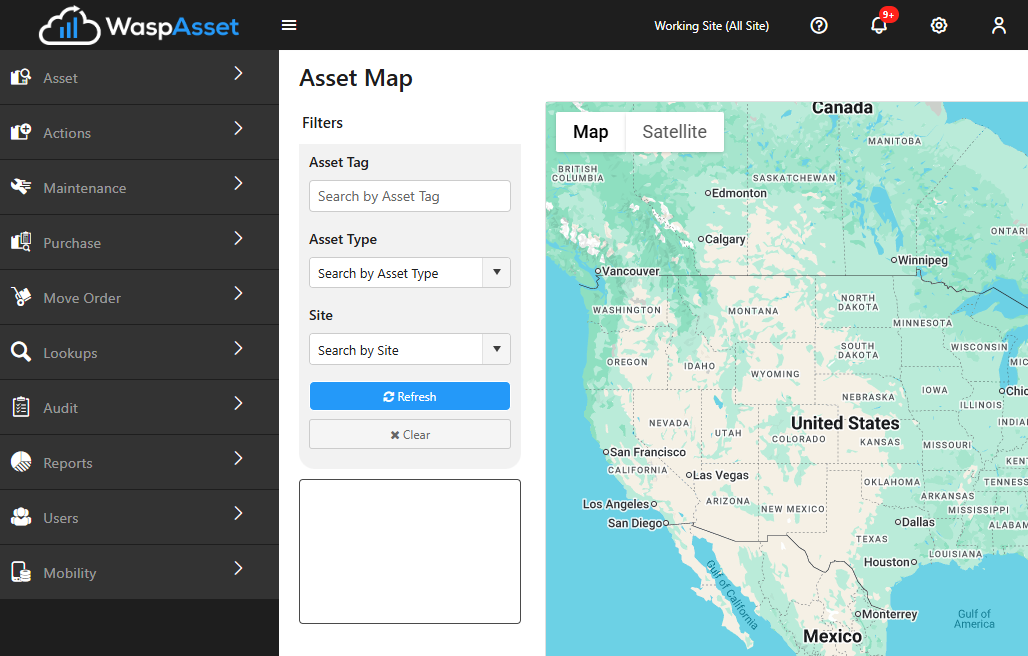
From here you can:
- Filter by asset tag, asset type, and site, and toggle status (Active, Checked Out, Past Due) from the legend.
- Show Geofences to overlay your defined boundaries on the map.
- Click a marker to see the asset’s type, site, location, coordinates, accuracy, and last-updated time, with a View Asset link to open its record.
The Geo Location tab
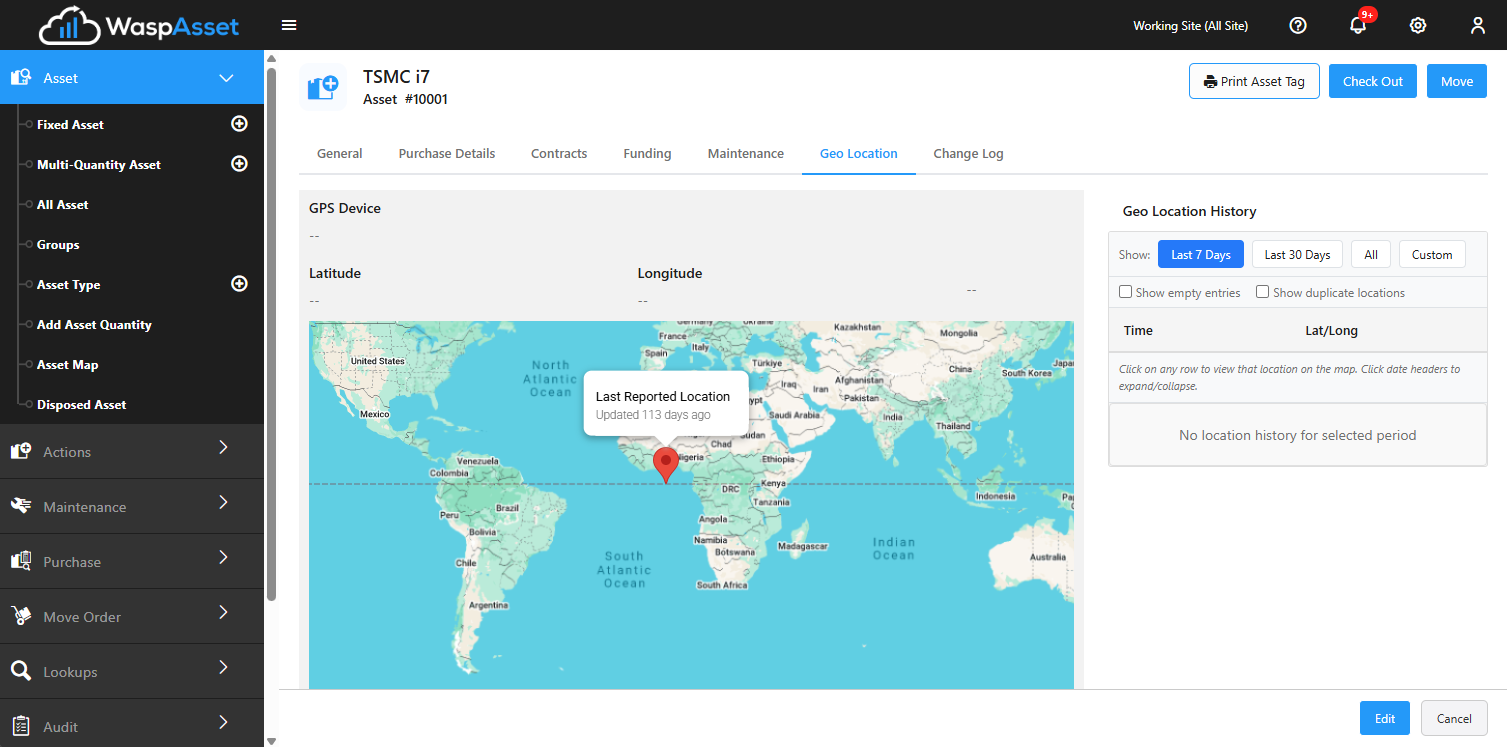
Section titled “The Geo Location tab”Open any asset and go to its Geo Location tab for that one asset’s current position and a Location History panel. History can be filtered by date, and device-reported points are grouped into trips (start, elapsed time, and end), so you can play back where an asset has been.
Geofences
Section titled “Geofences”A geofence is a named circular boundary on the map. Create them under Lookup → Geofences: give the geofence a name, then set its area either by typing an address or by entering a latitude, longitude, and radius (in meters), and fine-tune it by dragging the center or resizing the circle. Geofences drive the map overlay, auto-actions, and geofence notifications.
Geofence Auto-Actions
Section titled “Geofence Auto-Actions”Geofence Auto-Actions let Wasp Asset act automatically when an asset enters a geofence. Open Geofence Auto-Actions (from the Settings menu or the Geofences page) and build a rule such as “when an asset enters Main Yard, Move it to a location,” or Check Out / Check In it. Each geofence can have one Move, one Check-Out, and one Check-In rule.
Troubleshooting
Section titled “Troubleshooting”- The map won’t load / I don’t see Asset Map or Geofences. A valid Google Maps API key must be saved under Settings → Options. If the key is missing, invalid, or over its usage quota, the maps won’t display.
- An asset isn’t on the map. It only appears once it has a captured location — add one on its Geo Location tab, enable transaction capture, or assign a GPS tracker.
- My auto-action didn’t fire. Auto-actions run only from GPS-tracker updates when an asset enters the geofence, and the geofence must have that action configured.
- I can’t edit geofences. Creating and editing geofences needs the geofence permissions on your role — ask an administrator.
Related
Section titled “Related”- Viewing your assets — the asset lists the map draws from
- Notifications — the Asset Left Geofence alert
- Settings & options — where the Google Maps API key and transaction capture are set
- Moving an asset — the action geofence auto-actions can perform