

Purchase orders
A purchase order (PO) records the assets you’re ordering from a vendor — what you want, how many, from whom, and at what cost — so you have a clear paper trail from order to delivery. When the assets arrive, you receive them against the PO to add the quantity to your tracked stock.
Before you begin
Section titled “Before you begin”Purchasing works best when the records a PO draws on already exist, so set these up first:
- A vendor to order from — see Vendors.
- An order site the assets are destined for — see Sites & locations.
- The multi-quantity assets you plan to reorder, already set up in Wasp Asset. A line item points at an existing multi-quantity asset (by its asset type and tag) — it doesn’t create a new one. If the item isn’t in the system yet, add it first (see Adding a multi-quantity asset).
- Optionally, pay methods and shipping providers so the Payment, Ship Via, and Ship Method fields are ready — see Pay methods & shipping providers.
The purchase order list
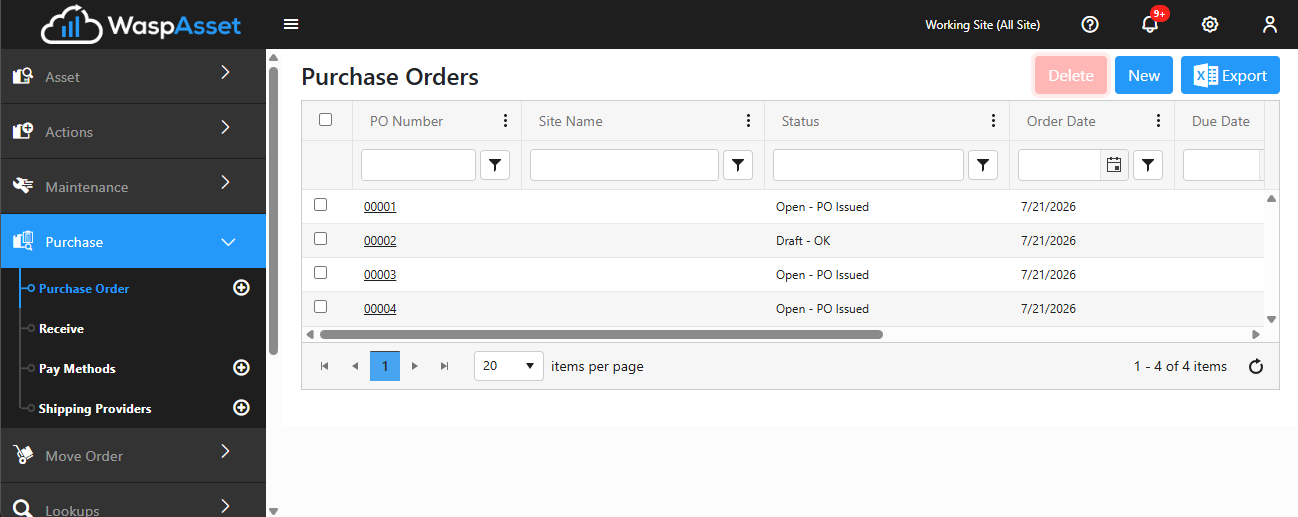
Section titled “The purchase order list”Open Purchase Order from the Purchase section of the left menu to see all your purchase orders. Each PO shows details such as its number, vendor, dates, status, and totals. From here you can open an existing PO to review or edit it, or start a new one.
Create a purchase order
Section titled “Create a purchase order”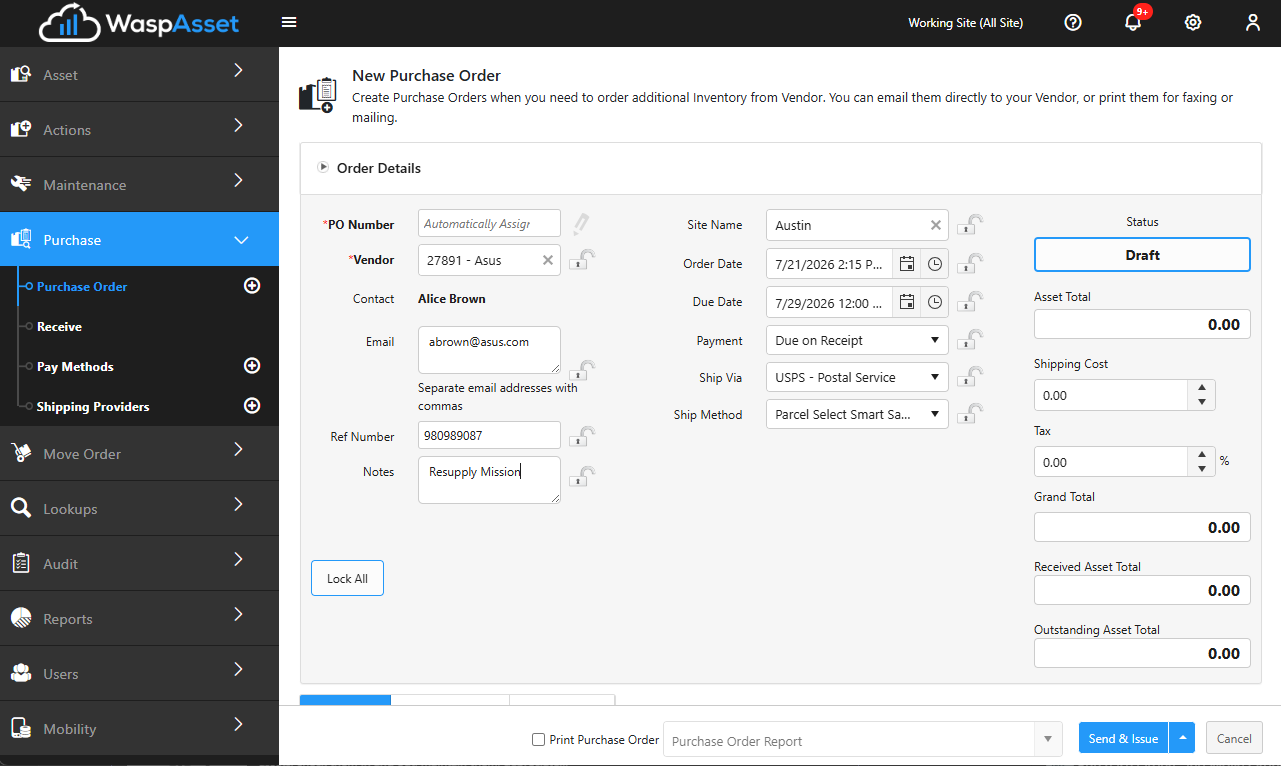
- From the Purchase Order list, choose to create a new purchase order.
- Fill in the Purchase Order Details at the top of the page (see below).
- Add one or more line items for the assets you’re ordering (see Add line items).
- Save the order — see Send, print, or cancel an order for what the save button does at each stage.
Fill in the order details
Section titled “Fill in the order details”The Purchase Order Details section holds the header information for the order:
- PO Number — the identifier for this order. If your system is set to number POs automatically, this field is filled in for you and shows Automatically assigned; click the pencil icon if you need to enter your own number instead.
- Supplier — the vendor you’re ordering from. Start typing to search your vendors by number or name, then pick one. The vendor’s Contact and Email appear automatically.
- Ref Number — an optional reference number of your own.
- Notes — free-text notes about the order.
- Order Site — the site the assets are being ordered for.
- Order Date and Due Date — when the order was placed and when it’s expected.
- Payment — the pay method for the order.
- Ship Via and Ship Method — the shipping provider and method.
As you build the order, the right side shows running totals. Tax is entered as a percentage and is applied to the Item Total; the Grand Total adds that tax and the Shipping Cost to the item total. Below that you’ll see the value already received (Assets Received) and the amount still outstanding.
Add line items
Section titled “Add line items”Each line item points at an existing multi-quantity asset and the quantity you’re ordering more of:
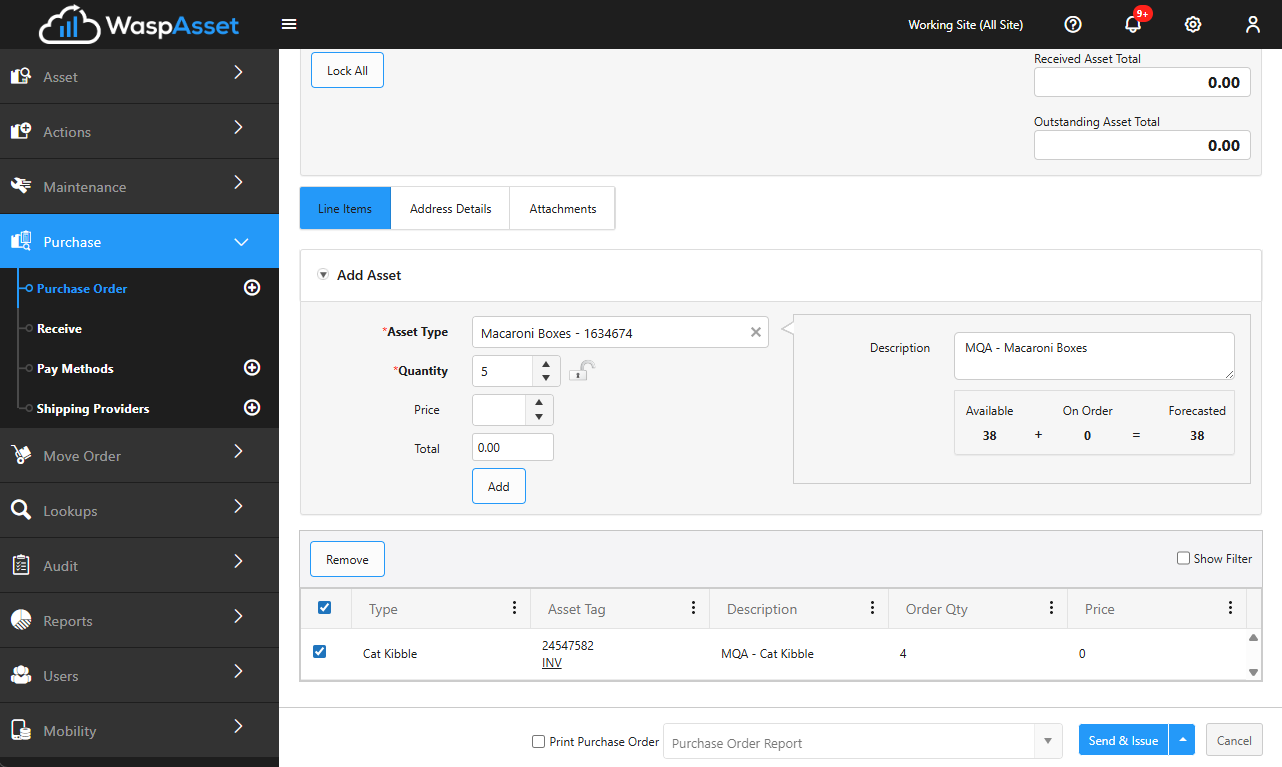
- In the Add Item section, search the Asset Type field for the item. It searches your existing multi-quantity assets by asset type and tag — pick the one you’re reordering.
- Enter the Quantity.
- If costs are shown, enter the Cost per item; the line Total is calculated for you.
- Click Add to add the line to the order.
Added lines appear in the list below, where you can see each line’s type, tag, description, ordered quantity, and — once you start receiving — the quantity received and still outstanding. Click a line to edit its quantity or cost, or select lines and click Remove to take them off the order. You can’t change which asset a line points to once it’s added — remove it and add the item again instead.
Address details and attachments
Section titled “Address details and attachments”Two more tabs sit alongside the line items:
- Address Details — the Supplier and Ship To addresses, filled in automatically from the vendor and order site. Tick Override Supplier Address or Override Ship To Address if you need a one-off address for just this order.
- Attachments — attach files (quotes, contracts, packing slips) to the order for later reference.
Purchase order lifecycle
Section titled “Purchase order lifecycle”A purchase order moves through several statuses as you work with it:
- Draft — a work-in-progress order you’re still building.
- Open — a placed order waiting to be received.
- In Progress — an order that has been partially received.
- Complete — every line has been fully received, but the order hasn’t been closed yet.
- Closed — a finished order. Its fields lock and it can no longer be edited.
- Cancelled — an order that was called off before it was fully received.
An order can also be flagged Overdue when its due date has passed. As assets arrive, you receive them against the order, which updates the received and outstanding quantities.
Send, print, or cancel an order
Section titled “Send, print, or cancel an order”- Send & Issue is the main button while an order is Draft, Open, or In Progress. It saves the order and emails it to the vendor, using the Email address on the order (it defaults from the vendor’s contact — edit it, or separate several addresses with commas).
- Click the small arrow next to the button for other options, including Save (saves without emailing), Cancel Order, and Canceled by Vendor (if the vendor can’t fulfill it).
- Tick Print Purchase Order and choose a report template from the dropdown if you want a printed copy when you save. If your company always prints purchase orders, this is ticked and locked for you automatically.
- If outgoing email isn’t set up yet, Wasp Asset warns you before sending and offers to take you to email settings.
Troubleshooting
Section titled “Troubleshooting”- I can’t find a vendor in the Supplier list. Only vendors you’ve already set up appear here. Add the supplier under Vendors first, then return to the PO.
- The Asset Type search returns nothing. The search only finds multi-quantity assets that already exist in the system — it won’t find fixed assets or an asset type with no items created yet. Add the multi-quantity asset first, then add the line item.
- I don’t see Cost or Total fields. Cost columns appear only when your company is set up to track costs. If they’re missing and you expect them, check your company settings or ask your administrator.
- The PO Number field won’t let me type. Your system is set to number POs automatically, so the field shows Automatically assigned. Click the pencil icon to enter a number of your own instead.
- I can’t edit anything on the order. Purchase orders are only editable while Draft, Open, or In Progress. Once an order is Closed or Cancelled, its fields lock — duplicate it if you need to create a similar new order.
- I can’t delete a purchase order that’s been received against. Once assets have been received, the order has history attached and can’t simply be removed. Close it instead.
Related
Section titled “Related”- Receiving — receive a PO’s items and add them to your asset stock.
- Vendors — the suppliers you order from.
- Pay methods & shipping providers — the Payment, Ship Via, and Ship Method choices.
- Sites & locations — where ordered assets are destined.
- Fixed vs multi-quantity assets — why only multi-quantity assets can be ordered this way.