

Asset details & tabs
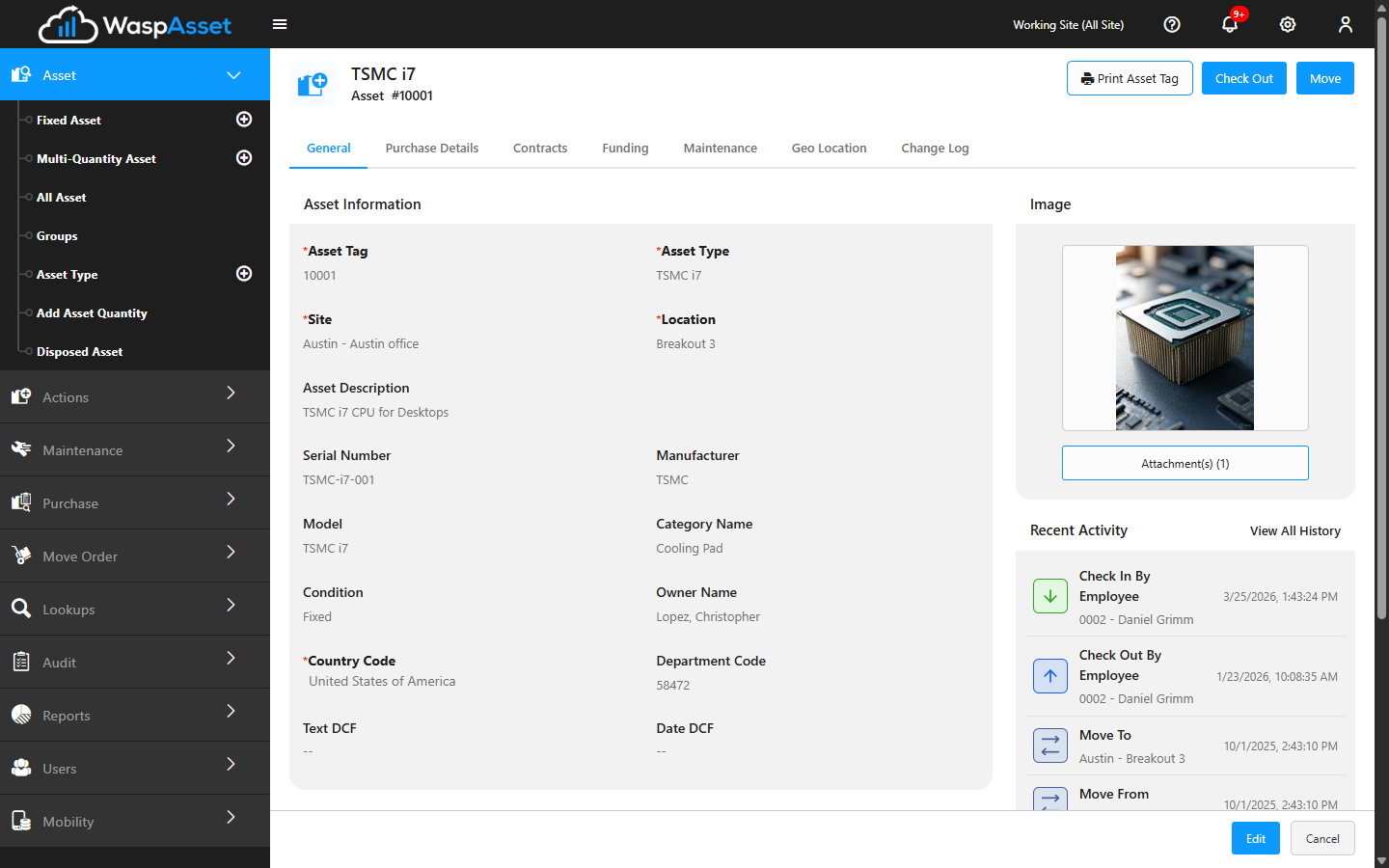
When you open an asset, its detail page is organized into tabs across the top. Each tab holds a different kind of information. This page explains what you’ll find on each one and how to move between viewing and editing.
Before you begin
Section titled “Before you begin”- Anyone with access to the asset lists can open an asset and read its tabs. Making changes (the Edit button) requires edit permission on your role.
- Which tabs appear depends on your edition and your company’s settings, so your asset may show fewer tabs than the full list below.
Opening an asset
Section titled “Opening an asset”Click an asset’s Asset Tag in any list to open its detail page. A banner at the top shows the asset type, its tag, and whether it’s currently checked out and to whom.
Viewing vs editing
Section titled “Viewing vs editing”An asset opens in view mode so you can read its details without changing anything by accident. To make changes, click Edit, update what you need, and click Save. Click Cancel (or Close) to leave without saving.
The tabs
Section titled “The tabs”Not every asset shows every tab. Which tabs appear depends on your edition and your company’s settings.
- General — the core details: asset tag, type, site, location, description, serial number, manufacturer, model, category, condition, owner, department, and warranty dates, plus check-out defaults for the asset. This is where you spend most of your time.
- Purchase Detail — how and when the asset was bought (vendor, purchase cost, purchase date, PO number) plus depreciation settings like the salvage value and depreciation begin date.
- Maintenance — service history and work orders for the asset. See Work Orders.
- Contract — lease or service contracts tied to the asset.
- Funding — funding sources and costs associated with the asset, for finance tracking.
- Custom Field — any extra fields your company has added for its own tracking needs.
- Geo Location — the asset’s map location and address, when location capture is in use.
- Change Log — a detailed log of changes made to the asset over time.
There’s no separate History tab — instead, the General tab shows a Recent Activity panel and a full history popup (see below).
Financial Overview
Section titled “Financial Overview”On an existing asset, the General tab also shows a Financial Overview panel summarizing its financial position: purchase cost, current book value, the percentage of its value depreciated so far, last depreciation date, end-of-life date, purchase date, and vendor. It only fills in once the asset has purchase and depreciation details on the Purchase Detail tab.
Recent activity
Section titled “Recent activity”The General tab also shows a Recent Activity panel — a snapshot of the asset’s last 5 transactions (check-outs, check-ins, moves, and similar), so you can catch up at a glance. Click View All History above the panel to open the asset’s complete transaction history in a popup window.
Printing a tag
Section titled “Printing a tag”To print a barcode label for the asset, use the Print Asset Tag button and choose a label. This is handy when a tag is damaged or missing.
Troubleshooting
Section titled “Troubleshooting”- A tab I expected isn’t there. Maintenance and Contract need the Complete edition, Change Log needs Complete plus a company setting, and Funding needs the Funding feature to be enabled. If a tab is missing, it isn’t included or turned on for your company.
- I can’t find a History tab. There isn’t one — open the Recent Activity panel on the General tab and click View All History to see the asset’s complete transaction history.
- The fields are greyed out and I can’t type. The asset is in view mode. Click Edit first, then make your changes. If there’s no Edit button, your role doesn’t have edit permission.
- My edits didn’t stick. Make sure you clicked Save rather than Cancel or Close. If you leave a tab with unsaved changes, Wasp Asset warns you before discarding them.