

Recovering an asset
Recovering an asset reverses a disposal, bringing the asset back into your active records. Use it when an asset was disposed of by mistake, or when something you’d retired returns to service.
Before you begin
Section titled “Before you begin”- Recover must be enabled for your role. If it’s missing from the Actions menu, ask your administrator.
- Only disposed assets appear here — if the asset you’re after isn’t listed, it’s probably still active.
- Recover is a bulk action: you can bring back many assets at once, so narrow the list before selecting.
Recover an asset
Section titled “Recover an asset”- Open Actions → Recover.
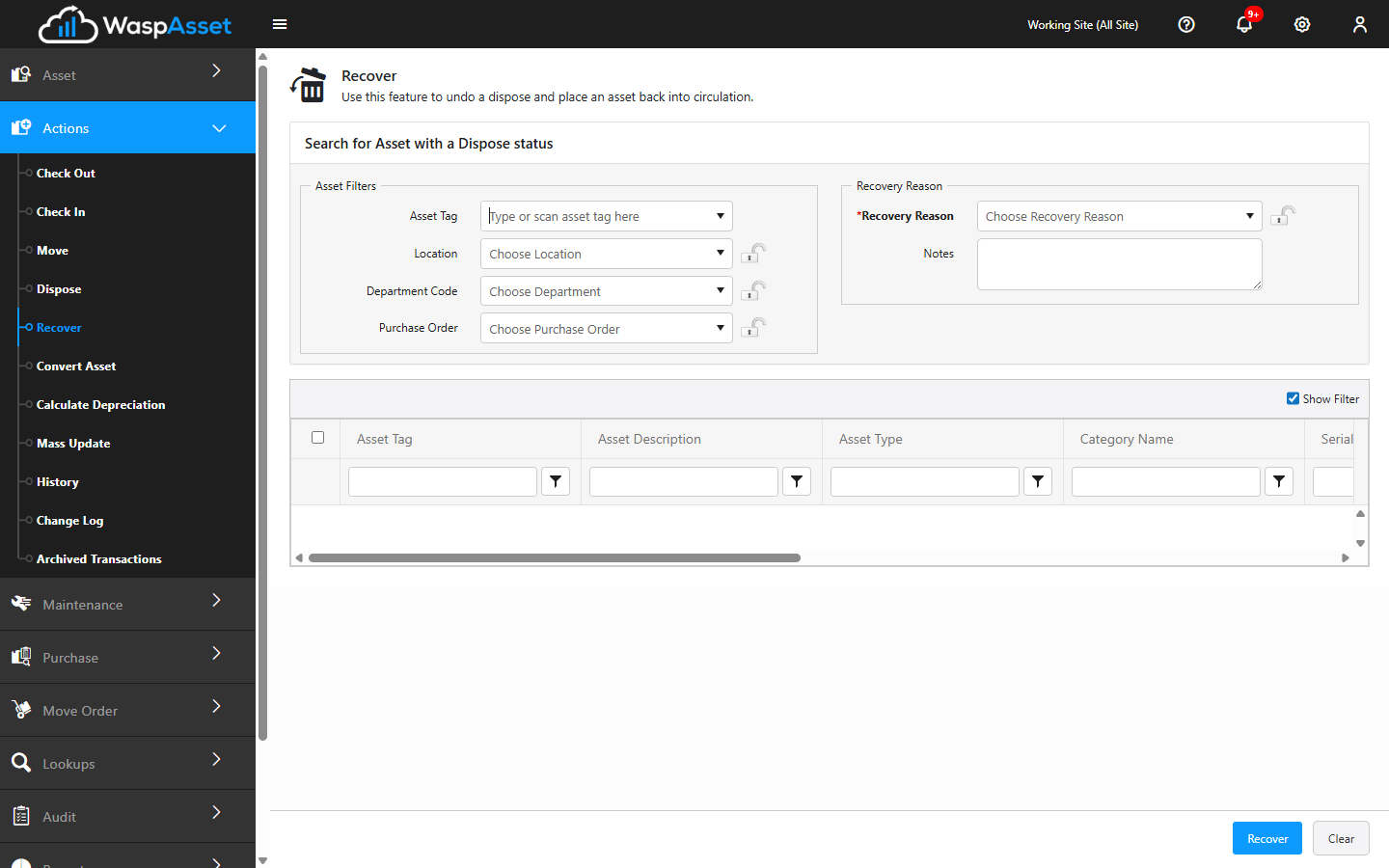
- The list shows assets that have been disposed of. Find the ones you want to bring back — you can search by Asset Tag, Location, Department, or Purchase Order, and filter the list to narrow it down.
- Select the assets to recover.
- Choose a Recovery Reason that explains why the asset is coming back. This is required.
- Add any Notes with more detail.
- Click Recover to complete it. Use Clear to start over.
Once recovered, the asset returns to your active asset lists and can be checked out, moved, and maintained like any other.
Troubleshooting
Section titled “Troubleshooting”- The asset I want isn’t in the list. Recover only shows disposed assets. If it’s not here, it may already be active, or it was never disposed of.
- “Select at least one asset.” Nothing is ticked. Filter the list, then select before clicking Recover.
- The Recovery Reason I need isn’t there. An administrator adds reasons under Lookups → Recovery Reason.
Related
Section titled “Related”- Disposing an asset — retire an active asset
- Disposed assets — review what’s been retired
- Categories, conditions & reasons — manage the Recovery Reason list