

Converting an asset
Converting an asset pulls a quantity out of a pooled multi-quantity asset and turns it into one or more individually-tagged fixed assets. This is handy when you decide some (or all) of a pooled item is worth tracking — and depreciating — on its own.
Before you begin
Section titled “Before you begin”- Convert Asset and multi-quantity tracking must be part of your edition and enabled for your role. If the action isn’t in the Actions menu, your edition or role may not include it.
- Read Fixed vs. multi-quantity assets first if you’re not sure which tracking style fits.
- Know how many units you want to convert and which location they’re coming from — you can only convert up to the quantity available at that location.
Choose the multi-quantity asset and quantity
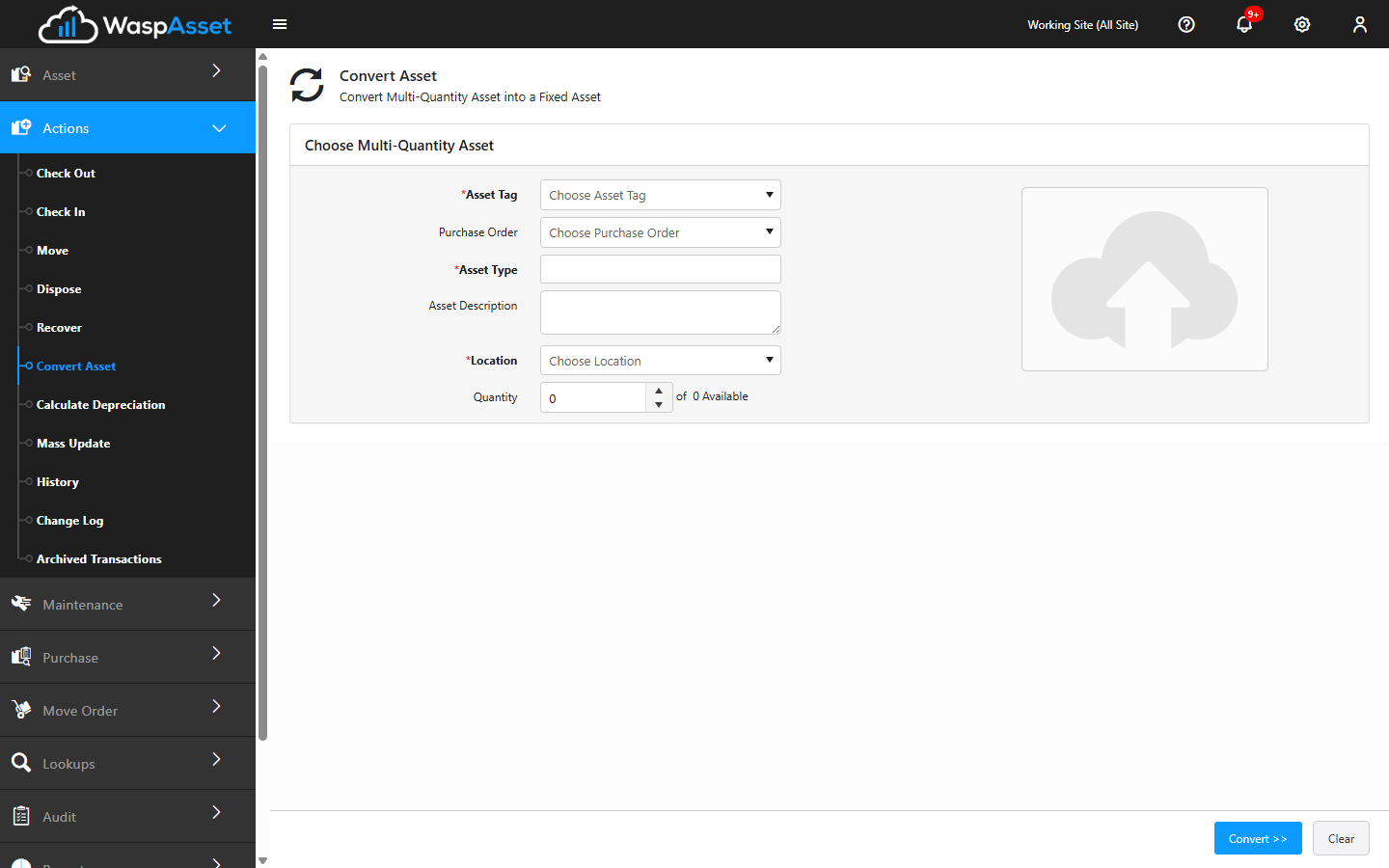
Section titled “Choose the multi-quantity asset and quantity”- Open Actions → Convert Asset.
- Under Choose Multi Quantity Asset, scan or type the Asset Tag of the multi-quantity asset you want to convert, and pick it from the list. Wasp Asset fills in its Asset Type Number and Description for you.
- If the asset was received against a Purchase Order, choose it — Wasp Asset pre-fills this automatically when it can determine the order for you.
- Choose the Location the units are coming from. Wasp Asset shows how many units are available at that location.
- Enter the Quantity to convert — how many units to pull out of the pool. It can’t exceed the quantity available.
- Click Convert >> to continue.
Fill in the new fixed asset’s details
Section titled “Fill in the new fixed asset’s details”Wasp Asset now opens the same kind of form used to add a new fixed asset, with tabs for General, Purchase Details, Attachments, Custom Field, and Geo Location (plus Group Assets in the Complete edition).
- Fill in the General tab — Asset Tag (auto-generated if your company uses that setting), description, category, condition, owner, site/location, and so on.
- Fill in Purchase Details if you want the new asset to depreciate — it needs a Purchase Cost, Purchase Date, and Depreciation Begin Date.
- If you’re converting more than one unit, choose how to proceed:
- Fill in details for one asset and click Convert to create it, then repeat for the rest — Wasp Asset shows Converting X of Y as you go.
- Or tick Convert All to apply the same details to every remaining unit at once, each getting its own tag. Convert All is unavailable when the asset type requires a unique serial number per asset, since you’ll need to enter each one individually.
- Optionally tick Print Asset Tag and choose a label. It prints once every conversion in this batch is finished, not after each individual asset.
- Click Convert to finish, or Cancel to back out.
When the batch finishes, Wasp Asset confirms success and lists the new asset tags it created.
Troubleshooting
Section titled “Troubleshooting”- The asset won’t come up. The Choose Multi Quantity Asset search only lists multi-quantity assets — a fixed asset can’t be converted (there’s no fixed-to-multi-quantity conversion).
- “Quantity cannot exceed available quantity.” The Quantity you’re converting is more than what’s on hand at the chosen location. Lower it or pick a location with enough available.
- “Transaction can be performed only for N assets at a time.” Your administrator has capped how many assets a single transaction can touch (batch conversions included). Convert in smaller batches.
- Convert All is greyed out. The asset type requires a unique serial number for each asset, so you must convert — and enter a serial number for — one unit at a time.
- Depreciation isn’t calculating on the new asset. It needs a Purchase Cost, Purchase Date, and Depreciation Begin Date on the Purchase Details tab. See Calculate Depreciation.
Related
Section titled “Related”- Fixed vs. multi-quantity assets — understand the two tracking styles
- Creating an asset — the same form used for the new fixed asset’s details
- Checking out an asset — multi-quantity assets check out by quantity