

Sites & locations
Sites and locations are how Wasp Asset knows where your assets are. A Site is a building or campus, and a Location is a specific place within that site — a room, shelf, cabinet, or bin. Every asset lives at a location within a site, so setting these up well makes finding, moving, and auditing assets much easier.
Before you begin
Section titled “Before you begin”- Managing sites and locations is usually an administrator task and requires a role with access to the Lookups menu.
- Set up sites before locations — a location must belong to a site.
- A little planning pays off: decide how deep your location hierarchy needs to go (building → floor → room → shelf) before you start, so codes stay consistent.
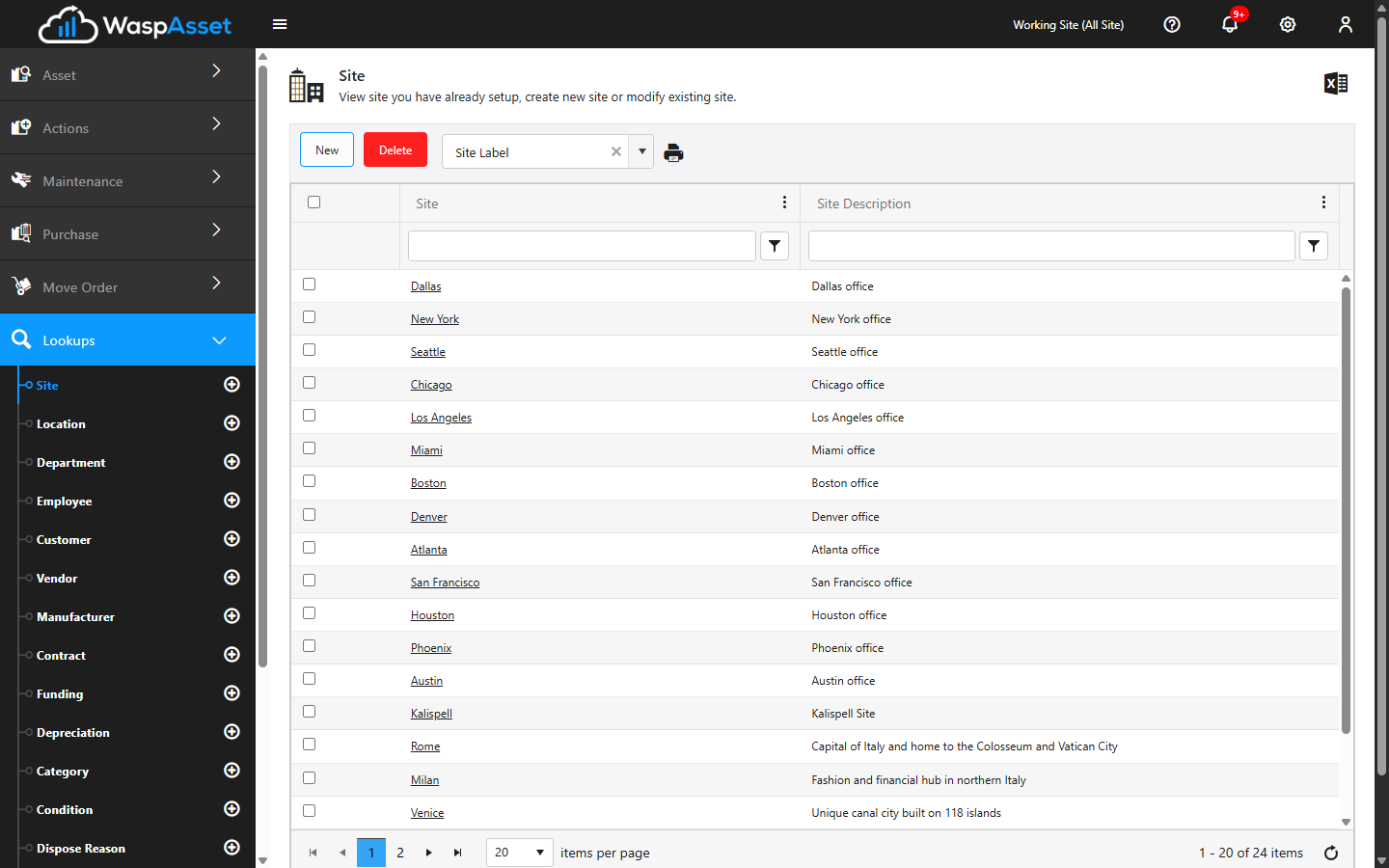
A site is the top level of where your assets live — for example, “Headquarters”, “Warehouse 2”, or “North Campus”.
Add or edit a site
Section titled “Add or edit a site”- Open Site from the Lookups menu to see your list of sites.
- Click Add to create a new one, or click an existing site to edit it.
- Fill in the Site Details:
- Site Name — the name of the building or campus (required).
- Description — an optional longer description.
- Notes — any additional notes.
- If your administrator has added custom fields for sites, switch to the Custom Fields tab and fill those in too.
- Click Save.
Working Site
Section titled “Working Site”The Working Site selector in the top bar lets you scope the whole app to a single site (or All Sites). When you pick a working site, lists, searches, and new records focus on that site — a convenient way to work with one location at a time without filtering everything by hand.
Locations
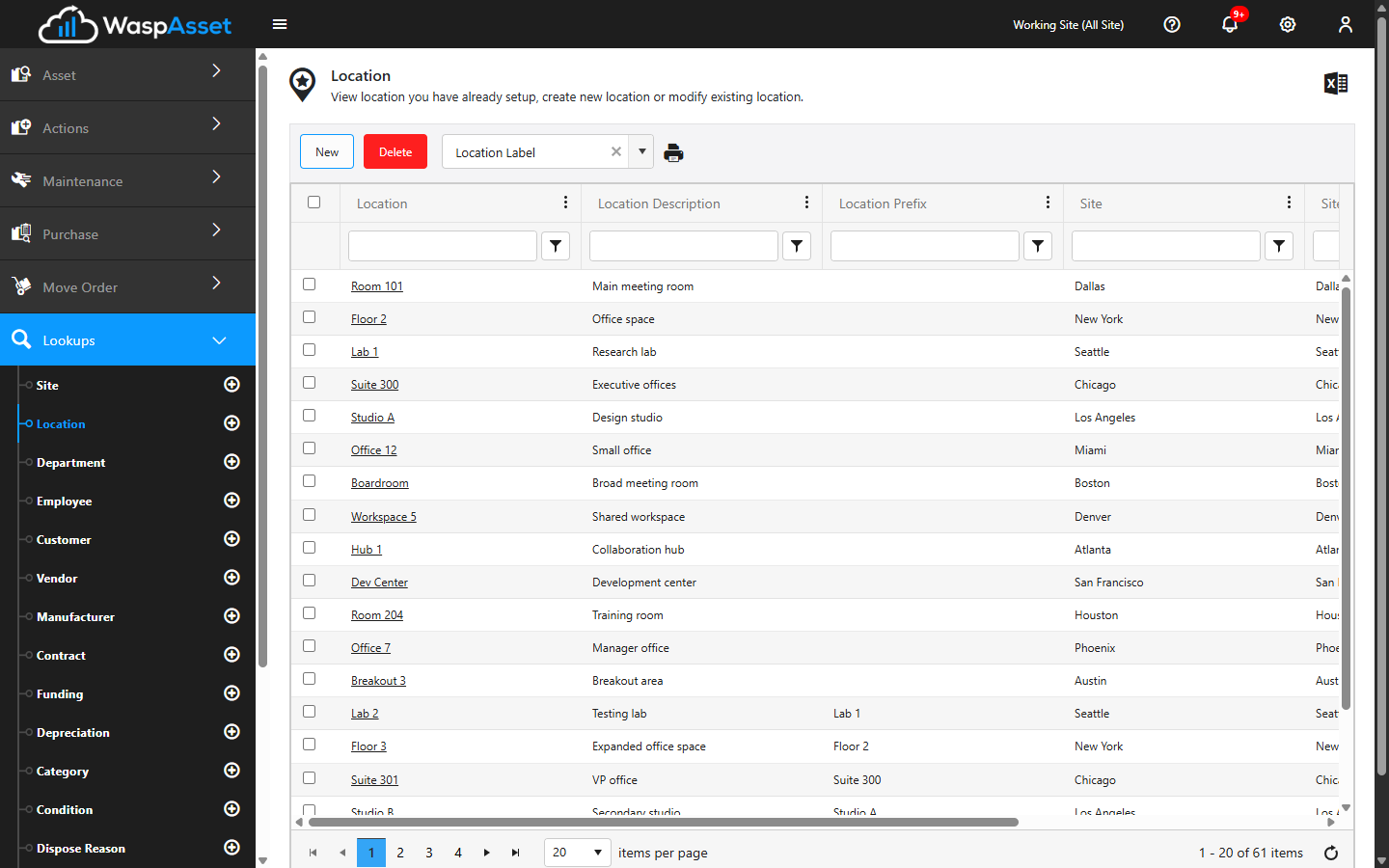
Section titled “Locations”A location is a specific place within a site. Locations can be nested — a location can sit inside a parent location — so you can model real-world storage as deeply as you need (for example, Building → Floor → Room → Shelf).
Add or edit a location
Section titled “Add or edit a location”- Open Location from the Lookups menu.
- Click Add, or click an existing location to edit it.
- Fill in the Location Details:
- Site — the site this location belongs to (required). If the site doesn’t exist yet, you can create it with New Site without leaving the page (subject to the same Site Create permission and edition restriction noted above).
- Parent Location — an optional location this one sits inside.
- Location Code — the identifier for the location (required).
- Description and Notes — optional details.
- If your administrator has added custom fields for locations, switch to the Custom Fields tab and fill those in too.
- Click Save.
Troubleshooting
Section titled “Troubleshooting”- My Add or Delete buttons are grayed out on the Sites page. Creating and deleting sites needs the Site Create / Site Delete permissions on your role, and isn’t available on the Basic edition license. Ask an administrator to check your role’s permissions, or your Wasp Asset edition.
- I can’t delete a site or location. If assets still live there, the record is protected so history stays intact. Move the assets elsewhere first, then remove the empty location.
- My new records aren’t showing up. Check the Working Site in the top bar — if it’s set to a single site, lists are scoped to that site. Switch to All Sites to see everything.
- I can’t pick a location when receiving or moving. Every location needs a site. If the site list is empty, add a site first, then add locations under it.
- New assets keep landing at the wrong site. New records default to the Working Site. Set the working site you want before adding or receiving assets.
Related
Section titled “Related”- Departments & employees — the other side of where and who for your assets.
- Receiving — choose the site and location arriving assets are created at.
- Move — relocate assets between sites and locations.
- Lookups overview — how all the reference lists fit together.