

Tasks
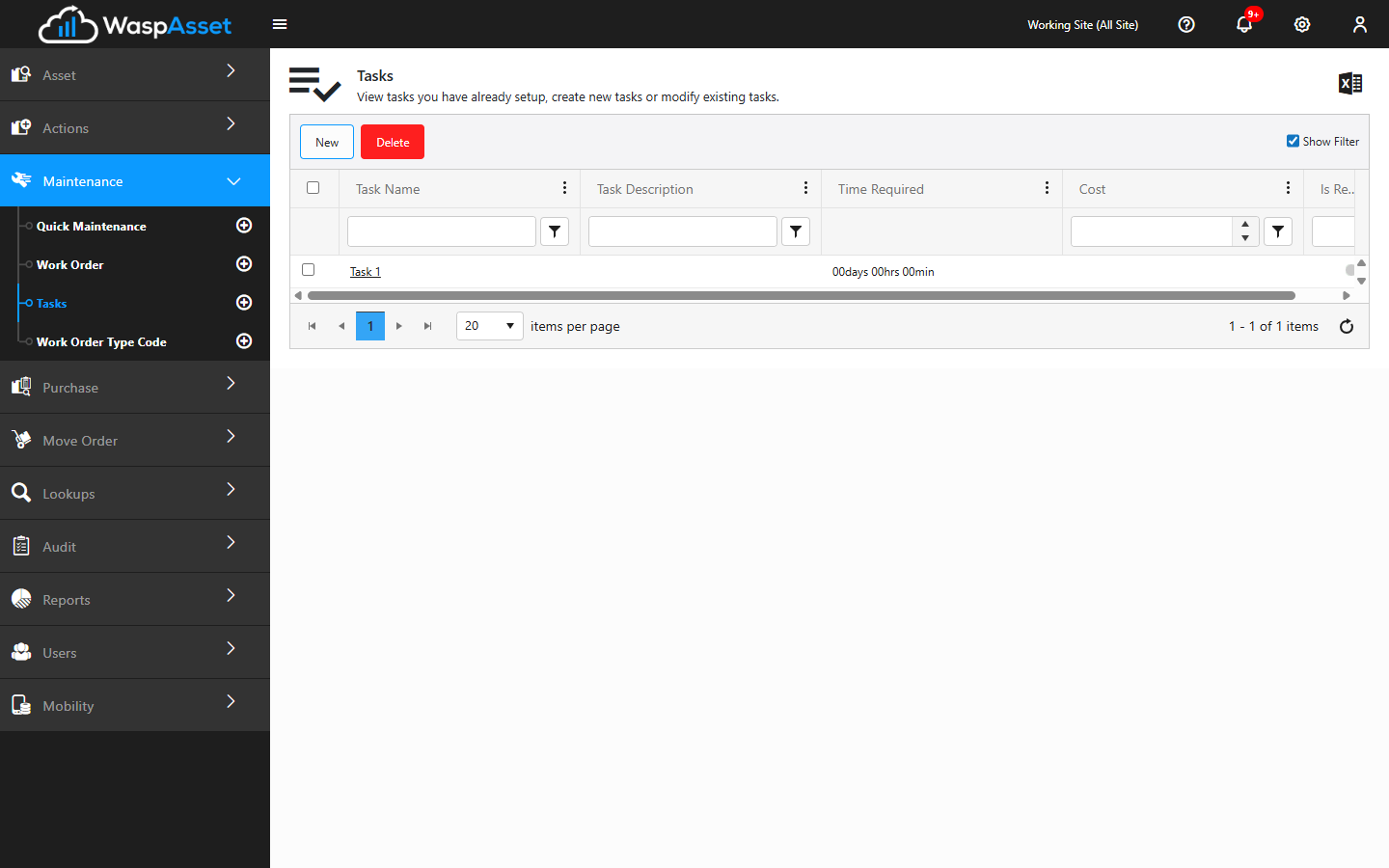
Tasks are the reusable pieces of work that make up your maintenance jobs — things like “Replace filter,” “Calibrate,” or “Annual safety inspection.” You build a library of tasks once, then add them to work orders or log them through Quick Maintenance.
Before you begin
Section titled “Before you begin”- Edition — Tasks are part of the Complete edition.
- Permissions — you need create access to add tasks and edit access to change them. See Roles.
- You don’t have to build tasks first. A work order or Quick Maintenance record can take a typed-in task on the spot. A task library just saves re-entering the same details each time.
Create a task
Section titled “Create a task”- Open Maintenance and choose Tasks.
- Click to add a new task, or open an existing one to edit it.
- Enter a Task Name — this is required and is what you’ll pick from when adding the task to work.
- Enter a Task Description to explain the task at a glance.
- Set the Time Required in days, hours, and minutes — the estimated effort. It’s used as the default when the task is added to a work order or Quick Maintenance record.
- Enter a default Cost for the task.
- Add any Instructions the technician should follow while performing the work.
- If your account supports it, use the Custom Field tab to fill in any additional fields your organization has configured for tasks.
- Save the task.
Assign and complete tasks
Section titled “Assign and complete tasks”Tasks come to life on a work order. When you add a task to a work order, you assign it to the person responsible and give it a due date. As the work happens, mark each task complete on the work order. Once every task is complete, the work order can be closed. The task’s time and cost roll up into the work order’s totals.
Work Order Type Codes
Section titled “Work Order Type Codes”Work Order Type Codes let you categorize your maintenance work — for example by the kind of service or the team that performs it. You manage this list under the Maintenance area, alongside your tasks.
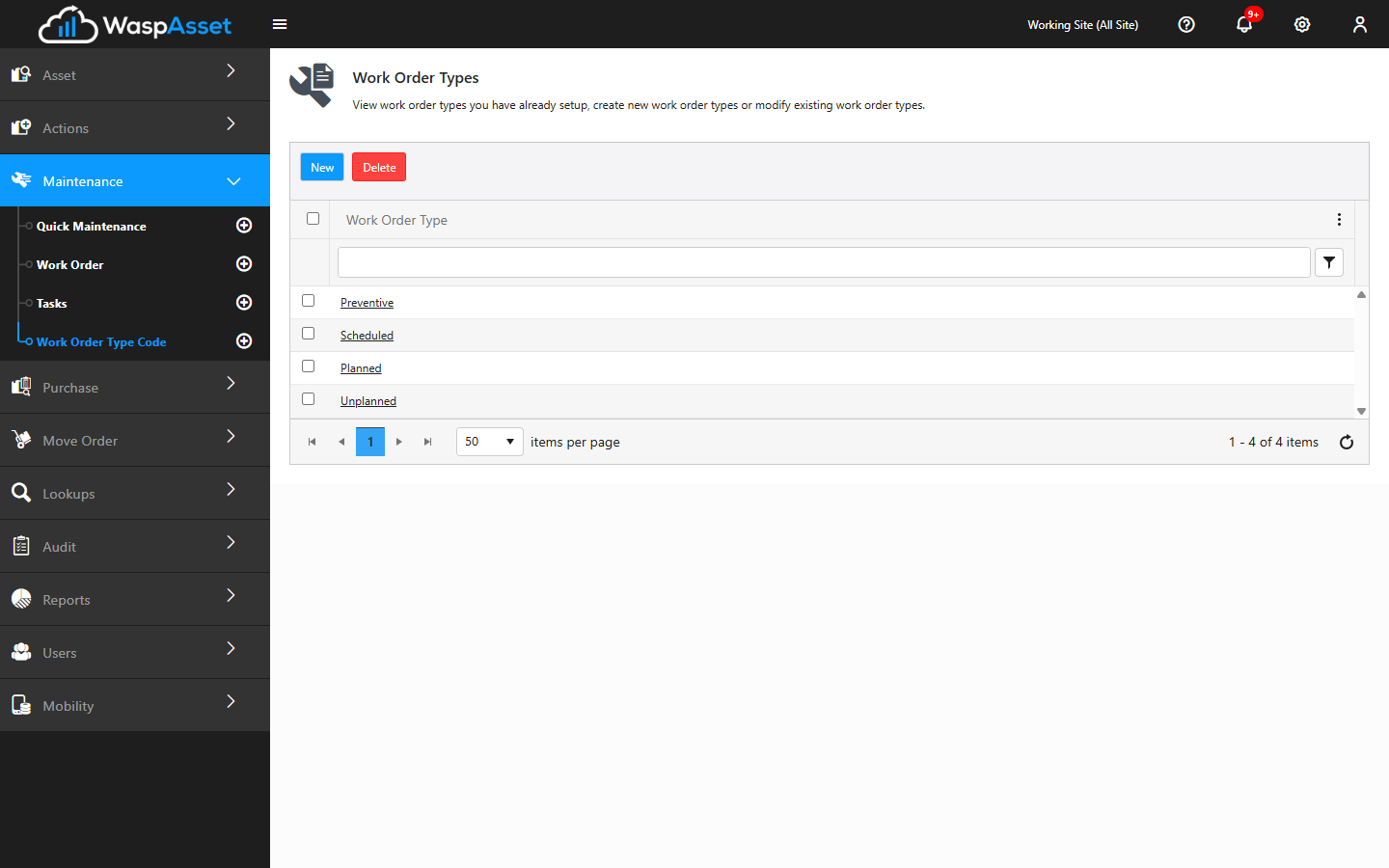
To add a type code, open the Work Order Type Code list, add a new entry, give it a name, and save. The codes you create here become available to choose when you set up maintenance work.
Troubleshooting
Section titled “Troubleshooting”- I can’t save the task. The Task Name is required — make sure it’s filled in. If the whole form is read-only, you have view access but not create/edit access.
- The Custom Field tab is missing. It only appears when your organization has configured custom fields for tasks; otherwise there’s nothing to show.
- A type code I created doesn’t appear on a work order. Type codes are shared across the maintenance area — reload the work order screen so the new entry is picked up.
Related
Section titled “Related”- Work Orders — where tasks are assigned, performed, and completed
- Quick Maintenance — log a task against an asset without a full work order
- Maintenance overview — how the maintenance features fit together