

Move orders
A move order is a request to relocate one or more assets to a different site or location. It lets you plan a move in advance — recording what needs to go where, who requested it, and by when — and then hand it off to be carried out.
Before you begin
Section titled “Before you begin”- Edition — Move Orders are available in the Complete edition.
- Permissions — creating, editing, and deleting move orders is controlled separately from fulfilling them. Fulfilling uses the same move permission as the direct Move action. It’s common for these to be assigned to different roles, since requesting a move and physically carrying it out are often different jobs. If the Move Order menu is missing, ask an administrator to review your role. See Roles.
- Sites and locations — the destination you pick comes from your configured sites and locations, so set those up first. See Sites and locations.
Move order vs. a direct move
Section titled “Move order vs. a direct move”If you just need to relocate an asset on the spot, use the Move action. A move order is for when the relocation should be requested and tracked: someone raises the request, and someone else fulfills it later. This separation is useful when the person asking for the move isn’t the person doing it. See Move for the on-the-spot relocation.
What’s on a move order
Section titled “What’s on a move order”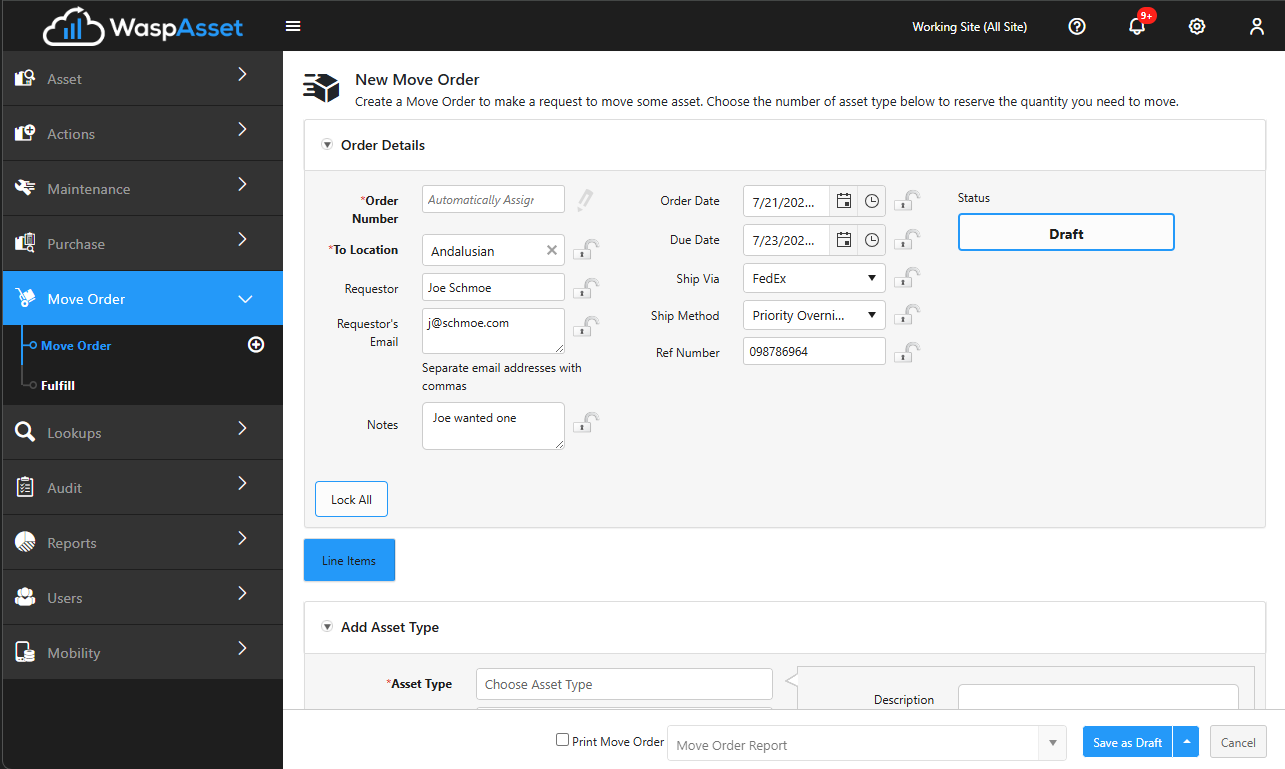
When you create a new move order, you capture:
- A move order number — assigned automatically, or entered yourself. When numbers are automatic, the field shows Automatically Assigned; use the edit (pencil) control to type your own if your number series allows it.
- The destination Location the assets should move to.
- The Requestor and their email, so they can be kept informed. You can enter several email addresses separated by commas.
- Order Date and Due Date for the move.
- Optional Ship Via / Ship Method and a reference number.
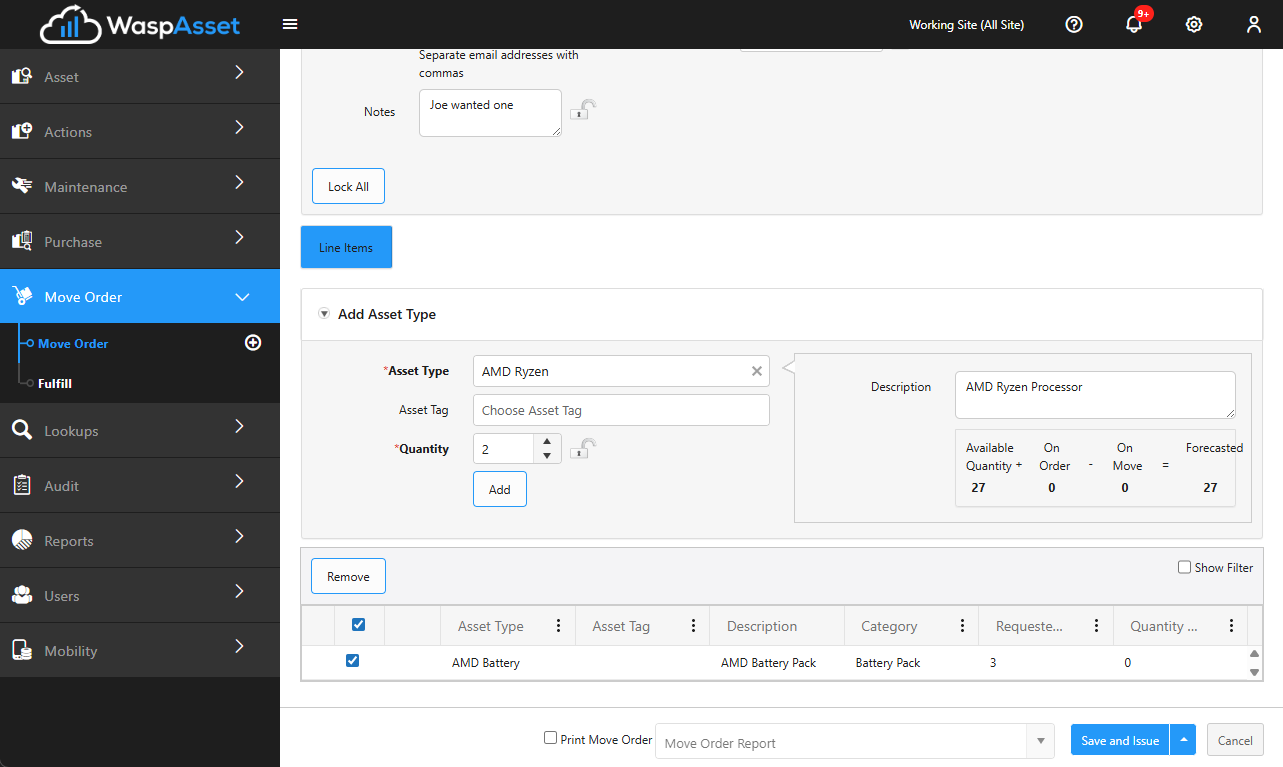
- Notes and the assets (line items) to be moved.
- A status showing where the request stands.
The Move Orders list
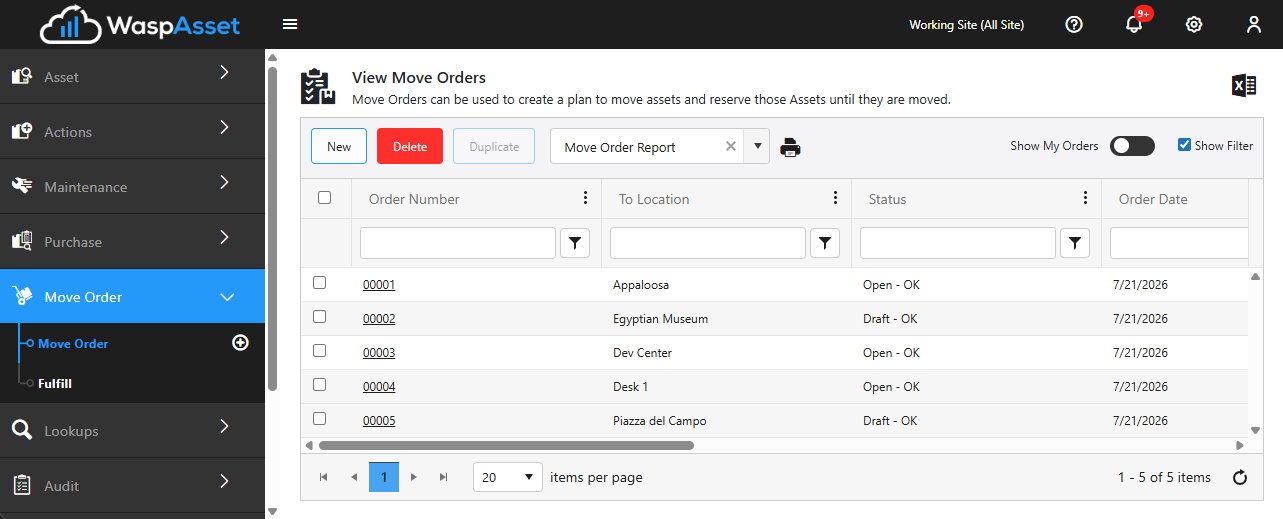
Section titled “The Move Orders list”Open the Move Order section to see the Move Orders list. From here you can:
- New — start a new move order.
- Duplicate — select a single existing move order and copy it into a new one. The details and line items carry over; the notes are cleared and the order date resets to today.
- Delete — select one or more move orders and remove them, with a confirmation prompt first.
- Right-click a move order for a context menu with a Fulfill shortcut, so you can jump straight into fulfilling it without opening it first.
- Toggle My Orders to show only the move orders you created.
- Choose a report and print a move order, or export the list to Excel.
Move orders that have passed their due date are flagged as Overdue.
The lifecycle: create to fulfill
Section titled “The lifecycle: create to fulfill”- Create the move order — record the destination, requestor, dates, and the assets to move. A new order starts as Draft.
- Saving and issuing it moves it to Open, where it’s ready to be worked on. You can also Cancel an order you no longer need.
- Fulfill the move order — confirm the assets and destination and complete the physical move. Fulfilling part of the order moves its status to In Progress.
- Once every asset has been confirmed and the order is closed, its status becomes Closed and the assets reflect their new location.
Troubleshooting
Section titled “Troubleshooting”- A move order shows as Overdue. Its due date has passed and it hasn’t been fully fulfilled — open it to finish the move or adjust the due date.
- I can’t find the destination location. Locations come from your configured sites and locations. If it’s missing, add it first under Sites and locations.
- The move order number field is locked. Numbering is automatic on your account. Leave it to be assigned, or use the edit (pencil) control to override it if permitted.
- The due date won’t save. The due date can’t be earlier than the order date. Adjust one so the due date falls on or after it.
- The Fulfill option is greyed out for a move order. A Draft order needs to be issued (saved and sent) before it can be fulfilled, and Closed or Cancelled orders can’t be fulfilled this way.
Related
Section titled “Related”- Fulfilling a move order — carry out and close a requested move
- Move — relocate an asset on the spot without a move order
- Sites and locations — where destinations come from