

Importing data
Rather than creating records one at a time, you can import a spreadsheet of assets or lookup data (sites, locations, asset types, customers, employees, and more) and let Wasp Asset create or update many records at once. Wasp Asset offers two ways to do this: the newer Import Wizard, a guided step-by-step experience, and the classic Import Data page. Both live under Settings in the left menu.
Before you begin
Section titled “Before you begin”- Permission to import. Access to import is its own permission on your role. If you don’t see either import option, ask an administrator to grant it — see Roles & permissions.
- A spreadsheet of your data. Comma-separated (CSV) or plain text for the classic page; an Excel workbook (
.xlsxor.xls) for the wizard. - Know your dependency order. Records that reference other records — an asset that belongs to a site, for example — import more smoothly when the thing they reference already exists. Both tools list importable data types in dependency order (lookups like Site and Location before Asset), but the wizard can also auto-create a missing reference for you (see Step 2: Map columns).
Two ways to import
Section titled “Two ways to import”| Import Wizard | Import Data (classic) | |
|---|---|---|
| File format | Excel (.xlsx recommended, .xls supported) |
CSV or TXT |
| Column mapping | Automatic, with a review step | Manual, one dropdown per column |
| Multiple data types in one file | Yes — one worksheet tab per data type | No — one file per data type |
| Preview & validate before importing | Yes — a dedicated Review step flags problems first | No — errors surface after the import runs |
| Progress & results | Live progress, then a results screen with counts and a downloadable error list | Live progress bar, plus a separate Error Log page |
What you can import
Section titled “What you can import”Both tools work with the same underlying data types, typically including:
- Lookups: Sites & locations, Asset types, Departments & employees, Customers, vendors & manufacturers, and contracts
- Assets themselves
- Certain asset transactions, such as check-out, check-in, dispose, and adding quantity to a multi-quantity asset
The exact list of importable data types depends on your edition and permissions. The wizard’s Format Guide (see below) always shows the current list for your account, in the order Wasp Asset expects to import them.
Using the Import Wizard
Section titled “Using the Import Wizard”Open Settings, then Import Data NEW (marked with a New badge) — or click Try the new experience from the header of the classic Import Data page. If your account doesn’t have the wizard turned on, that menu entry won’t appear; ask your administrator or Wasp support about enabling it.
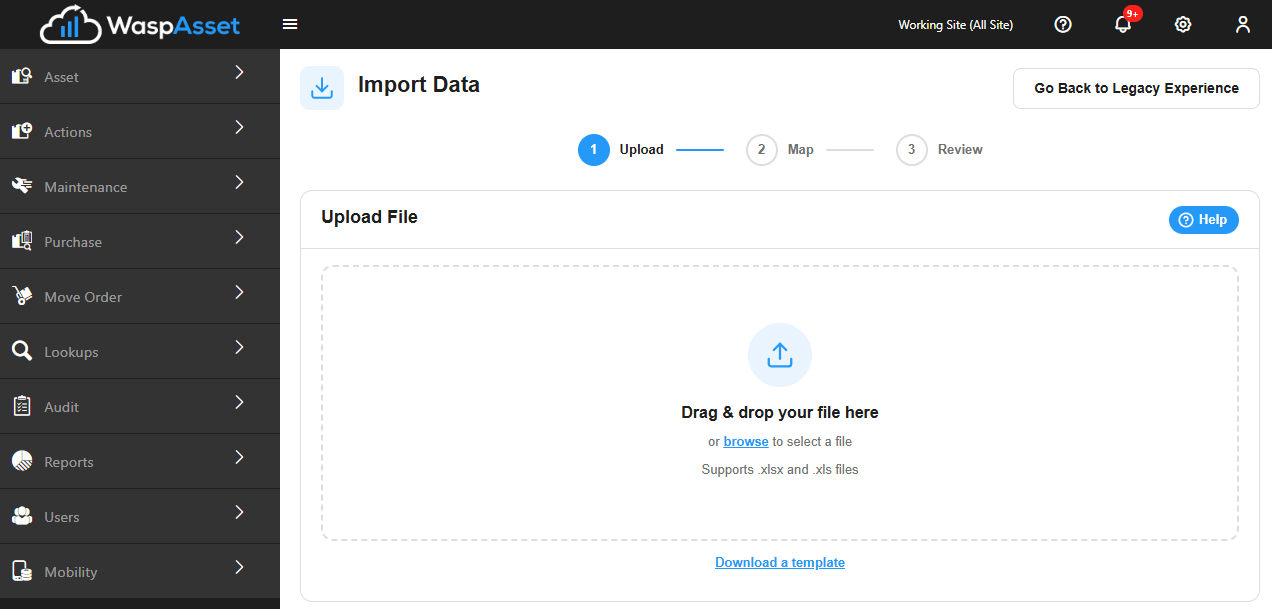
The wizard walks through three steps — Upload, Map, and Review — shown as a stepper at the top of the page.
Step 1: Upload
Section titled “Step 1: Upload”Drag your file onto the upload zone, or click to browse for it. Wasp Asset accepts:
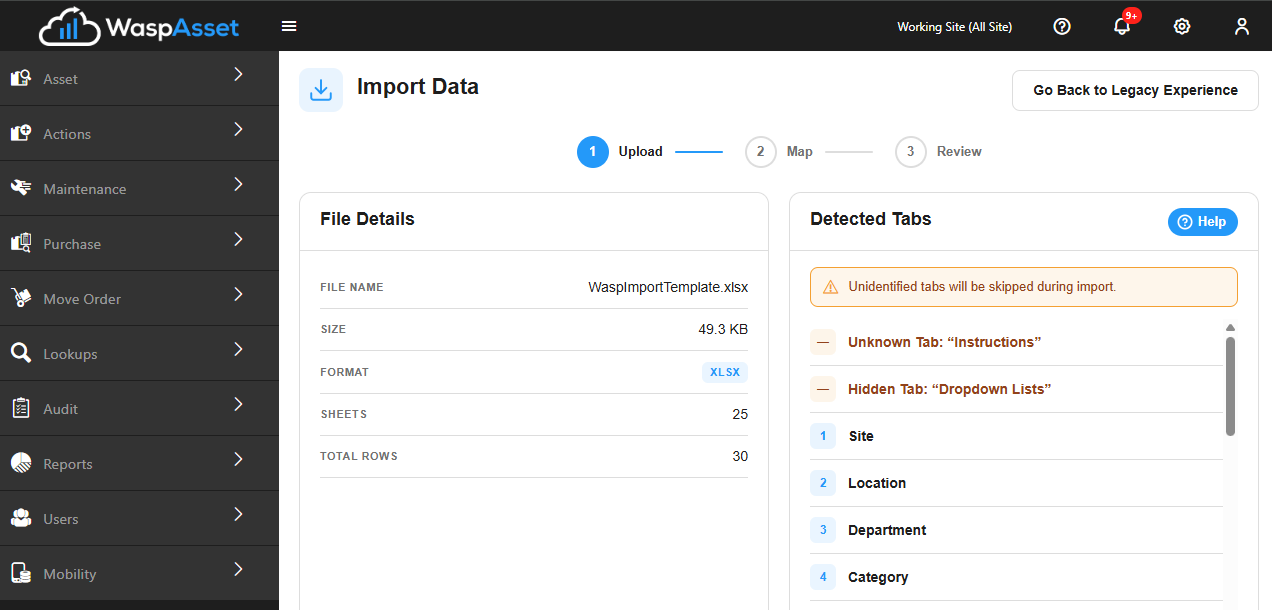
.xlsxworkbooks — the recommended format. Name each worksheet tab after the data type it holds (for example, “Site”, “Asset Type”, “Asset”); the wizard automatically matches tabs to data types. Any tab it can’t match is called out so you can review it, and hidden worksheet tabs are listed too (they’re skipped automatically)..xlsworkbooks — treated as a single sheet; you pick the data type it represents from a dropdown.
Once the file is accepted, its name, size, format, and (for .xlsx) sheet and row counts are displayed, along with the detected data for each tab.
Step 2: Map columns
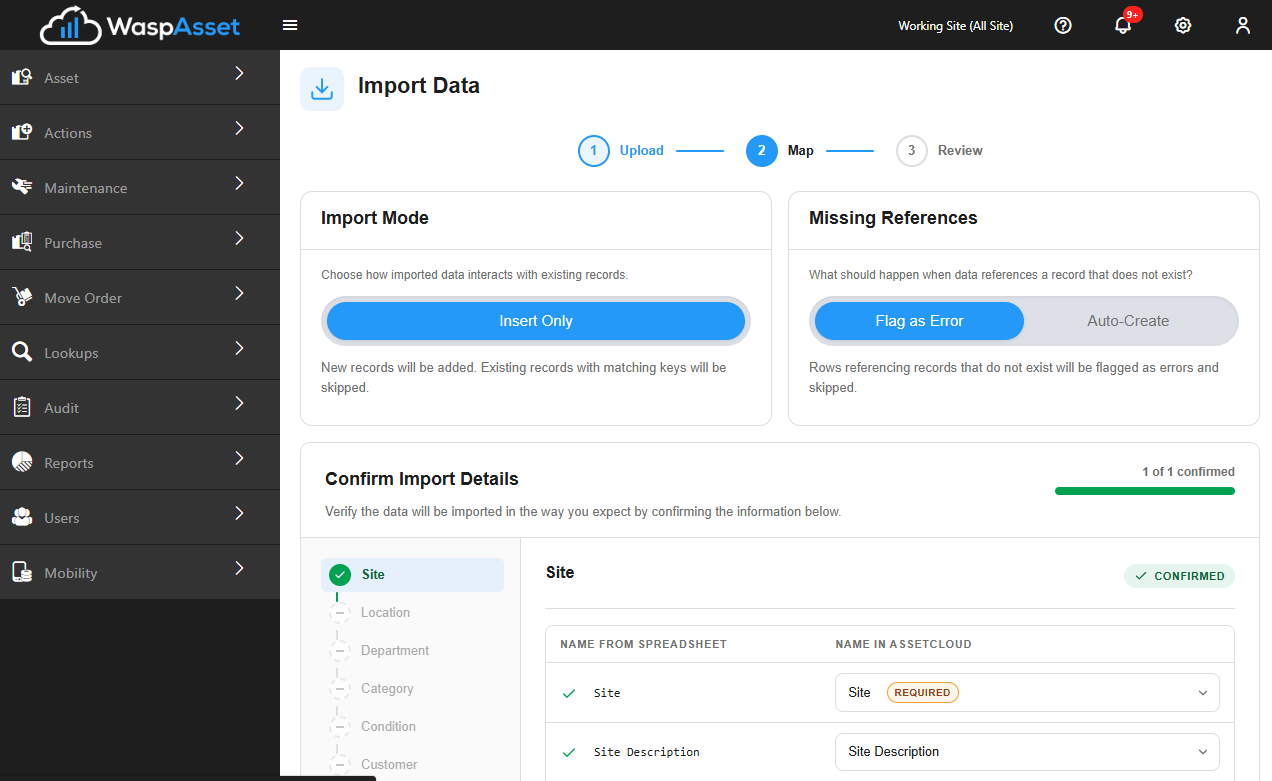
Section titled “Step 2: Map columns”Click Continue to move to the Map step. A rail on the left lists every data type detected in your file, in dependency order; click through them one at a time using the rail or the Prev/Next buttons.
For the active data type:
- Each spreadsheet column is matched to a Wasp Asset field automatically (an exact name match, a known alternate name, or a close match), with a status icon showing whether the match is confident, needs your review, or is still unmapped. Change any mapping using its Maps to dropdown.
- A live preview of your data shows how the mapped columns will look, and flags columns where a required field is blank in some rows.
- Two account-wide settings apply to the whole import:
- Import Mode — currently locked to Insert Only (new records are added; other modes are coming in a future release).
- Missing References — choose whether a referenced record that doesn’t exist yet (for example, an asset’s site or asset type) should be flagged as an error, or created automatically for you.
Click Confirm Mapping for each data type once it looks right (the wizard confirms it for you automatically when every column matches confidently). Once every data type is confirmed, Validate Data becomes available.
Step 3: Review & import
Section titled “Step 3: Review & import”Clicking Validate Data reads through your whole file and reports:
- Ready, Errors, and Info counts across everything you’re about to import
- A row-by-row issue list (severity, data type, row number, field, value, and the problem found), which you can download as a CSV
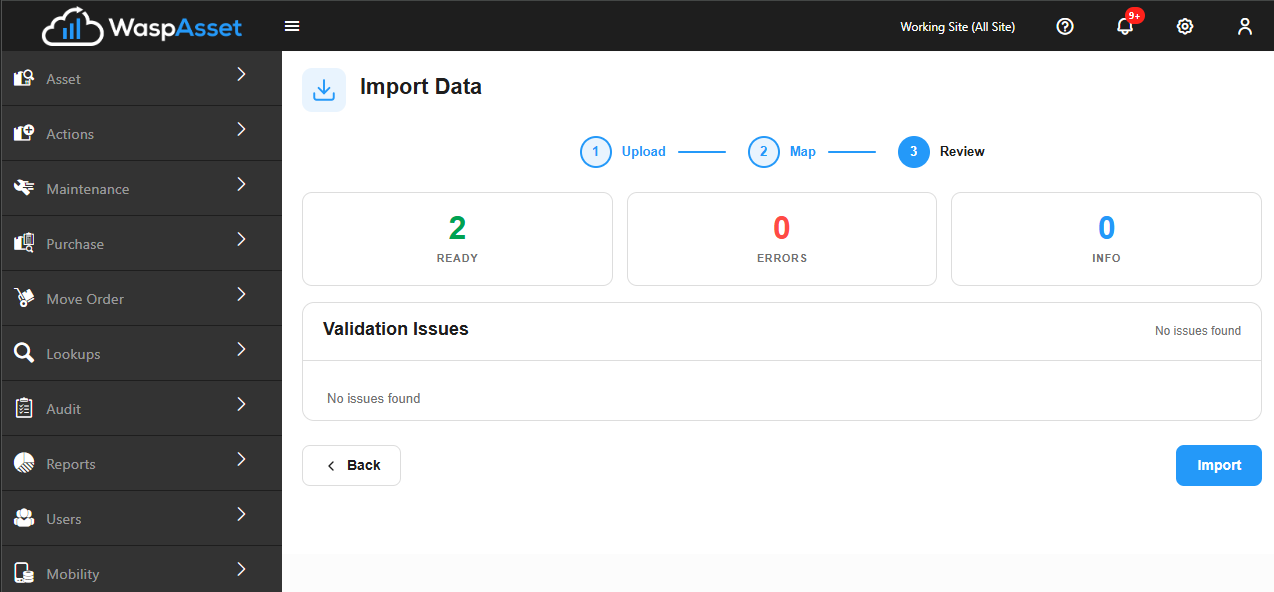
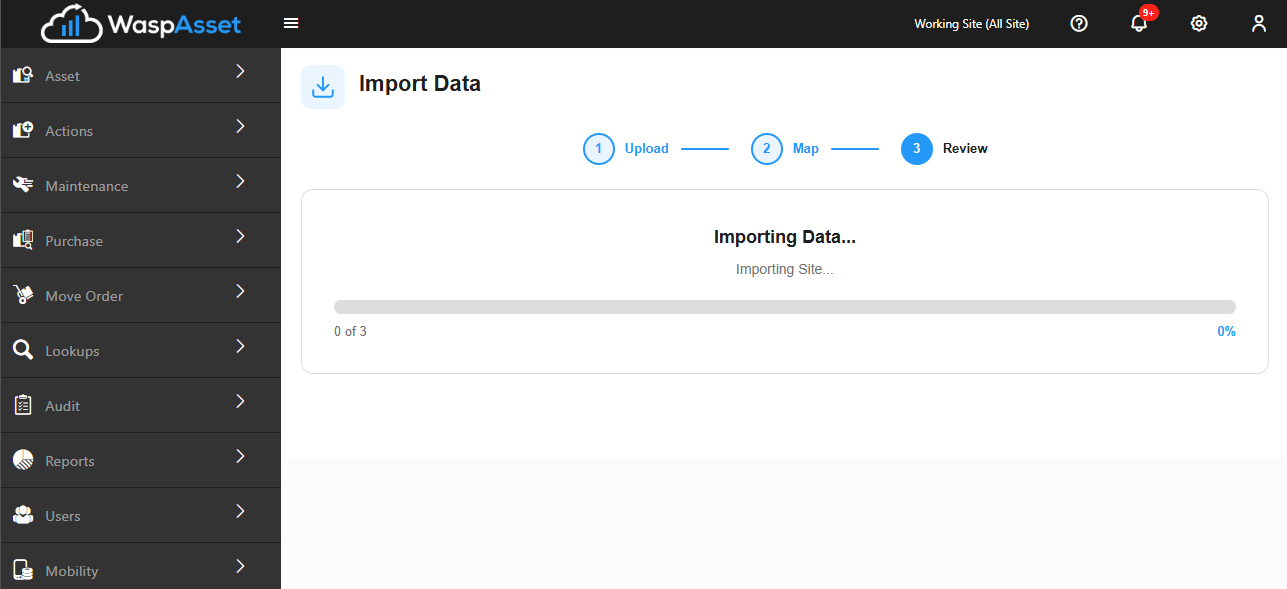
Fix any errors in your source spreadsheet and re-upload if needed — you can’t import while errors remain. When you’re ready, click Import. The import runs in the background with a live progress bar; you can Cancel it at any point.
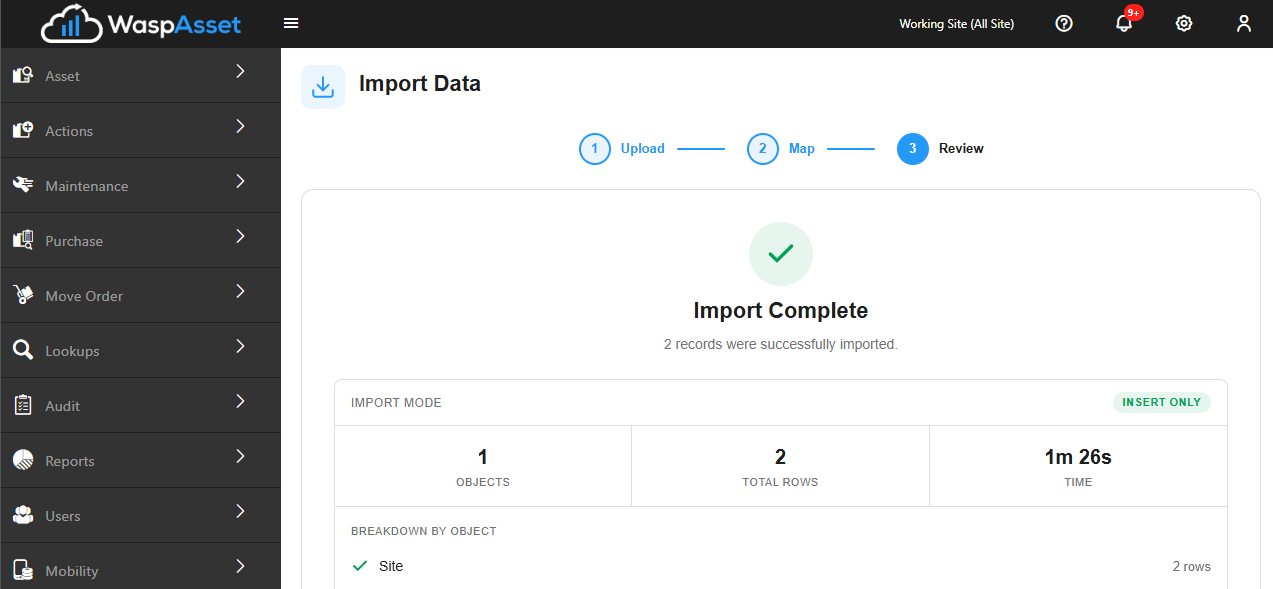
When it finishes, you’ll see a results screen with the total objects and rows imported, how long it took, and a per-data-type breakdown. If any individual rows failed, an Import Errors card lists them (also downloadable as a CSV) without blocking the rows that succeeded. Click Import Another File to start over.
Using the classic Import Data page
Section titled “Using the classic Import Data page”Open Settings, then Import Data.
Set up the import
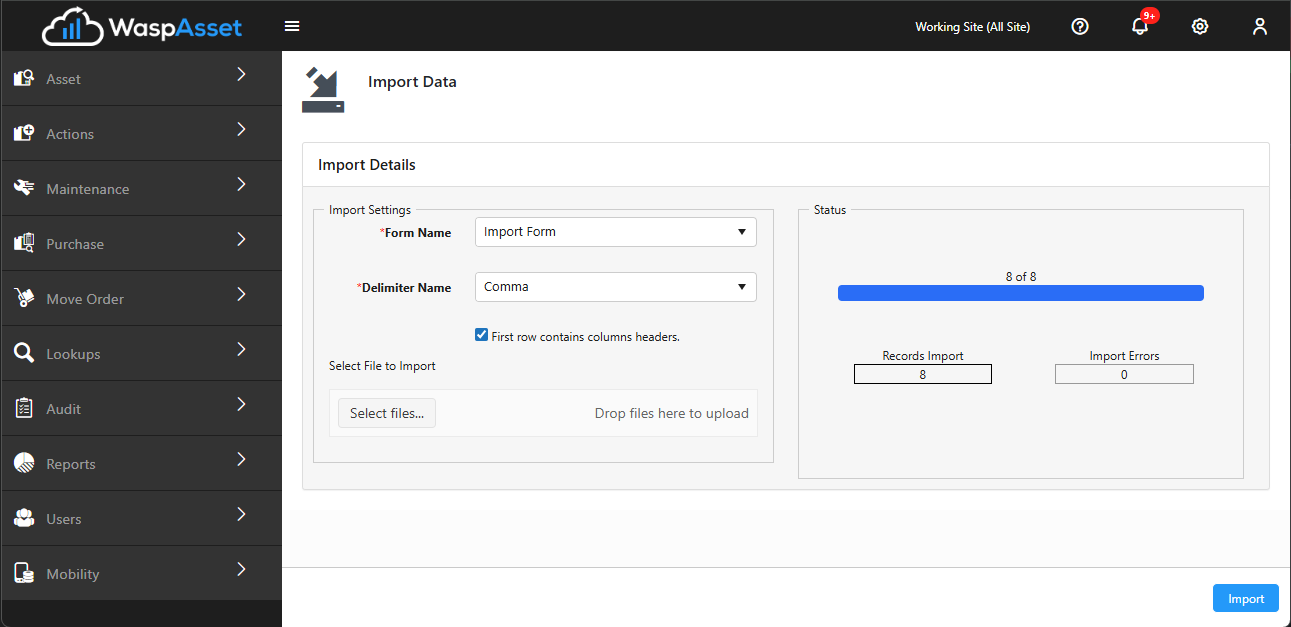
Section titled “Set up the import”- Choose the data type from the Form Name dropdown (for example, Site, Asset Type, Asset, Customer).
- Choose the Delimiter your file uses — Comma, Tab, Semicolon, Space, Slash, Dash, None, or a Custom character you type in.
- Leave First row contains column headers checked if your file’s first row is a header row (it’s checked by default).
- Depending on the data type you chose, you may see one of these:
- For Site, Location, and Asset Type: an Only update existing records checkbox, so the import skips anything that isn’t already in the system.
- For Asset, Customer, Employee, and Vendor: a note that the import updates matching existing records and creates new ones as needed. Customer, Employee, and Vendor also get a Full Sync (with delete) checkbox.
Upload & map columns
Section titled “Upload & map columns”Upload your CSV or TXT file (one file at a time). Once it’s uploaded, a preview grid appears with a dropdown above each column so you can map it to a Wasp Asset field — headers that match a field name are mapped automatically. Fields marked required must all be mapped before you can import, and mapping the same field to two columns isn’t allowed.
Run the import & check results
Section titled “Run the import & check results”Click Import Data to start. A progress panel tracks records processed, records imported, and errors in real time; use Cancel if you need to stop it. When it finishes, you’ll get a success, partial, or failure message. If there were errors, click View Error Log to open a grid (in a new tab) listing every failed row and why, which you can export to Excel. Click New Import to start again.
Troubleshooting
Section titled “Troubleshooting”- The data type I need isn’t in the list. What’s importable depends on your edition, license, and permissions — check with your administrator.
- I don’t see the Import Wizard option under Settings. It’s a per-account setting that may not be turned on yet. The classic Import Data page covers the same data types in the meantime.
- The Import button stays disabled (classic page). Every required field must be mapped to a column, with no field mapped twice, and (for a custom delimiter) a delimiter character entered.
- My spreadsheet’s column headers didn’t map automatically. Rename them to match a Wasp Asset field name, or download the template for that data type as a starting point. In the wizard, just fix the mapping manually with the Maps to dropdown — a manual mapping is remembered for that data type.
- A referenced record (like a site or asset type) doesn’t exist yet. In the wizard, set Missing References to auto-create it, or add the referenced record first and re-import. On the classic page, the referenced record must already exist — check the Error Log for rows that failed for this reason.
- Full Sync deleted records I wanted to keep. Full Sync (with delete) removes anything missing from the file. Use it only with a complete, authoritative export, and stick to a plain import if you’re only adding or updating a subset.
- The import seems stuck. Both tools run the import in the background and report progress live; try refreshing the page — the classic page and the wizard both pick their status back up rather than losing your place.
- Accented or special characters look wrong after a CSV import. The classic import reads files using the Windows-1252 encoding. Save your CSV with that encoding, or use the Import Wizard, which reads Excel files directly and avoids the issue.
- I need to see exactly what failed. Use View Error Log (classic) or the Validation issues / Import Errors cards (wizard) — both let you export the details so you can fix your source file and re-import just the rows that failed.
Related
Section titled “Related”- Sites & locations — a common data type to import before assets
- Asset types — templates your imported assets will use
- Departments & employees — importable lookup data
- Customers, vendors & manufacturers — importable lookup data
- Adding an asset — create or edit a single asset by hand
- Roles & permissions — grant the Import permission to a role