

Quick Search
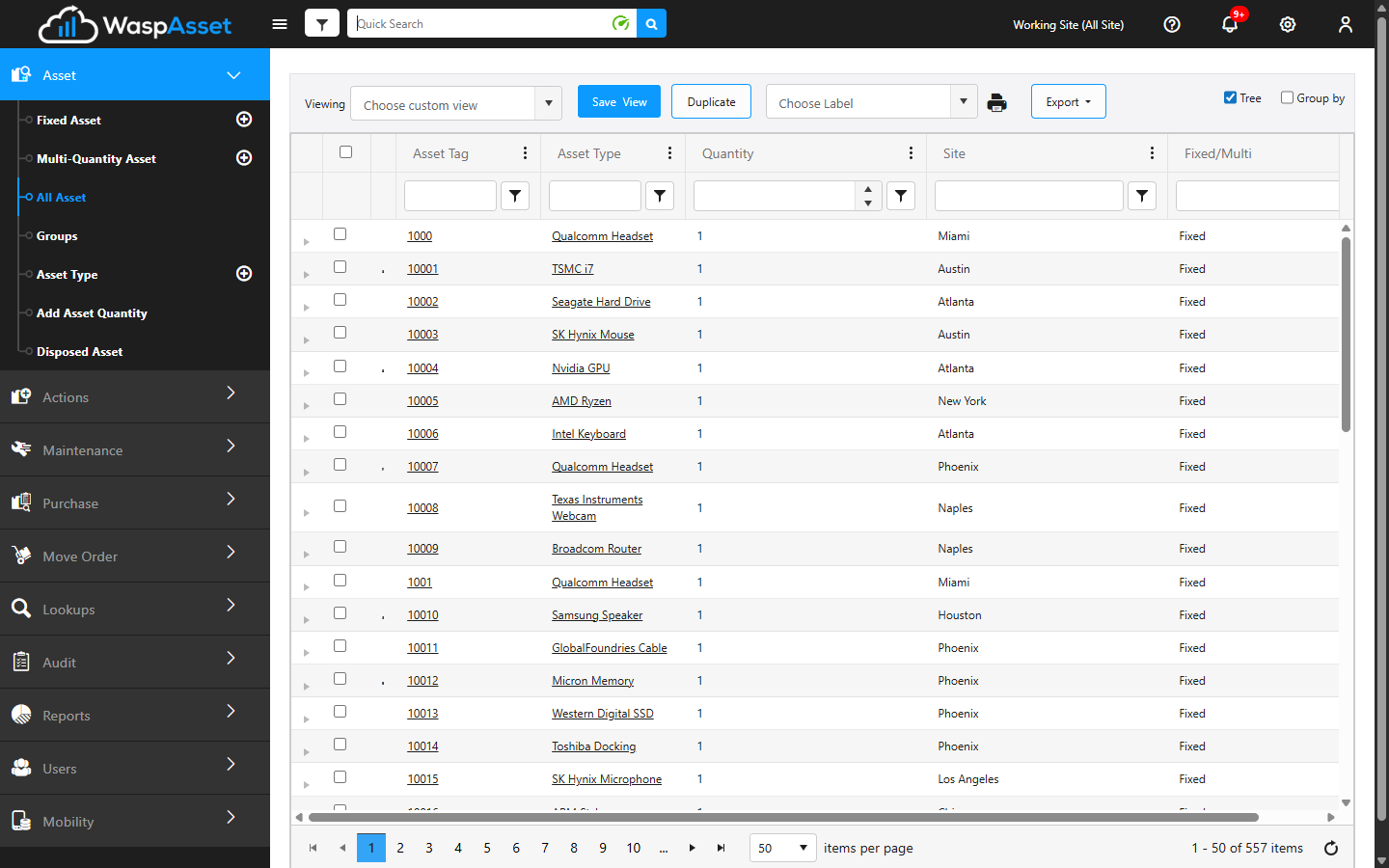
Quick Search in the top bar is the fastest way to find an asset while you’re viewing the All Asset list. Type what you’re looking for, and Wasp Asset returns the matching assets right away.
Before you begin
Section titled “Before you begin”Quick Search appears in the top bar while you’re on the All Asset page (Asset > All Asset in the left menu) — it isn’t shown on other pages. It finds assets, and it looks within your current Working Site. If you’re searching for something at another location, switch to All Sites first (see Choose your Working Site).
Search for an asset
Section titled “Search for an asset”- Open the All Asset page.
- Click in the Quick Search box in the top bar.
- Type what you’re looking for — an asset tag, description, serial number, or other detail.
- Press Enter to see the matching assets.
The results appear in the main grid, where you can sort, filter, and open any item just as you normally would.
Choose which fields and operators to search
Section titled “Choose which fields and operators to search”By default, Quick Search matches your text against the Asset Tag and Serial Number fields using the is equal to operator. To search more precisely — or search other fields — open the filter popup next to the search box:
- Click the filter icon beside the Quick Search box.
- Choose up to three fields to search — for example asset tag, description, or serial number.
- Choose an operator that controls how your text is matched, such as contains, is equal to, starts with, or ends with. The operator applies to all the fields you’ve chosen.
- Enter your search text and run the search.
Narrowing to a specific field and operator is the quickest way to zero in on one asset when a broad search returns too many results.
Clear a search
Section titled “Clear a search”To return to the full list of assets, clear your search:
- Click Clear (or the clear icon) next to the Quick Search box.
The search text is removed and the grid shows all assets for your current Working Site again.
Troubleshooting
Section titled “Troubleshooting”I don’t see a Quick Search box. Quick Search only appears in the top bar while you’re on the All Asset page. It isn’t shown on the Fixed Asset, Multi-Quantity Asset, or other grids.
My search returns no results. Check your Working Site (switch to All Sites to search everywhere) and your field and operator in the filter popup — the default is equal to operator must match the value exactly, so try contains instead, or search a different field.
I’m getting far too many results. Open the filter popup and narrow to a single, more specific field (such as asset tag or serial number) with a precise operator like is equal to or starts with.
Pressing Enter doesn’t do anything. Make sure your cursor is in the Quick Search box and that you’ve actually typed something before pressing Enter — an empty box won’t run a search.
I want to get back to the full list. Click Clear (or the clear icon) next to the search box to remove the search text and show all assets for your current Working Site.
Related
Section titled “Related”- A Tour of the Screen — where Quick Search lives in the top bar
- Viewing assets — sort, filter, and build custom views on the results grid
- Signing In and Out — how the Working Site scopes your searches