

Running an audit
The Audit page is where you physically count your assets. You choose which assets you’re verifying, then scan or mark each one you find so Wasp Asset can tell what’s present, what’s missing, and what needs a closer look.
Before you begin
Section titled “Before you begin”- You need audit access on your role. If the Audit page shows an insufficient-permissions message, ask your administrator to enable it.
- A barcode scanner makes counting far faster, but it isn’t required — you can type an asset tag or check assets off by hand.
- If you’re counting against a scheduled window, create it first on the Audit Window page.
- Auditing works best one place at a time, so know which site and location you’re standing in before you load assets.
Open the Audit page
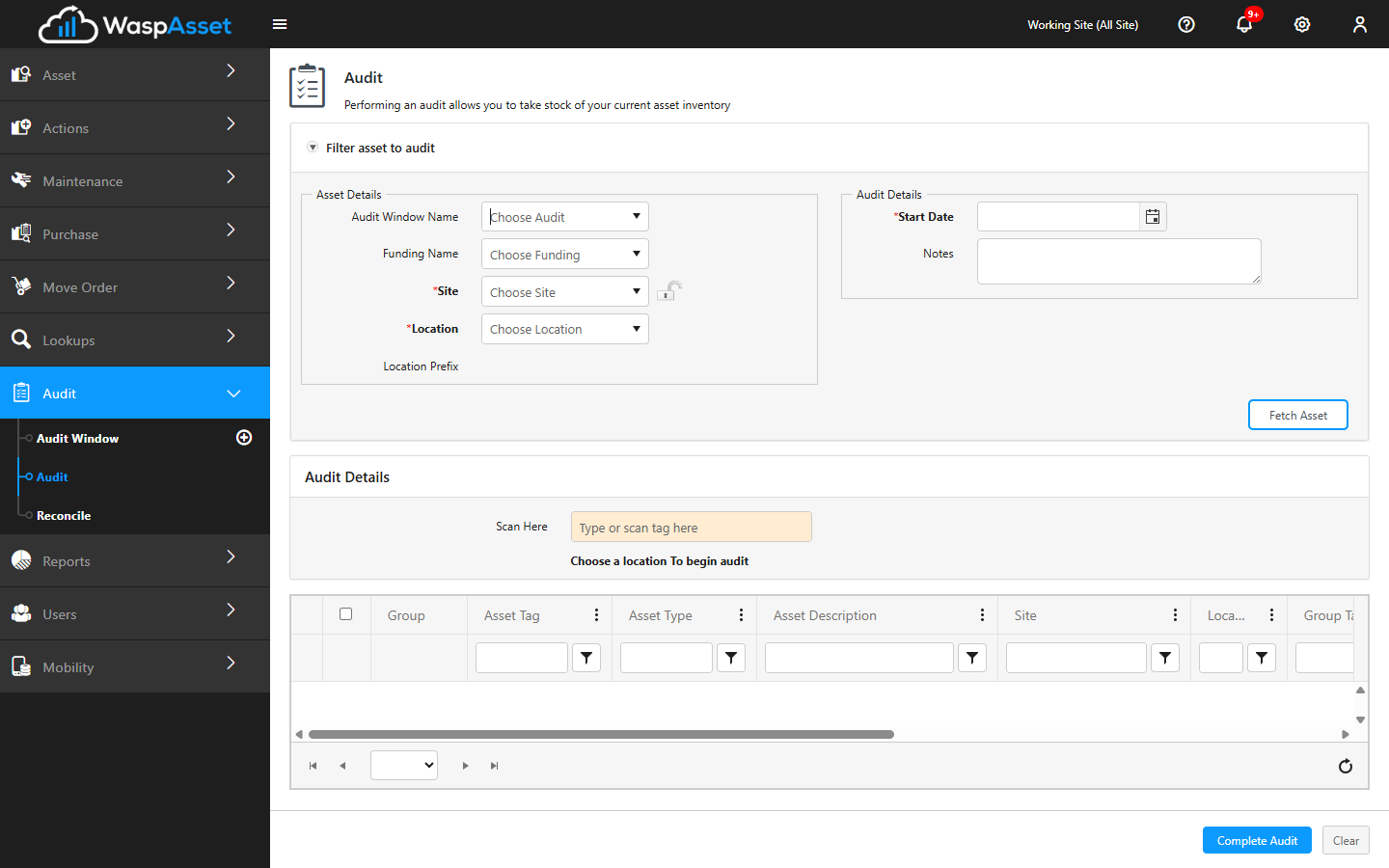
Section titled “Open the Audit page”From the left sidebar, open Audit and choose Audit. The page has two parts: a filter area at the top where you pick the assets to count, and an Audit Details area below where you record what you find.
Scope the audit
Section titled “Scope the audit”Before you start counting, tell Wasp Asset which assets you’re looking for. Use the filter section to narrow things down:
- Choose an Audit Window if you’re working from one you set up earlier. (This field is hidden on the Basic edition, where you audit without a window.)
- Narrow further by Funding, Site, or Location. Choosing a location is the usual starting point — until you pick one, the scan box prompts you to choose a location to begin.
- Set the Audit Start Date (defaults to today) and add any Notes about this count for your records.
- Click Fetch Assets to load the matching assets into the list below.
The list shows each expected asset with details like its Asset Tag, Asset Type Number, Description, Site, and Location so you know exactly what should be there.
Count your assets
Section titled “Count your assets”With your assets loaded, work through them one by one:
- Scan each asset’s barcode into the Scan box at the top of the Audit Details area, or type the asset tag and select it. Each match is recorded as found.
- If you’re auditing by hand instead of scanning, use the checkboxes in the list to mark the assets you’ve located.
- For Multi-Quantity Assets, enter the quantity you actually counted.
As you go, Wasp Asset keeps a running tally so you can see how many assets you’ve counted out of the total expected.
Finish the audit
Section titled “Finish the audit”When you’ve counted everything you can find:
- Click Complete Audit to save your results.
- Use Clear if you need to start over.
Any asset that wasn’t scanned or marked stays flagged as not yet counted, so nothing slips through unnoticed. The count-completed banner also gives you a quick way to review the assets you didn’t find. Once the count is saved, you’re ready to resolve the differences.
Troubleshooting
Section titled “Troubleshooting”- Fetch Assets returns nothing. Loosen your filters — you may have combined a site and a location that don’t overlap, or picked a funding source with no assets at that site. Try filtering by location alone.
- A scan won’t register. Make sure you’ve selected a location first, and that the tag you scanned belongs to the fetched set. An asset already counted won’t be added twice.
- I counted the wrong assets. Use Clear to reset the page and re-fetch, or reset an individual asset’s count from the count banner before you complete the audit.
- Expected quantities are hidden. That’s a blind audit — an intentional setting so your count isn’t influenced by the system’s numbers. You’ll see any differences during reconciliation.
Related
Section titled “Related”- Reconciling an audit — review what you found versus what was expected and correct discrepancies.
- Audits overview — how the three audit stages fit together, and Audit Windows.
- Sites and locations — the places you scope an audit to.
Next step
Section titled “Next step”Go to Reconciling an audit to review what you found versus what was expected and correct any discrepancies.