

Mobility (mobile & scanners)
The Mobility area is where you connect Wasp Asset to handheld devices and scanners in the field. From here you review any problems that came back from the field and set up the scanning behavior your team relies on. You’ll find it under Mobility in the left sidebar.
Before you begin
Section titled “Before you begin”- Permission to use Mobility. Access to Mobility pages is controlled by your role. If a Mobility page is missing, ask an administrator to grant your role access.
- A supported device. You’ll need an iOS or Android device with the Wasp Asset mobile app, or a compatible Wasp handheld scanner.
Mobile Errors
Section titled “Mobile Errors”Mobile Errors is a log of records that couldn’t be processed when a device synced, organized into three tabs:
- New Records — incoming records (such as a scan) that didn’t match anything in Wasp Asset. Open one to edit the record it should have matched, or delete it if it’s no longer needed.
- Transaction — field transactions (check out, check in, move, dispose, and similar) that failed to complete. Fill in whatever the transaction is missing — asset tag, location, department, employee/customer/vendor, dispose reason, and so on — and click Update to complete it, or delete it.
- Maintenance — work order and task submissions from the field that need the same kind of correction before they can complete.
If there’s nothing to review, the page simply tells you there are no sync errors.
Mobile Set Up
Section titled “Mobile Set Up”Mobile Set Up is where you prepare devices and control how they read barcodes and tags:
- New Mobile Set Up — step-by-step help for getting the Wasp Asset mobile app onto a device. Scan the on-screen QR code to download the app for iOS or Android, then sign in to connect it to your account.
- Label Configuration — define how labels are formatted for use on mobile.
- Scan Parsing Configuration — tell Wasp Asset how to interpret the barcodes your devices scan, so the right information lands in the right field.
- RFID Configuration — set up how Wasp Asset reads RFID tags on your devices. This option only appears if your edition/license includes RFID.
Get the new Wasp Asset mobile app
Section titled “Get the new Wasp Asset mobile app”These are the same QR codes shown on the New Mobile Set Up screen — scan the one that matches your device with your phone’s camera to go straight to the download.
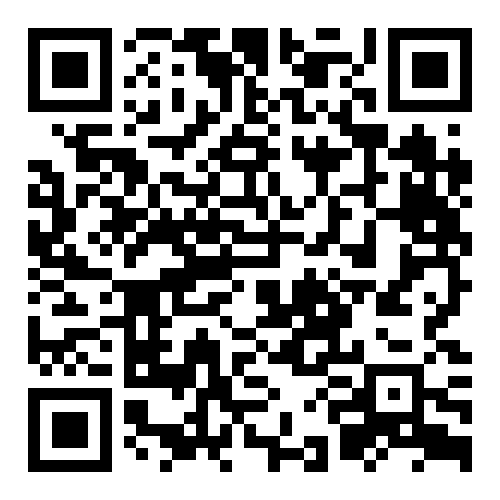
Apple App Store — for iPhone and other iOS devices.
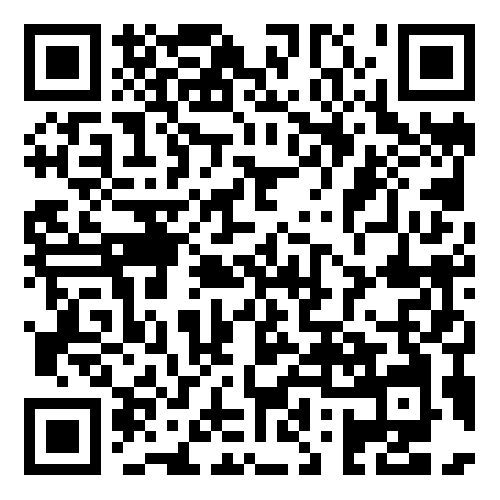
Google Play Store — for Android devices.
Troubleshooting
Section titled “Troubleshooting”- A field scan, transaction, or maintenance record didn’t come through. Look in Mobile Errors — its New Records, Transaction, and Maintenance tabs hold records that couldn’t be matched or completed, waiting for you to resolve them rather than being dropped silently.
- Scans land in the wrong field. Review your Scan Parsing Configuration so Wasp Asset knows how to interpret the barcode format your devices produce.
- I can’t connect a new device. Use New Mobile Set Up and scan the on-screen QR code to install the app, then sign in with your Wasp Asset credentials.
Related
Section titled “Related”- Sites & locations — the sites and locations used across Mobility
- Departments & employees — the departments used across Mobility
- Asset types — the asset types used across Mobility
- Settings & options — account-wide preferences