

Notifications
Notifications let you set up rules that watch for things happening to your assets — a check-out coming due, a contract about to expire, an asset being moved, an audit finishing — and send an alert when they do. Each rule delivers its alert by email, by an in-app alert (the bell in the top bar), or both.
Before you begin
Section titled “Before you begin”- Notifications are managed by administrators and gated by your role’s permissions. If the page is missing, ask whoever manages your account.
- Email delivery needs working email settings. If your company’s outgoing email (SMTP) isn’t set up, email alerts won’t send — see Settings & options.
- On the Basic edition, the number of active notification rules is capped.
The bell vs. notification rules
Section titled “The bell vs. notification rules”These are two related but different things:
- Notification rules (this page) are the setup — they define what to watch for and who to alert.
- The bell in the top bar is your personal, live feed of alerts that have actually fired for rules with in-app delivery turned on. Clearing an item from the bell only dismisses that alert; it doesn’t change the rule that created it.
View your notification rules
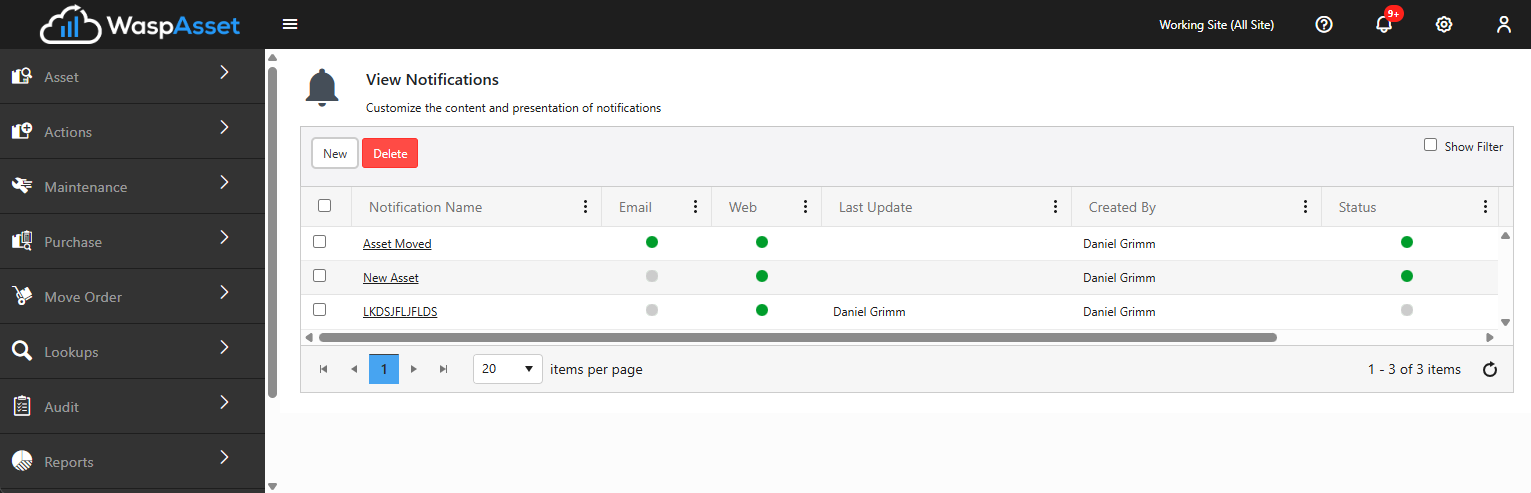
Section titled “View your notification rules”Open the Settings gear and choose Notifications to see every rule, with columns for its name, how it’s delivered, its status, and when it last fired. From here you can open a rule to edit it, or select rules and Delete them.
Create a notification rule
Section titled “Create a notification rule”Click New to open the rule editor, which has two tabs.
Set Triggers
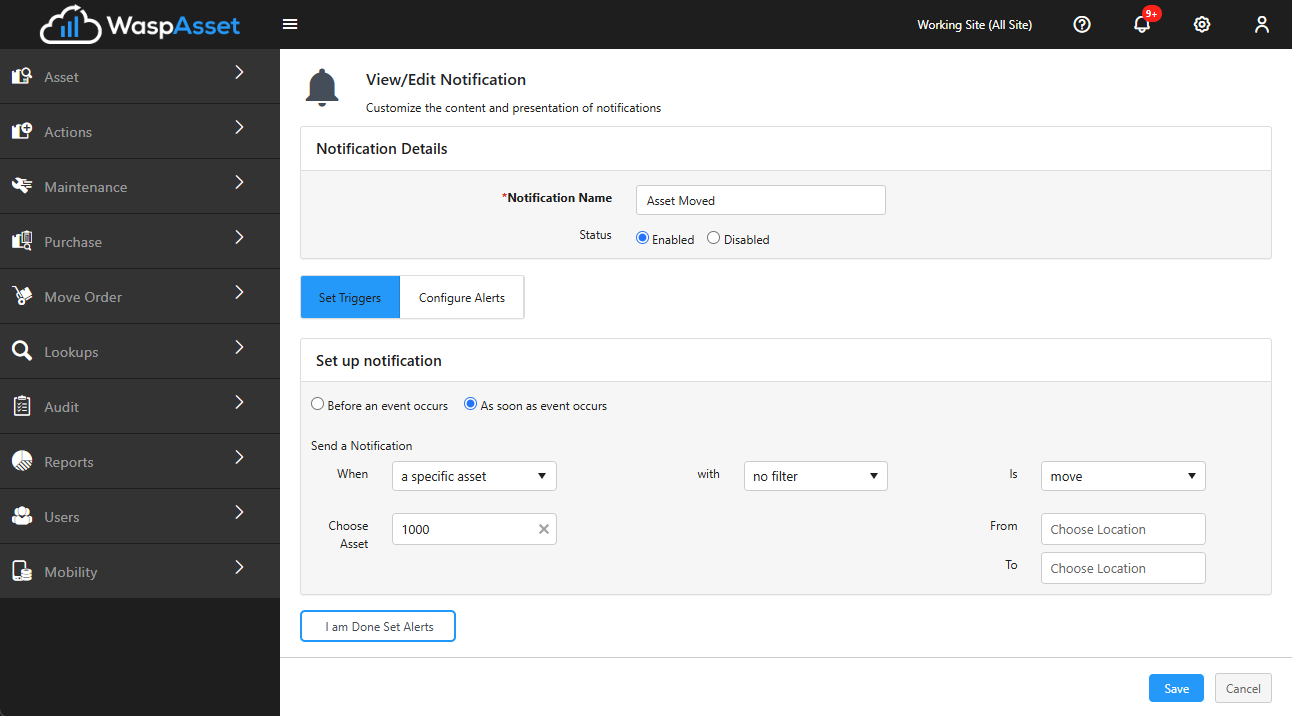
Section titled “Set Triggers”Choose when the rule should fire:
- As soon as an event occurs — react immediately to an event. Use the cascading When / With / Is dropdowns to pick the event, such as an asset being checked out, checked in, moved, disposed, recovered, purchased, or going past due — and narrow it by asset, asset type, site, location, or person where it applies.
- Before an event occurs — get advance warning. Set a duration (for example, 7 days) before something like a contract, warranty, or funding expiration, a check-out due date, an audit window, or a maintenance task coming due.
Configure Alerts
Section titled “Configure Alerts”Choose how the alert is delivered and to whom:
- Tick Email and/or Web (in-app). Each uses a template you can preview or edit, and email lets you set the subject line.
- Add optional Alert Text to include your own message.
- Choose recipients: specific Users or Roles, the assignee and/or the assignee’s manager (for assignment- and due-related events), yourself, and any additional email addresses you type in.
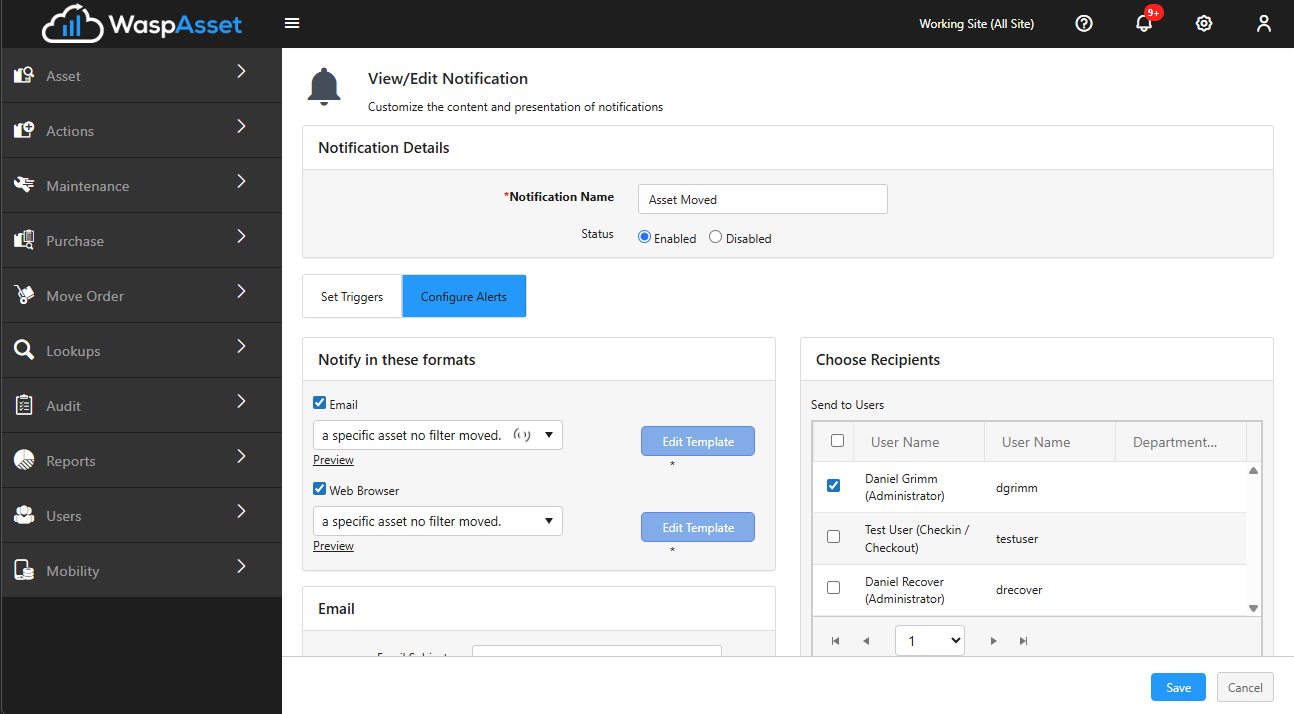
Click Save when you’re done. A rule needs at least one recipient, and “before” rules need a duration.
Troubleshooting
Section titled “Troubleshooting”- My email alerts aren’t arriving. Confirm your company’s outgoing email (SMTP) is configured under Settings & options, and check the recipients on the rule.
- The New button is hidden. On the Basic edition, you may have reached the limit of active notification rules. Disable or delete a rule you no longer need, or ask about your edition.
- I cleared an alert but it came back. Clearing the bell dismisses that alert instance; the rule keeps running. Edit or disable the rule itself on the Notifications page to stop future alerts.
Related
Section titled “Related”- Callouts — send the same asset events to external systems over HTTP
- Settings & options — outgoing email (SMTP) and reminder settings
- Roles & permissions — control who can manage notifications
- Users & administration — the users who can receive alerts