

Transaction history & change log
Wasp Asset keeps a complete record of what happens to your assets. This page covers the three places you’ll look: History (every transaction), Archived Transactions (older records moved aside), and the Change Log (a field-level audit trail of edits).
Before you begin
Section titled “Before you begin”- These pages are read-only records — you can view, filter, and export them, but you can’t edit past transactions from here.
- Access to History and the Change Log depends on your role and edition. If a page isn’t in your Actions menu, ask your administrator.
Transaction history
Section titled “Transaction history”The History page lists every asset transaction — check outs, check ins, moves, disposals, recoveries, receipts, and more — with the who, what, and when for each.
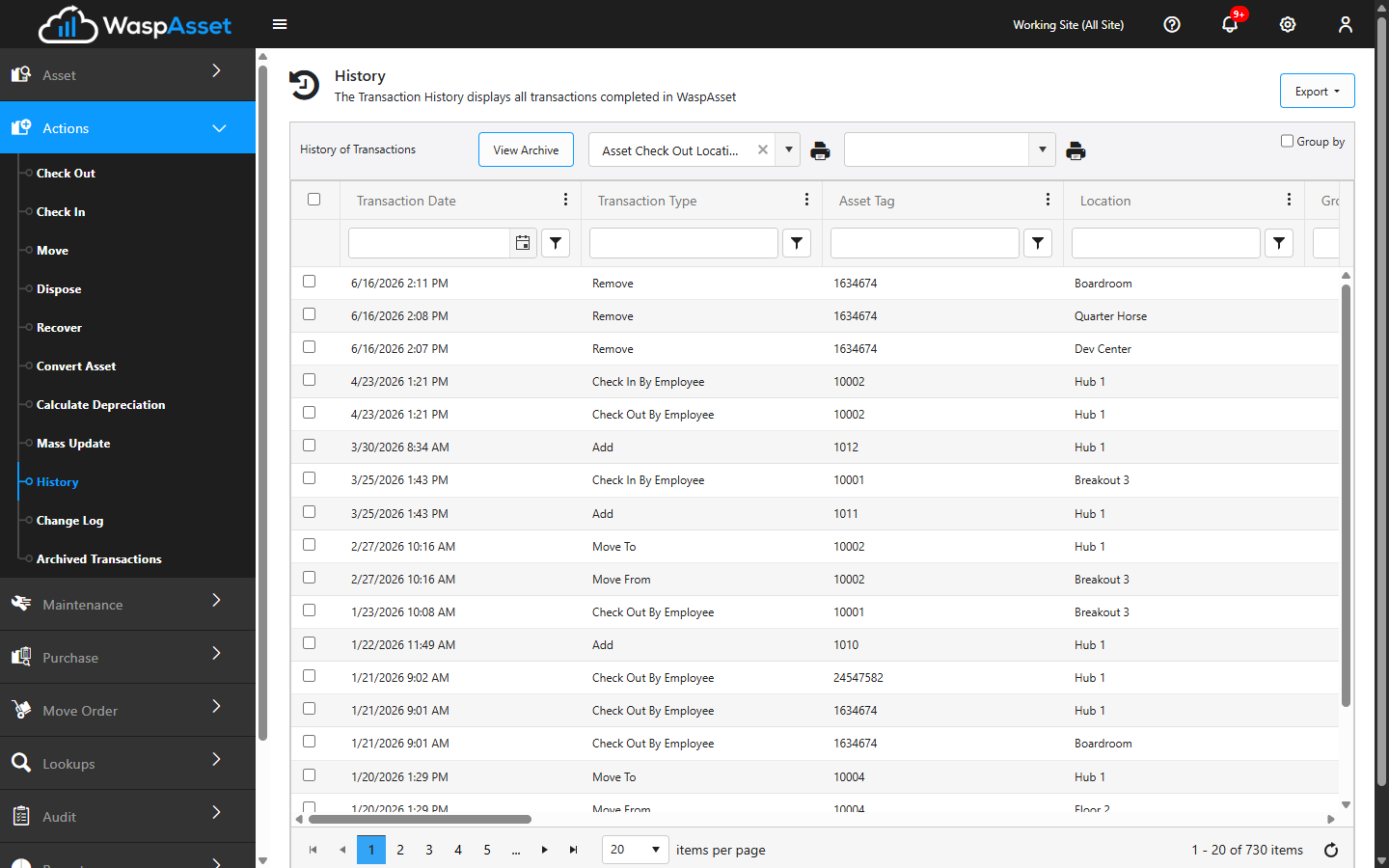
- Open Actions → History.
- Use Show Filter to narrow the list by asset, date, transaction type, and other columns, and Group By to organize it.
- Tick one or more transactions to work with them further:
- Choose a report from the Print Report dropdown and click the print icon to print a receipt for the selected transaction(s) — the report choices update to match the transaction type you’ve selected (for example, a checkout receipt or a purchase order receiver).
- Choose a label from the label dropdown and print it to reprint an Asset Tag for the selected transaction’s asset.
- Right-click (or use the row’s context menu) on a checkout transaction to Extend Due Date without doing a full check-in/check-out.
- Use Export to Excel (top right) to export the current grid to Excel or CSV.
Archived transactions
Section titled “Archived transactions”Over time, older transactions may be moved out of the main History into Archived Transactions to keep the everyday view fast. If you can’t find an older transaction in History, look here.
Transactions don’t archive on their own — an administrator starts it from the Settings page. Under Settings → Options → Archive (see Settings & options), set an archive date, and Wasp Asset moves every transaction dated before it out of History and into Archived Transactions.
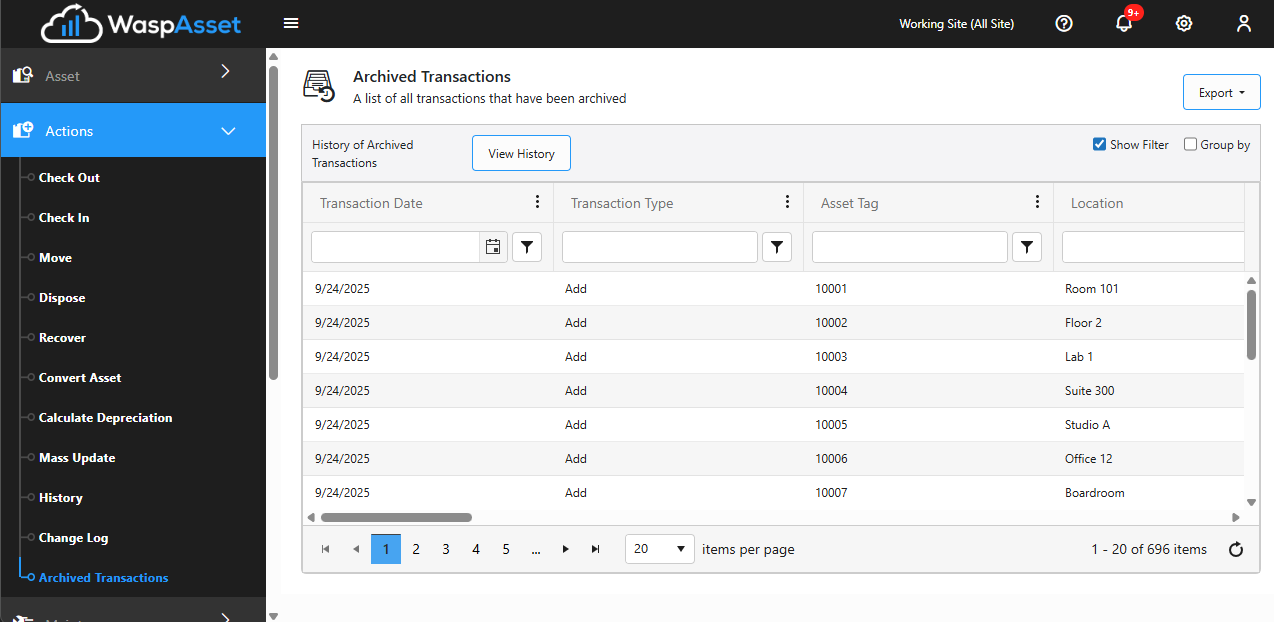
- From the History page, click View Archive to switch to the archive.
- From the archive, click View History to switch back.
The archive filters and groups like the main History page, but for performance, filtering and sorting only work reliably on a limited set of indexed columns — filtering by an uncommon column may not behave the way it does in the main History grid.
Change log
Section titled “Change log”The Change Log is a field-level audit trail. Where History records transactions, the Change Log records edits — showing which field on a record changed, its old and new values, who made the change, and when.
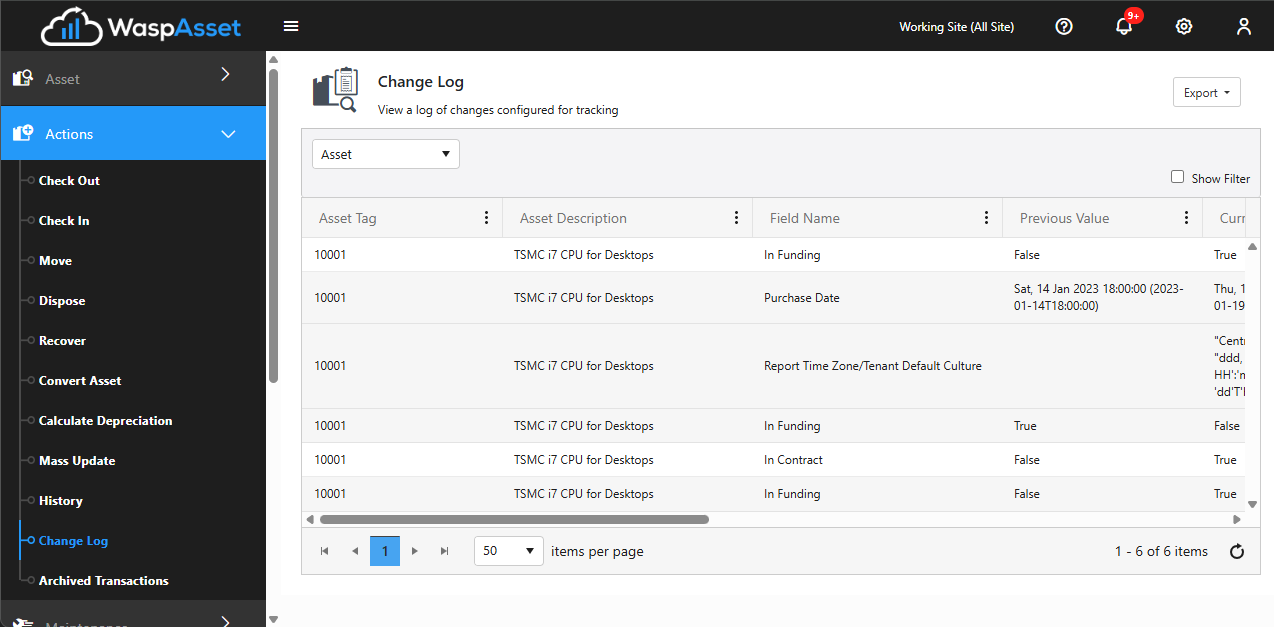
- Open Actions → Change Log.
- Choose the form whose changes you want to review (for example, assets or a lookup). If a form has no tracked changes yet, Wasp Asset tells you so.
- Review the list of changes, filtering as needed. You can export to Excel for record-keeping or sharing.
Troubleshooting
Section titled “Troubleshooting”- I can’t find an older transaction. It may have been moved to Archived Transactions. Click View Archive from the History page to look there.
- My filter or sort doesn’t work in Archived Transactions. The archive only supports filtering and sorting on a limited set of columns for performance. Try filtering by asset or date instead.
- History vs. Change Log — which do I want? History records transactions (check outs, moves, disposals). The Change Log records edits to a record’s fields. If you’re asking “what happened to this asset?” use History; if you’re asking “who changed this value?” use the Change Log.
- A field’s changes aren’t showing in the Change Log. Only fields configured for change tracking appear. Ask your administrator whether that field is set up for tracking.
- The list is overwhelming. Use Show Filter to narrow by asset, date, or transaction type, and Group By to organize it. Filtering to a single asset shows just that asset’s history.
- I need this for records or sharing. Both History and the Change Log can export to Excel (History also offers CSV for very large exports).
Related
Section titled “Related”- Asset actions overview — the full Actions menu
- Viewing assets — find an asset before drilling into its history
- Reports — scheduled and ad-hoc reporting across your assets