

Viewing your assets
Wasp Asset gives you a few different lists for looking at everything you track. This page shows you how to open each list, understand the columns, and use sorting, filtering, custom views, and export to find exactly what you need.
Before you begin
Section titled “Before you begin”- You need access to the Asset area to see these lists. If Asset isn’t in your left sidebar, ask whoever manages your account to check your role.
- The lists respect the Working Site selector in the top bar. If you only see assets from one building, you’re scoped to a single site — switch to All Sites to see everything.
- These lists show only active assets. Anything you’ve retired lives on the Disposed Asset list instead.
The three asset lists
Section titled “The three asset lists”Under Asset in the left sidebar you’ll find three ways to view your assets:
- All Asset — every asset you track, both fixed assets and multi-quantity assets, in one place.
- Fixed Asset — only your individually tagged fixed assets (one row per asset tag).
- Multi-Quantity Asset — only your quantity-tracked assets, showing how many of each you have at each location.
They all work the same way. Pick whichever matches what you’re looking for.
The All Asset list
Section titled “The All Asset list”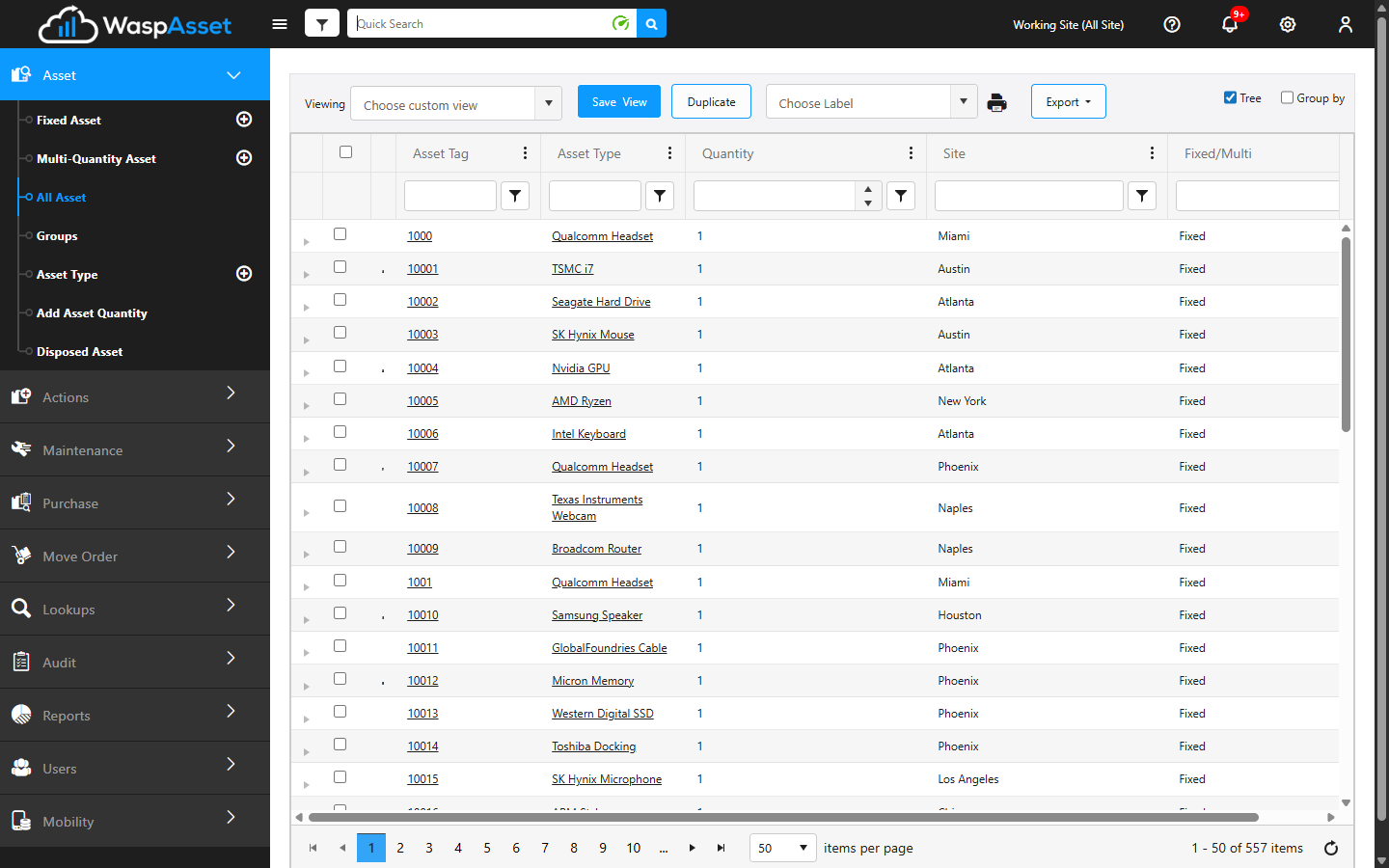
The All Asset list shows every asset together. Each row includes columns such as Asset Tag, Asset Type, Site, and Location, plus any other fields your company has chosen to display.
You can switch this list between two modes using the checkboxes above the grid:
- Tree View groups identical assets together so you can expand a row to see each location and the quantity there.
- Leave Tree View unchecked for a flat list with one row per asset per location.
Use Group By to cluster rows by a column (for example, group everything by Site).
To act on an asset from this list, select its row (or select several) and right-click to open a menu with Edit, Duplicate, and Add Asset Quantity (single asset only), plus a Transactions submenu with Check Out, Check In, Move, and Dispose (these work on multiple selected assets at once). Menu items only appear if your role has that permission, and the menu isn’t available while Tree View is turned on.
The Fixed Asset list
Section titled “The Fixed Asset list”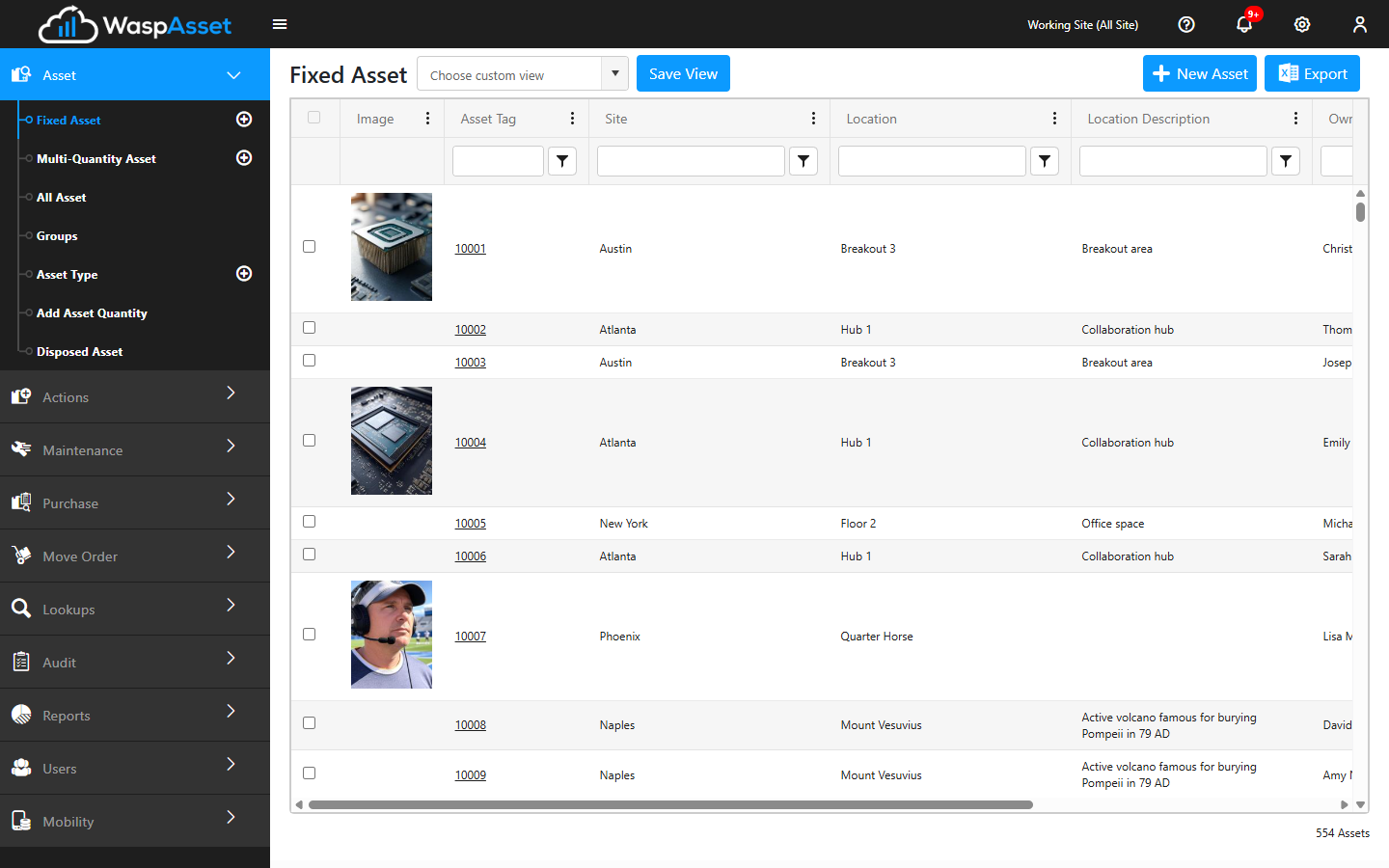
The Fixed Asset list focuses on your uniquely tagged assets. Typical columns include Asset Tag, Description, Asset Type, Site, Location, and the person an asset is checked out to (the assignee). A running count of how many assets are shown appears at the bottom right (for example, 125 Assets).
To add a new fixed asset, click the New Asset button in the top right. See Adding an asset for the full walkthrough.
The Multi-Quantity Asset list
Section titled “The Multi-Quantity Asset list”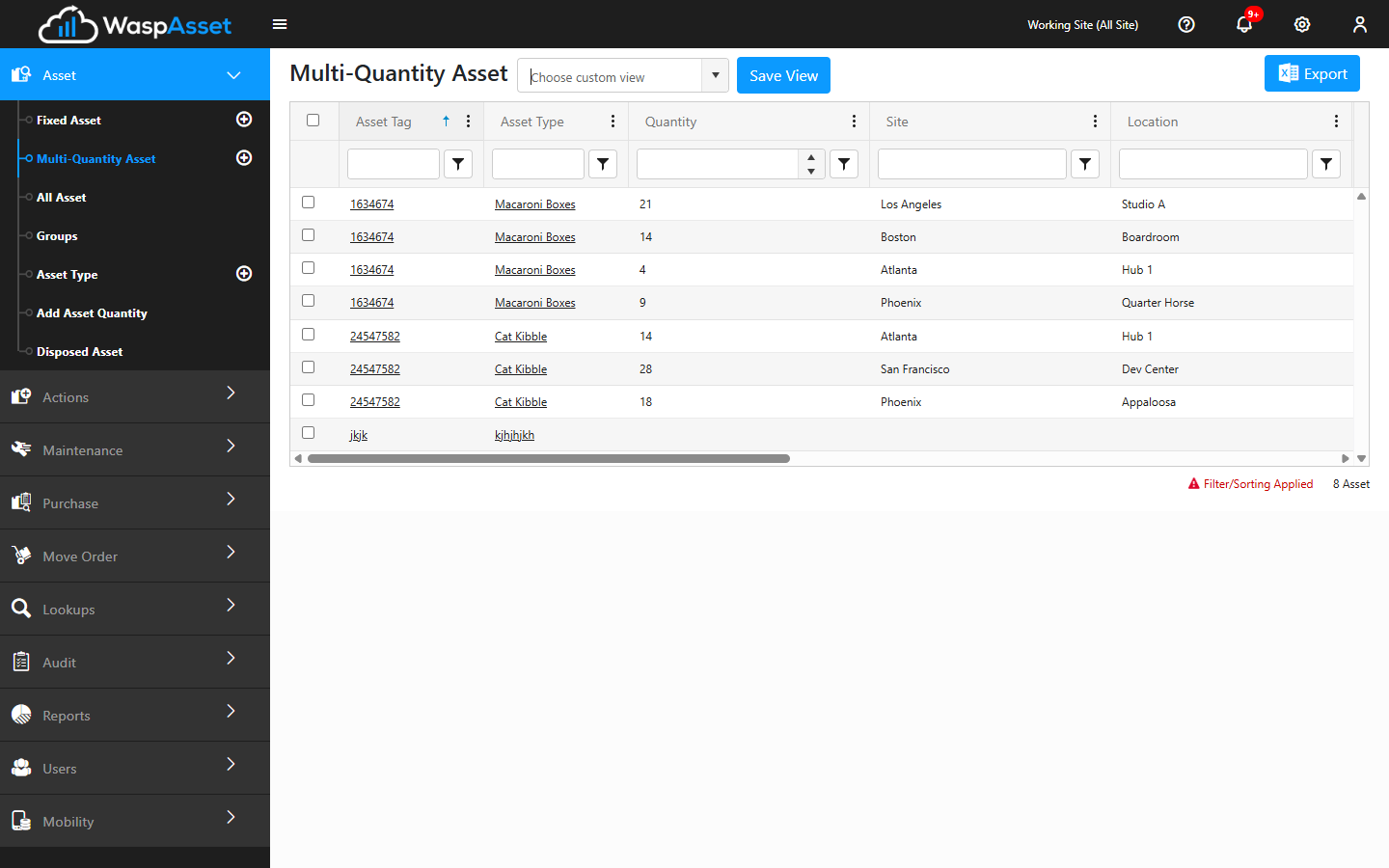
The Multi-Quantity Asset list shows your quantity-tracked assets. In addition to the usual columns, it includes a Quantity column so you can see how many of each you have on hand at a location.
Opening an asset
Section titled “Opening an asset”To open any asset, click its Asset Tag (the blue link in the first column). This takes you to the asset’s detail page, where you can review every tab and make changes. See Asset details & tabs for what you’ll find there.
Selecting assets and taking bulk action
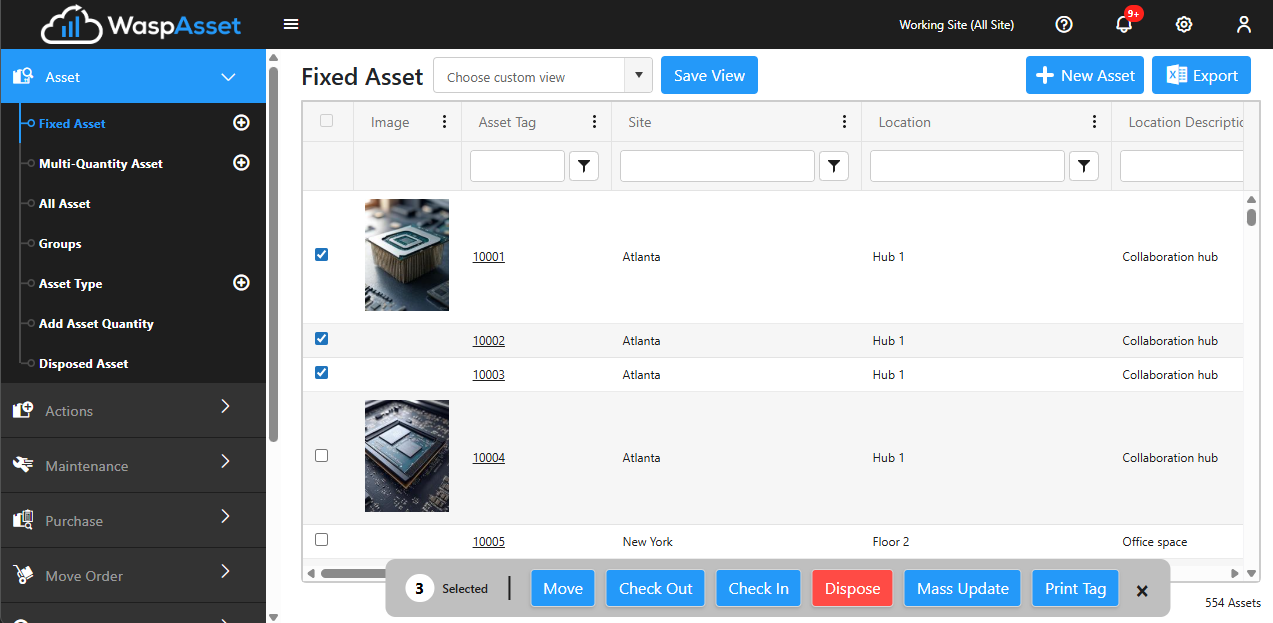
Section titled “Selecting assets and taking bulk action”On the Fixed Asset and Multi-Quantity Asset lists, tick the checkbox next to one or more rows (or use the header checkbox to select every row currently loaded) to open an action bar along the bottom of the page. Depending on your role, you’ll see buttons such as Move, Check Out, Check In, Duplicate, Dispose, Mass Update, and Print Tag. A button only appears if your role has permission for that action.
The action bar on the Fixed Asset list:
The action bar on the Multi-Quantity Asset list:
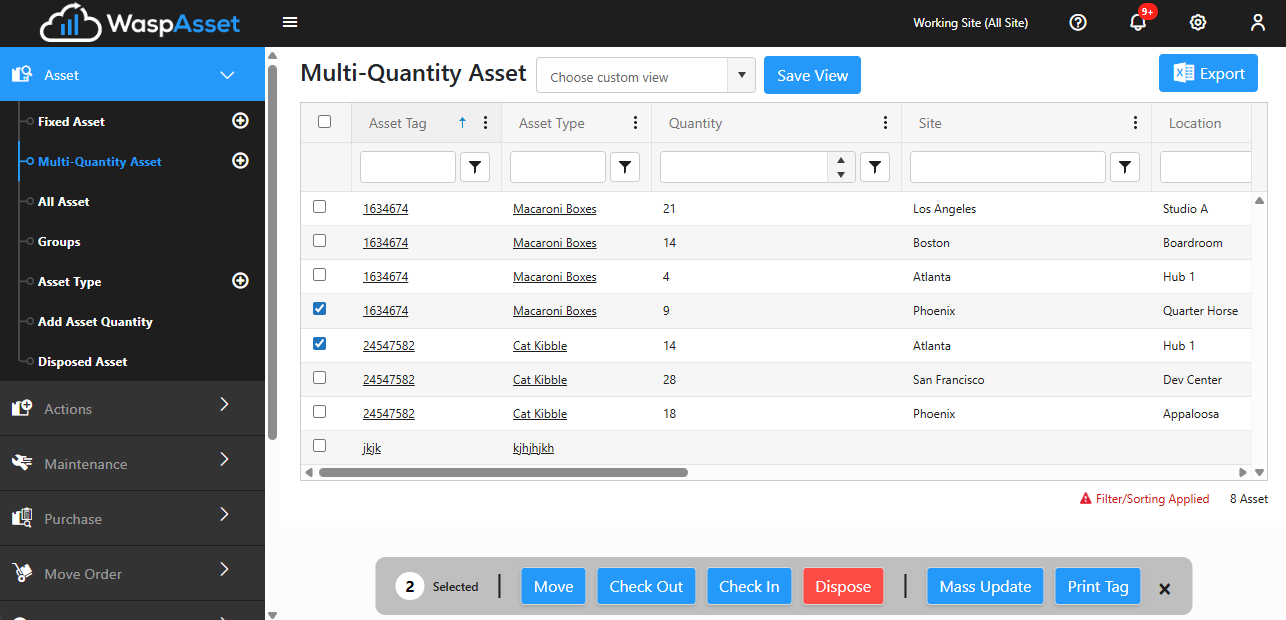
Using the action bar is the quickest way to work. For most actions it opens a quick pop-up right on the list, so you can complete the action without leaving the grid — there’s no need to open the separate full-page action screen. Just select your assets, click the action, and finish in the pop-up.
On a normal-sized screen these buttons all sit on the action bar together. On small screens — such as a mobile phone browser like Safari or Chrome — the buttons that don’t fit collapse into a More menu instead.
Sorting and filtering
Section titled “Sorting and filtering”- Sort a column by clicking its header. Click again to reverse the order. You can sort by more than one column at a time.
- Filter using the small filter box under each column header. Type a value to narrow the list — for example, filter Site to show only one building’s assets.
When a filter is active, a small alert marker with Filters Applied appears so you always know you’re looking at a filtered list. Clear the filter box to see everything again.
Custom views
Section titled “Custom views”If you find yourself setting up the same columns, filters, and sorting over and over, save them as a custom view.
- Arrange the list the way you like — choose columns, apply filters, set the sort order.
- Click Save View.
- Give your view a name (and an optional description), then save it.
To switch to a saved view later, pick it from the Choose custom view dropdown above the list. If your role allows it, you can also tick the option to make a view available to everyone at your company.
Exporting
Section titled “Exporting”To download the current list, click Export to Excel (the export button above the grid) and choose Excel (.xlsx) or CSV. The export respects the filters you have applied, so you get exactly the rows you’re viewing.
Troubleshooting
Section titled “Troubleshooting”- An asset I know exists isn’t in the list. Check three things: a filter box may be narrowing the list (look for the Filters Applied marker and clear it), the Working Site selector may be scoped to a single site, or the asset may have been disposed — retired assets only appear on the Disposed Asset list.
- A column I want is missing. Companies choose which columns show by default. Set up the columns you want and save them as a custom view, or ask your administrator to adjust the shared layout.
- My export has more (or fewer) rows than I expected. Export always matches the list in front of you, including any active filters. Clear your filters first if you want the complete list.
- I can’t find a single item within a multi-quantity asset. Multi-quantity assets are counted, not individually tagged, so there’s one row per location rather than one per unit. See Fixed vs multi-quantity assets.
- The select-all checkbox is grayed out. It’s disabled once the list has more than 500 rows. Filter down to 500 or fewer rows, or select rows individually.
- I selected assets but a bulk action button isn’t there (or the menu item is missing). Those buttons and menu items are permission-controlled — ask whoever manages your account to check your role for that action.
- Selecting assets sent me to a full page instead of a quick pop-up. On the Fixed Asset and Multi-Quantity Asset lists this happens automatically when you select more than 20 assets, or when your selection includes grouped multi-quantity assets or required custom fields the pop-up doesn’t show — the full page handles those cases.