

Receiving
Receiving is how the assets you ordered actually add to your stock in Wasp Asset. You select the purchase order the assets arrived against, confirm what was delivered, choose where they’ll live, and save — and the quantity you received is added to that multi-quantity asset at the site and location you chose.
Before you begin
Section titled “Before you begin”- You need an existing purchase order that isn’t already fully received — you receive against a PO, so there’s nothing to receive without one.
- Have the destination site and location ready, so you can tell Wasp Asset where the arriving assets will live.
- Receiving only works with multi-quantity assets — whatever was ordered on the PO’s line items. You can’t receive a fixed asset through this screen.
- Receiving is available in the Complete edition and depends on your permissions.
Start receiving
Section titled “Start receiving”Open Receive from the Purchase section of the left menu, then:
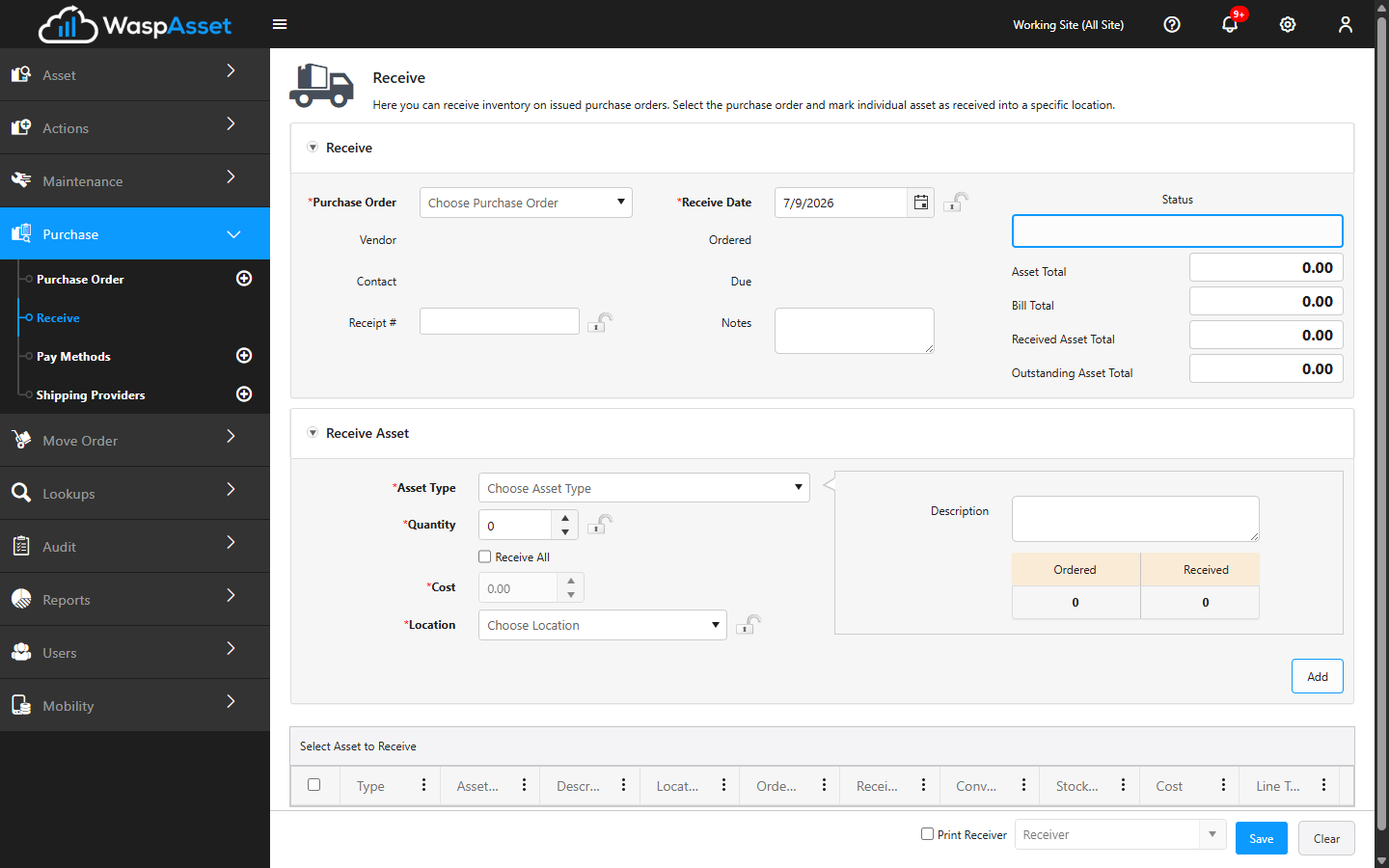
- In the Purchase Order field, search for and select the PO you’re receiving against. The Supplier, Contact, ordered date, and due date fill in automatically.
- Enter a Receipt number if you use one, and set the Receive Date (it defaults to today).
- Add Notes if needed.
The right side shows the Quantity Status and, when costs are enabled, the item total, bill total, and the value received versus outstanding.
Receive the items
Section titled “Receive the items”For each item you’re receiving:
- Choose the Asset Type by searching for it — only the multi-quantity assets ordered on the selected purchase order are available.
- Enter the Quantity being received, or tick Receive All to receive the full outstanding quantity in one step.
- Review the Cost — it comes from the purchase order and can’t be edited here.
- Choose the Location / Group where the assets will be stored. This is the site and location the received quantity will belong to.
- Click Add to add the item to the receive list below.
The panel shows the quantity Ordered versus Received so you can see what’s left. Items you’ve added appear in the list, where you can click a line to edit it before saving.
Save the receipt
Section titled “Save the receipt”When everything is added, save using the button at the bottom:
- Save — record what you’ve received; the order stays open for any remaining items.
- Save & Close — record the receipt and close the order.
- Save & Close (create backorder) — record the receipt, close this order, and create a backorder for anything not yet received.
Tick Print Receiver and choose a receipt template if you want a printed record when you save. If your company always prints receivers, this is ticked and locked for you automatically.
Once saved, the received quantity is added to the multi-quantity asset at the location you chose. The purchase order’s received and outstanding quantities update to reflect what arrived, and you’ll see the updated quantity in your asset lists.
Troubleshooting
Section titled “Troubleshooting”- My asset type isn’t in the list. Only asset types that appear on the selected purchase order can be received. Confirm the item is a line on that PO, or check that you selected the right PO.
- I can’t edit the Cost. That’s expected — Cost can’t be edited on the Receive page. Its value comes from the purchase order.
- I can’t receive more than what was ordered. That’s expected unless your company has a setting turned on to allow over-receiving. Ask your administrator if you need to receive extra quantity on top of what was ordered.
- The order didn’t close after I received everything. Use Save & Close, or receive the full outstanding quantity (the Receive All tick fills it in). A plain Save leaves the order open on purpose so you can keep receiving — and even receiving the full amount usually leaves the order at Complete rather than Closed until you close it explicitly. See Purchase order lifecycle.
- I received into the wrong location. The quantity is already added at the location you chose. Move it to the correct location — receiving can’t be undone by re-receiving.
Related
Section titled “Related”- Purchase orders — create and manage the orders you receive against.
- Sites & locations — the destinations you receive into.
- Move — relocate assets received into the wrong place.
- Receipt templates — the printed record produced by Print Receiver.