

Customers, vendors & manufacturers
These three lookups cover the outside parties your assets are connected to. A Customer is someone you issue assets to, a Vendor is a supplier you buy and order from, and a Manufacturer is the company that makes an asset. Each is a simple list you can add to and edit from the Lookups menu.
Before you begin
Section titled “Before you begin”- These lookups live under the Lookups menu and are usually maintained by an administrator; view, add, and edit access are each granted separately, so you may be able to look but not add or edit.
- Set up a vendor before you create a purchase order for it — the PO’s Supplier field only lists vendors that already exist.
- Each record is shared across the app, so it’s worth entering complete contact details once rather than partial ones you fix later.
Customers
Section titled “Customers”Customers are the people or organizations you issue assets to — useful when you loan, rent, or assign equipment to parties outside your own staff.
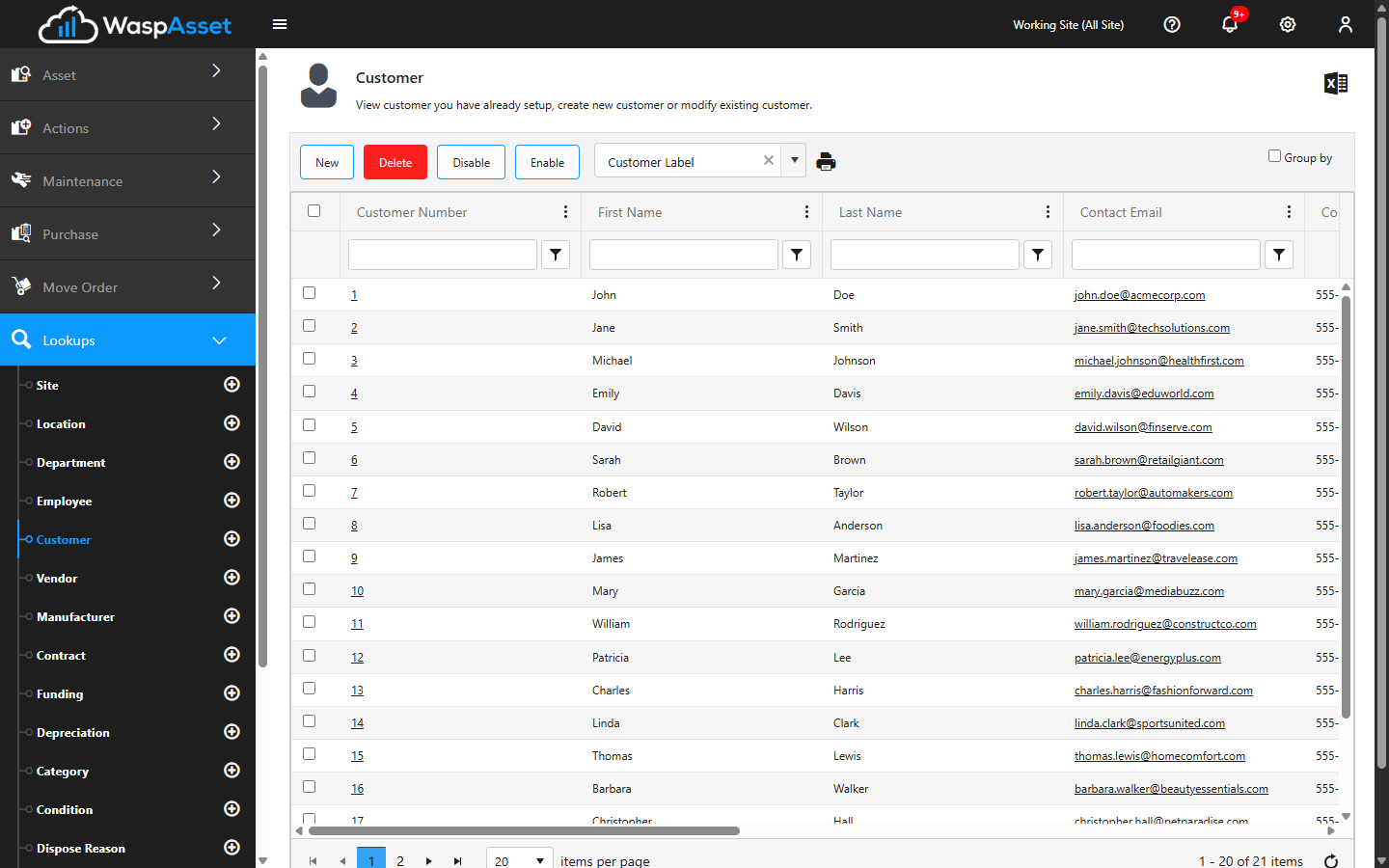
Add or edit a customer
Section titled “Add or edit a customer”- Open Customer from the Lookups menu.
- Click Add, or click an existing customer to edit it.
- Fill in the details, which include the Customer Number, First and Last Name, Company Name, Department, contact details (Business Phone, Email, Fax, Website), and Notes. You can also record a separate contact person with their own phone, cell, fax, and email.
- Click Save.
Once a customer is saved, its record picks up two more tabs: Assigned Assets — a list of what’s currently checked out to that customer, with a Check In button so you can bring items back without leaving the page — and History, a log of past transactions for that customer.
Vendors
Section titled “Vendors”Vendors are the suppliers you buy assets from. When you create a purchase order, you choose the vendor you’re ordering from — so your vendor list feeds directly into purchasing. A vendor can also be who an asset is checked out to, alongside employees and customers.
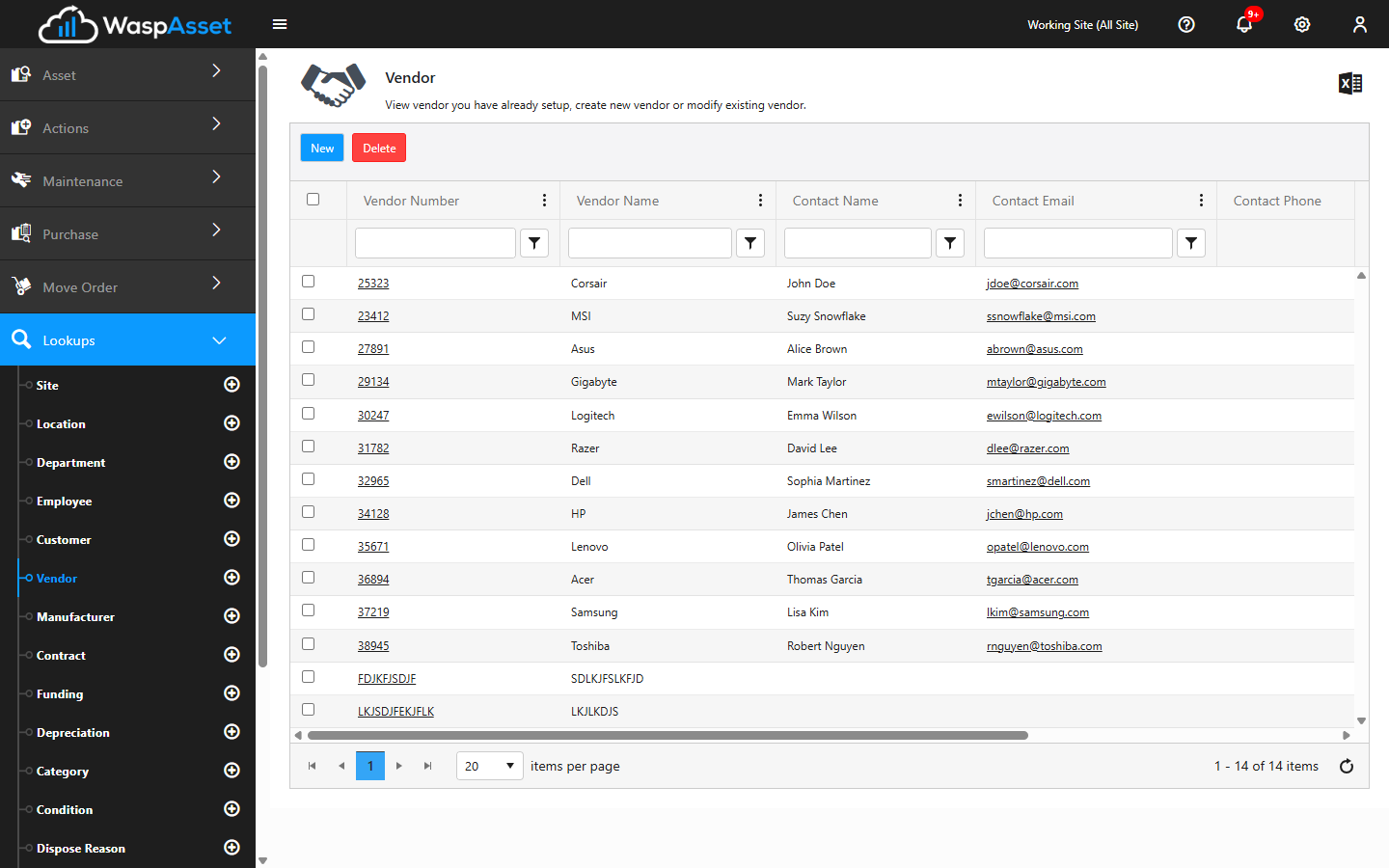
Add or edit a vendor
Section titled “Add or edit a vendor”- Open Vendor from the Lookups menu.
- Click Add, or click an existing vendor to edit it.
- Fill in the details, which include the Vendor Number, Vendor Name, contact details (Phone, Email, Fax, Website), and Notes. You can also record a contact person with their own phone, extension, cell, fax, and email.
- Click Save.
Once a vendor is saved, its record picks up two more tabs: Assigned Assets — assets currently checked out to that vendor, with a Check In button — and History, a log of past transactions for that vendor.
Manufacturers
Section titled “Manufacturers”Manufacturers are the companies that make your assets. Recording the manufacturer helps with warranty, support, and reporting on the equipment you own.
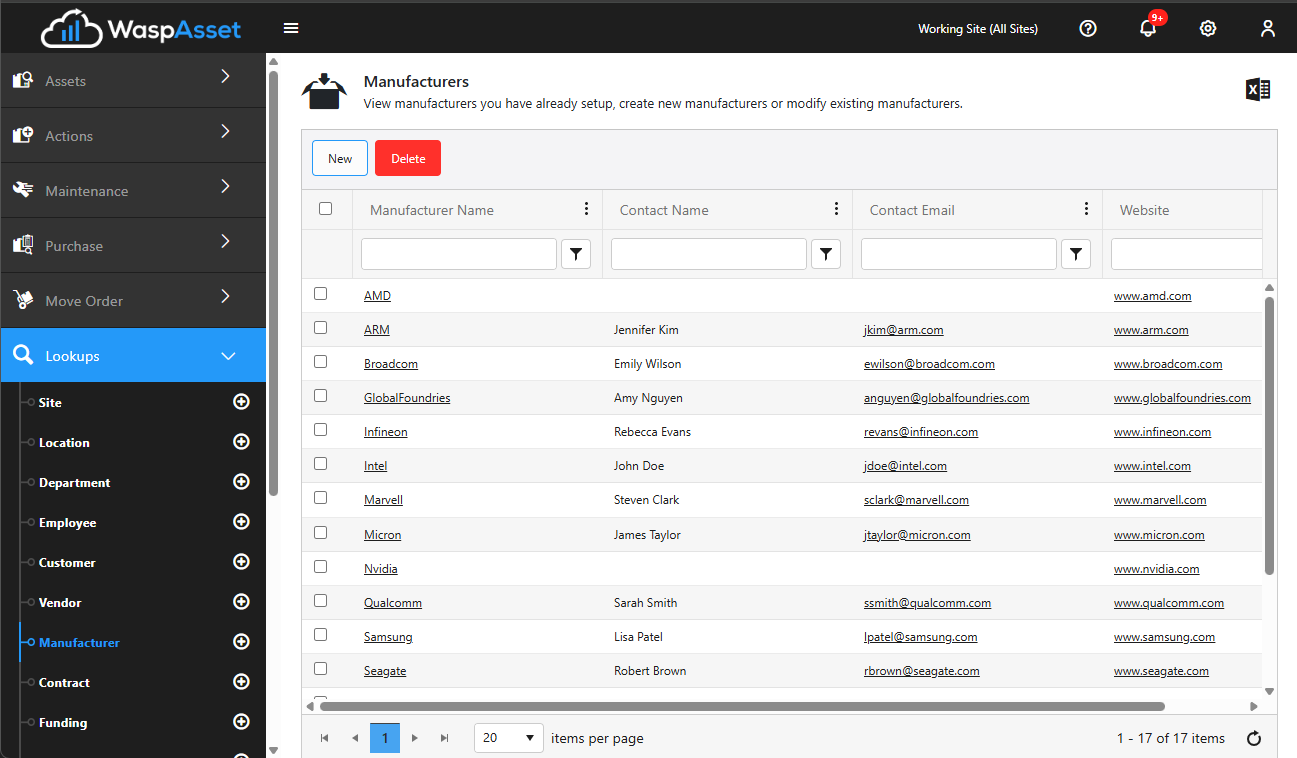
Add or edit a manufacturer
Section titled “Add or edit a manufacturer”- Open Manufacturer from the Lookups menu.
- Click Add, or click an existing manufacturer to edit it.
- Fill in the details, which include the Manufacturer Name, contact details (Phone, Email, Fax, Website), and a contact person with their own phone, extension, cell, fax, and email.
- Click Save.
Troubleshooting
Section titled “Troubleshooting”- My vendor isn’t in the purchase order Supplier list. Only vendors set up here appear on a PO. Add the vendor first, then start (or reopen) the order.
- I can’t delete a customer, vendor, or manufacturer. If the record is attached to an asset or order, it’s protected so history stays intact. Detach or reassign what’s using it first.
- A vendor and manufacturer are the same company — do I enter it twice? Yes. The lists are separate, so add the company to each list where you need to reference it.
Related
Section titled “Related”- Purchase orders — where you choose a vendor as the supplier.
- Checking out an asset — assign an asset to an employee, customer, or vendor.
- Creating an asset — where you record an asset’s manufacturer.
- Lookups overview — how the reference lists fit together.