

A Tour of the Screen
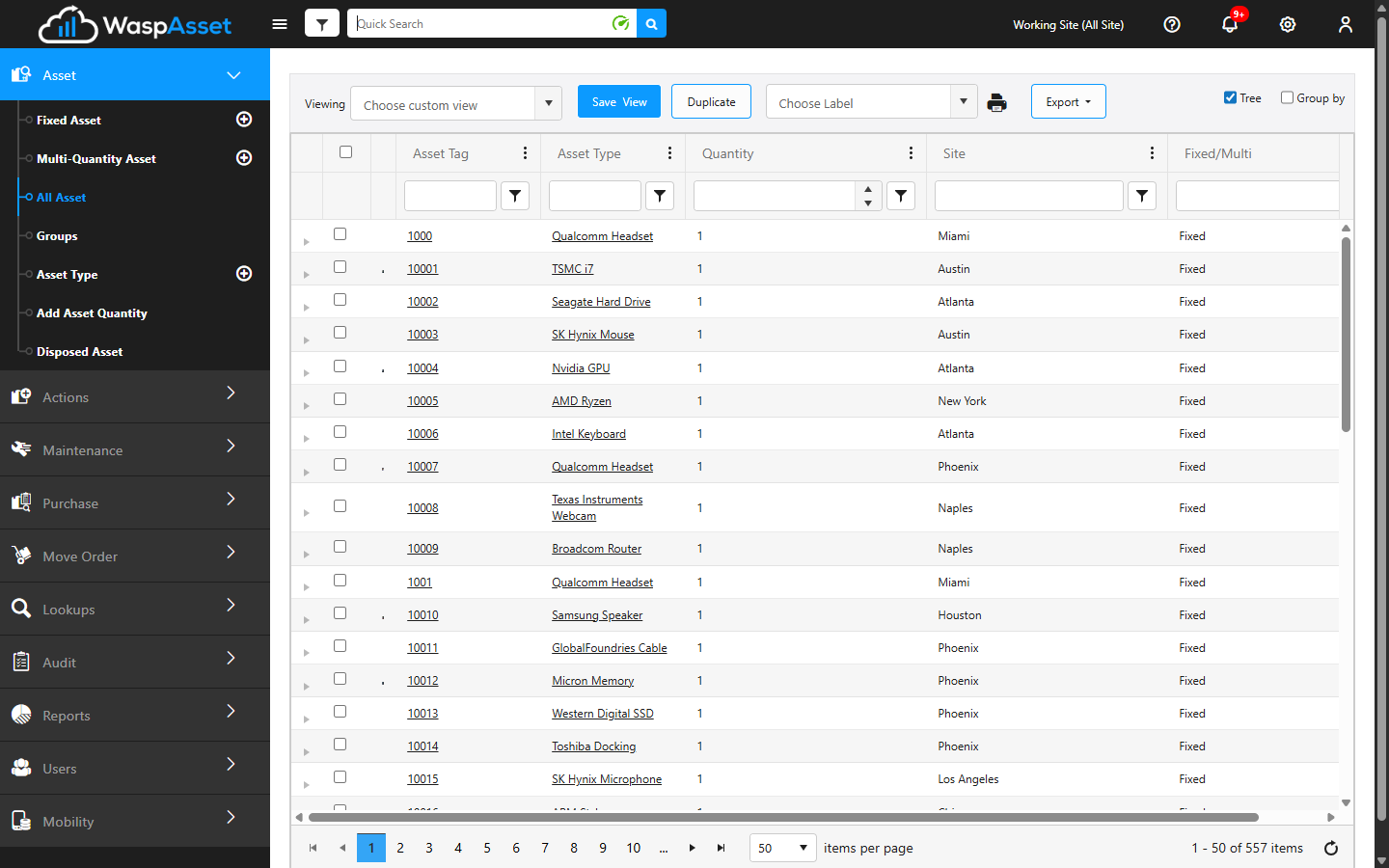
This tour introduces the main parts of the Wasp Asset screen so you always know where to look. Every page shares the same layout: a top bar across the top, a navigation menu down the left side, and a large working area in the middle.
The top bar
Section titled “The top bar”The top bar stays with you on every page, keeping your settings and account always within reach. Search lives here too, but only while you’re on the All Asset page:
- Logo — click the Wasp Asset logo on the far left to return to your home page at any time.
- Collapse menu (☰) — click this to hide or show the left navigation menu, giving the working area more room.
- Quick Search — appears in the top bar while you’re on the All Asset page, so you can search your assets without leaving the list. See Quick Search for details.
- Working Site — shows the site (or All Sites) you’re currently working in. Click it to switch. See Signing In and Out.
- Help (?) — opens help, the glossary, product and support information, a getting-started guide, and What’s New.
- Notifications — a bell that shows alerts and news, such as items that need your attention.
- Settings (gear) — company-wide setup: Company Details, Settings, Form Customization, Notifications, and more. What you see here depends on your permissions.
- Profile — your account menu. Open it to edit your profile, change the color theme, change your password, and Log Off.
The left navigation menu
Section titled “The left navigation menu”The menu down the left side is grouped into sections. Click a section to expand it, then choose a page. Your role and edition determine which sections and pages you can see.
- Asset — your assets and how they’re organized: Fixed Asset, Multi-Quantity Asset, All Asset, Groups, Asset Type, Add Asset Quantity, and Disposed Asset.
- Actions — things you do to assets: Check Out, Check In, Move, Dispose, Recover, Convert Asset, Calculate Depreciation, Mass Update, plus History, Change Log, and Archived Transactions.
- Maintenance — keep assets serviced: Quick Maintenance, Work Order, Tasks, and Work Order Type Code.
- Purchase — buy and bring in assets: Purchase Order, Receive, Pay Methods, and Shipping Providers.
- Move Order — request and fulfill asset moves between locations.
- Lookups — the supporting records assets rely on: Site, Location, Department, Employee, Customer, Vendor, Manufacturer, Contract, Funding, Depreciation, Category, Condition, Dispose Reason, and Recovery Reason.
- Audit — physical counts: Audit Window, Audit, and Reconcile.
- Reports — Reports, Scheduled Report, Labels, and Receipts.
- Users — manage who can sign in: User and Role.
- Mobility — settings for the Wasp Asset mobile apps: Mobile Errors and Mobile Set Up.
The main working area
Section titled “The main working area”The center of the screen is where your assets and records appear, usually in a grid — a table with one row per item and a column for each detail.
- Column filters — filter and sort by any column to narrow the list to exactly what you need.
- Custom views — arrange the columns the way you like, then save that arrangement as a view you can return to. Save a view with Save View and reopen saved views later.
- Export — send the current list to a file so you can share it or work with it outside Wasp Asset.
- Item count — the grid shows how many items match your current filters, so you always know how much you’re looking at.
Troubleshooting
Section titled “Troubleshooting”A menu section or page is missing. The left menu only shows what your role and edition allow. If something you expect isn’t there, ask your administrator to check your permissions or confirm your edition.
A page looks empty even though I know there are assets. A few things to check: your Working Site (the list only shows the site you’re viewing — try All Sites); any column filters you’ve left applied (clear them to see the full list); and your permissions — if a page stays empty, your role may not include access to those records, so ask your administrator to confirm what your role and edition cover.
My saved custom view didn’t come back. Views are saved per page. Make sure you’re on the same page where you saved it, and that you clicked Save View rather than just rearranging the columns for the session.
The screen feels cramped. Click the Collapse menu (☰) icon to hide the left navigation and give the working area more room. You can also switch the color theme from your Profile menu.
Related
Section titled “Related”- Quick Search — find assets from the top bar
- Signing In and Out — the Working Site selector and Log Off
- Viewing assets — work with the grid, filters, and custom views
- Change your theme — light and dark options