

Settings & options
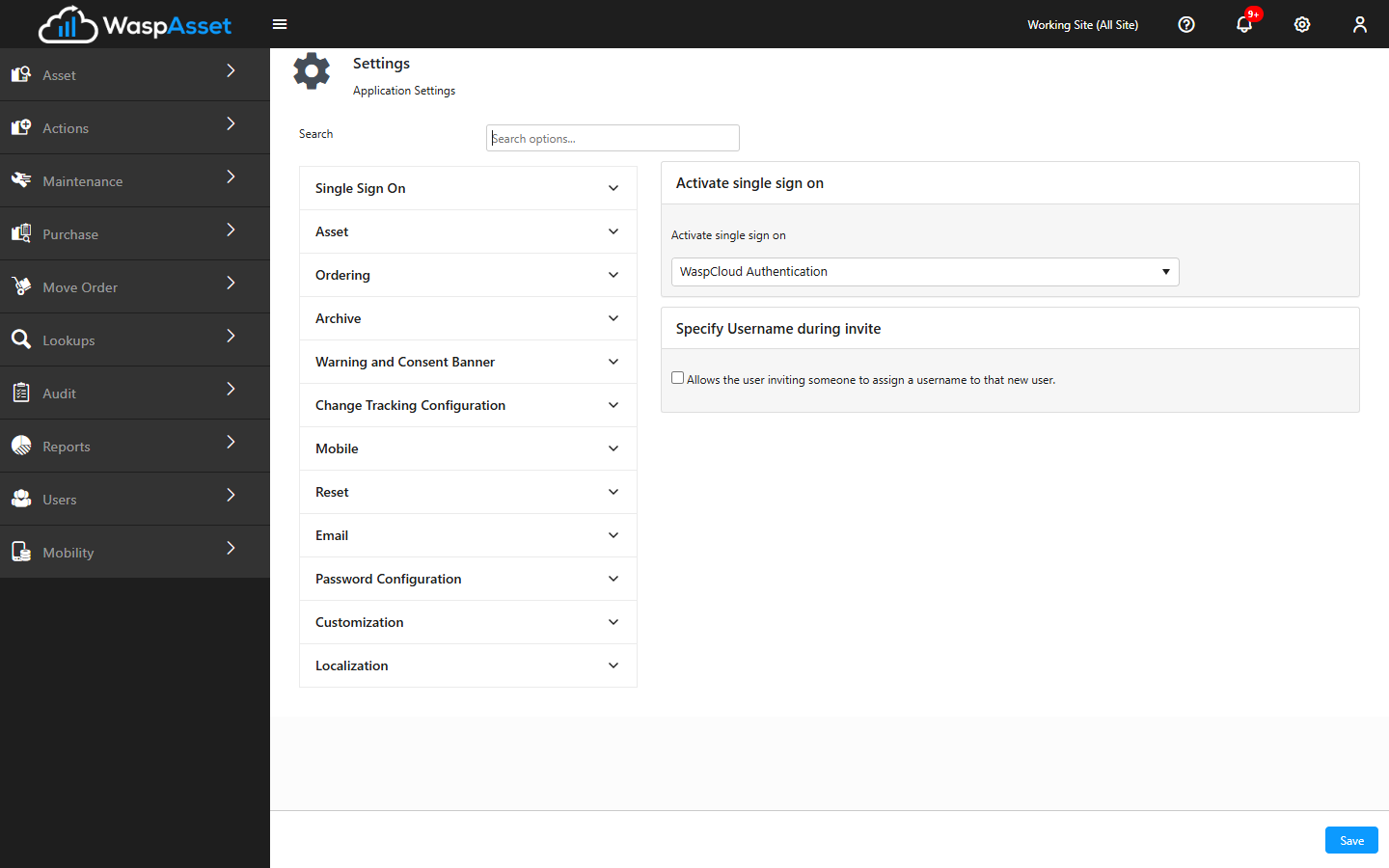
The Settings area holds account-wide preferences that apply to everyone in your account. This is where an administrator tunes how Wasp Asset behaves — from how numbers are displayed to how email and sign-in work. Open it from the Settings (gear) menu in the top-right corner.
Before you begin
Section titled “Before you begin”- Permission to view and change settings. These preferences are usually reserved for administrators. If your role is view-only here, you’ll see the settings but can’t save changes.
- Some settings are Application Admin only. A few sensitive options — such as erasing user data or resetting field names — are hidden unless you’re an Application Admin.
- Remember these are account-wide. A change here affects every user, not just you. Personal preferences (theme, landing page) live in the Profile menu instead.
What you can control
Section titled “What you can control”Settings are grouped into sections so you can find what you need. Depending on your edition and setup, you’ll see sections such as:
- Asset — defaults applied to your assets, including how many decimal places to show for quantities and monetary values so costs display consistently everywhere.
- Email — the SMTP settings Wasp Asset uses to send messages such as user invitations and notifications.
- Localization — regional defaults such as your tenant’s default culture/format.
- Mobile — behavior for the Wasp Asset mobile app.
- Customization — options tied to form and field customization.
- Reminder and Reminder Alert — automatic reminder behavior and alert thresholds.
- Geo-Location — your Google Maps API key, used for capturing and displaying asset locations.
- Archive — settings for archiving old transaction data.
- Single Sign On — federated (ADFS) or SAML sign-in settings, shown only when your organization has single sign-on enabled.
Changing a setting
Section titled “Changing a setting”- Open the section you want from the list on the left, or type in the Search options box at the top to jump straight to a setting by name.
- Adjust the value. Settings are grouped by section, so related options stay together.
- Click Save. Your change takes effect for everyone in the account.
Troubleshooting
Section titled “Troubleshooting”- Save is greyed out or does nothing. There may be no changes to save yet — adjust a value first. If it’s still unavailable, your role may be view-only for settings.
- User invitations aren’t being delivered. Open the Email section, check the server, port, and credentials, then click Validate SMTP to test. A failed test means invitations and notifications won’t go out.
- I can’t find a setting I expected. Not every option appears for every account — availability depends on your edition, setup, and role. Try the Search options box; if it’s still missing, the feature may not be enabled for your account.
- Sign-in / single sign-on options are missing. Federated (SAML) sign-in settings only appear when single sign-on is enabled for your account.
Related
Section titled “Related”- Company details — your company profile and logo
- Managing users — invitations depend on the email settings here
- Changing the theme — personal display preferences
- Signing in — how sign-in works, including single sign-on