

Fulfilling a move order
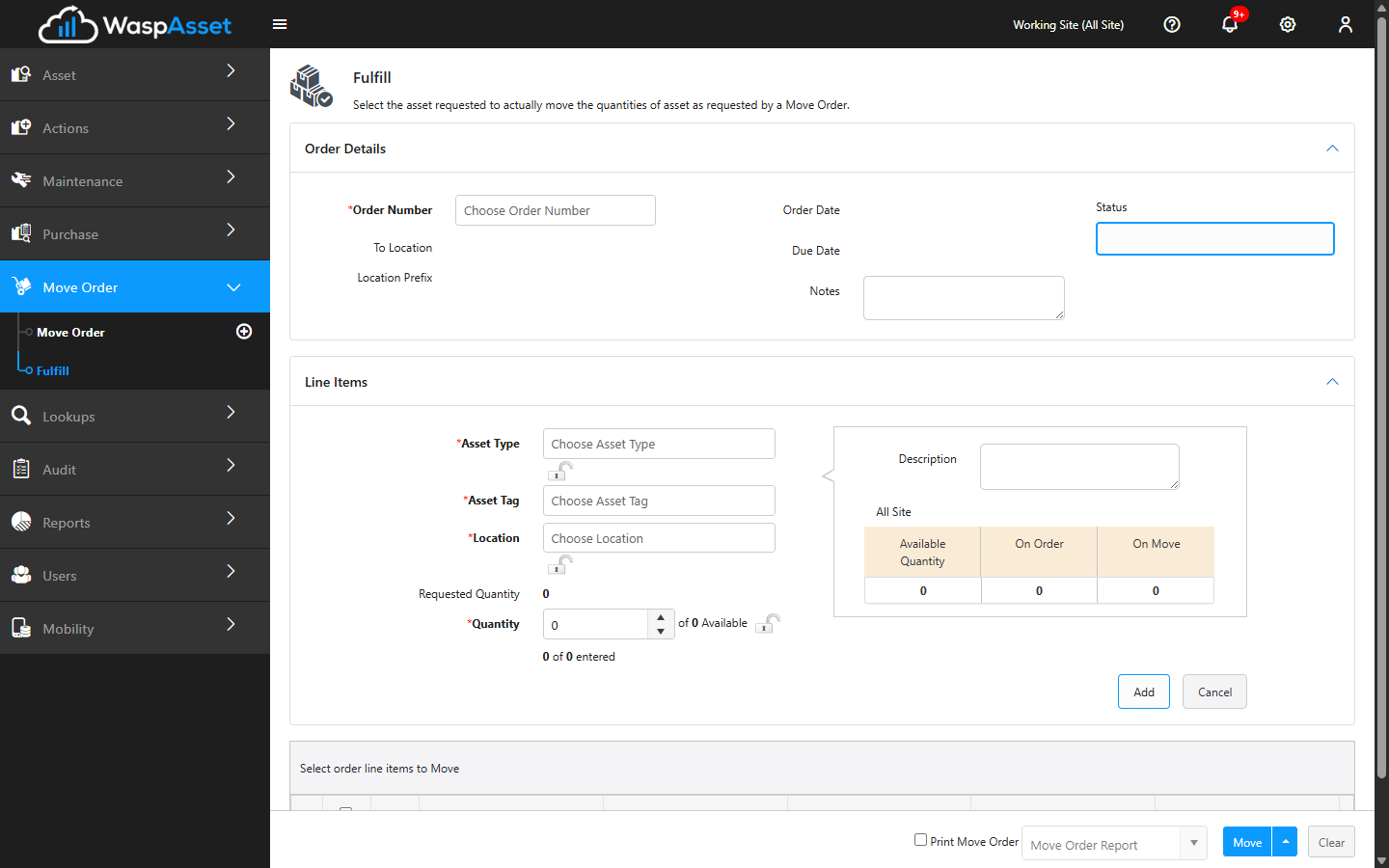
Fulfilling a move order is the step where the requested relocation actually happens. You pick the move order, confirm which assets are moving and where they’re going, and complete the move so the assets reflect their new location.
Before you begin
Section titled “Before you begin”- Edition — the Fulfill screen is available in the Complete edition.
- Permissions — fulfilling a move order uses the same move permission as the direct Move action, which is separate from the permission needed to create move orders. Without it the screen is read-only or hidden. See Roles.
- An open move order must exist. Fulfill works on a move order that has already been created and issued (its status is Open or In Progress). If there isn’t one yet, create it first from the Move Orders list; a Draft order needs to be issued before it can be fulfilled.
Fulfill a move order
Section titled “Fulfill a move order”- Open the Move Order section and choose Fulfill.
- Select the move order you want to work on, or right-click a move order in the Move Orders list and choose Fulfill from the context menu to open it directly.
- Review the line items — the assets requested to move — along with the destination Location.
- Confirm each asset is being moved. For quantity-tracked items, enter the Move Quantity; scan or select the assets as needed. The move quantity can’t exceed the quantity available, can’t be zero, and can’t be a fraction.
- Adjust the destination location if a particular line item needs to go somewhere other than the order’s requested location — each line can be sent to its own destination. Wasp Asset asks you to confirm before applying a changed location. A line’s destination can also be a group instead of a location.
- Choose a save action to complete the move (see below).
Completing part or all of the move
Section titled “Completing part or all of the move”You don’t have to fulfill everything at once:
- Save records the progress you’ve made and keeps the move order open, so you can finish the rest later.
- Save & Close completes the move order and closes it. Use this when all the requested assets have been moved.
As soon as a fulfillment is complete, each moved asset shows its new site and location, and the move becomes part of the asset’s history — the changes take effect right away and don’t wait for the order to be closed.
Troubleshooting
Section titled “Troubleshooting”- My move quantity is rejected. The quantity you enter can’t exceed the actual quantity available for that line item, and it can’t be zero or fractional. Check the available quantity shown on the line.
- The same asset is already in the queue. Each asset can be added to the fulfillment queue once — remove the duplicate or adjust the existing line.
- The destination location won’t accept my change. Confirm the location exists under your sites and locations; unlock the field if it’s pinned. See Sites and locations.
- I don’t see the Fulfill screen at all. It requires the Complete edition plus move permission.
- A move order won’t open in Fulfill, or the option is greyed out in the list. Only orders that have been issued can be fulfilled. A Draft order needs to be saved and sent first, and a Closed or Cancelled order can’t be fulfilled.
Related
Section titled “Related”- Move orders overview — what a move order is and how to create one
- Move — relocate an asset directly without a move order
- Receipts — the printable documents you can produce for a move