

Checking in an asset
Checking in an asset records that it has been returned. Wasp Asset closes out the check-out, updates where the asset lives, and notes the condition it came back in.
Before you begin
Section titled “Before you begin”- Check In must be enabled for your role. If it’s missing from the Actions menu, ask your administrator.
- Only assets that are currently checked out can be checked in. If nothing comes up, the asset may already be back — check its status on the asset list.
Check in an asset
Section titled “Check in an asset”- Open Actions → Check In.
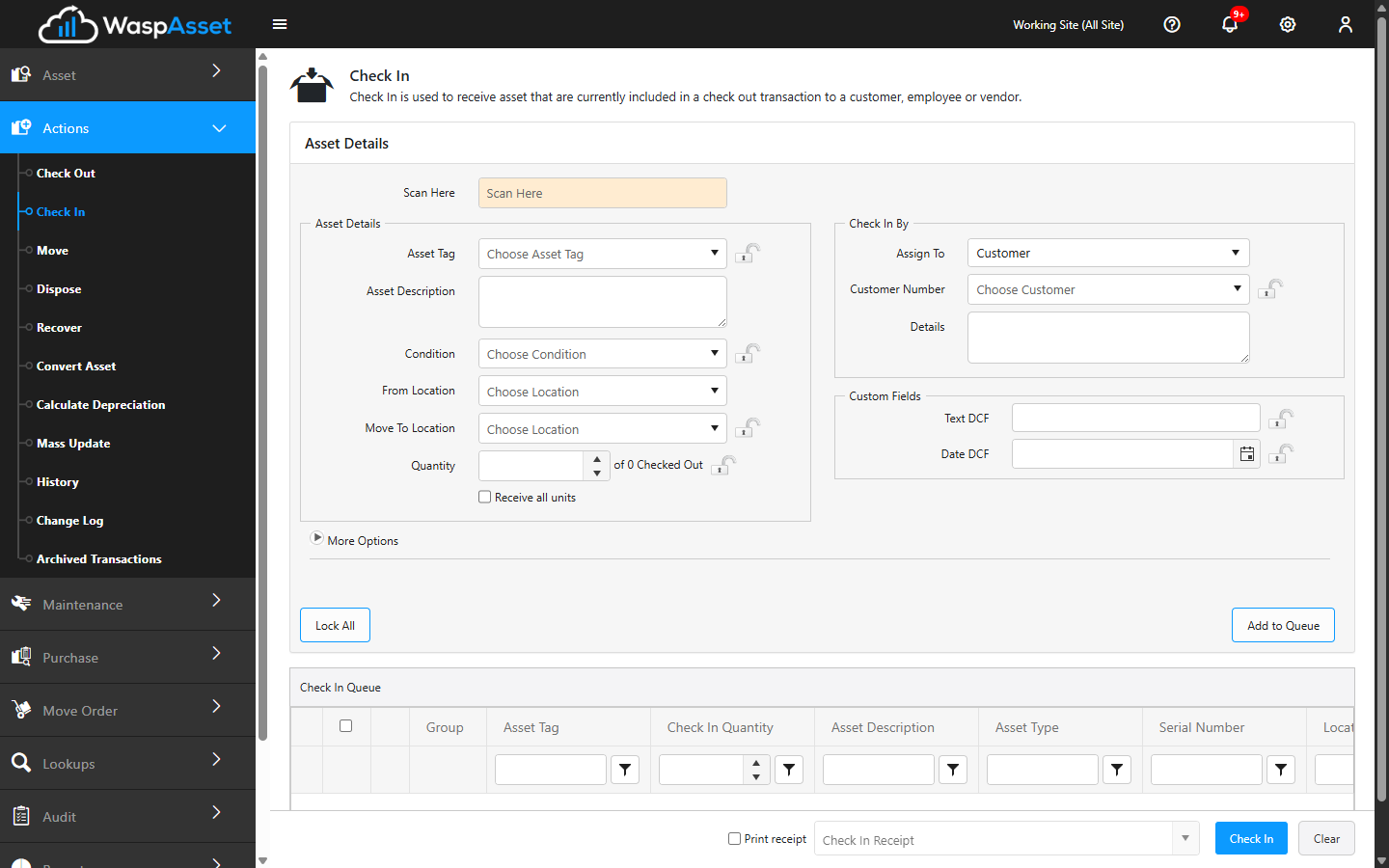
- In the Scan box, scan the asset’s barcode, or type its Asset Tag and pick it from the list. The asset’s details and current holder fill in automatically.
- Review the Condition and update it if the asset came back in a different state than it left.
- Confirm the From Location the asset is returning to. If it should live somewhere new, you can also choose a To Location to move it as part of the check-in.
- Click Check In to complete the return. Wasp Asset closes out the original check-out and the asset is available again.
Multi-quantity assets
Section titled “Multi-quantity assets”For a multi-quantity asset, a Quantity box lets you check in just some of the units that were checked out. Tick Receive All Units to bring back the entire checked-out quantity in one step.
Notes and more options
Section titled “Notes and more options”Click More Options to reveal the Notes field, where you can record anything worth remembering about the return.
Troubleshooting
Section titled “Troubleshooting”- “This asset isn’t checked out.” It’s already back, or was never checked out. Confirm the Asset Tag and check the asset’s current status before trying again.
- It was checked out to someone else. Wasp Asset flags a mismatch between the current holder and what you entered. Let the assignee fill in from the record, or correct it before saving.
- A returning asset should also change location. Set the To Location during check-in rather than doing a separate Move afterward — it’s recorded in one step.
- A required field is highlighted. Fill in anything marked required (your organization may require Condition, To Location, or custom fields) before the check in will save.
Related
Section titled “Related”- Checking out an asset — send an asset back out
- Moving an asset — relocate an asset without a check-in
- Transaction history — review past check-ins and check-outs