

Reconciling an audit
Reconciling is the final step of an audit. It’s where you compare the assets you actually counted against what Wasp Asset expected to find, then confirm the corrections so your records line up with the real world.
Before you begin
Section titled “Before you begin”- Reconciling is permission-controlled and separate from auditing. If the Reconcile page shows an insufficient-permissions message, ask your administrator to enable reconcile access for your role.
- Complete the count on the Audit page first — you can only reconcile assets that have been audited.
- Reconcile promptly after counting, while the physical locations are still accurate.
Open the Reconcile page
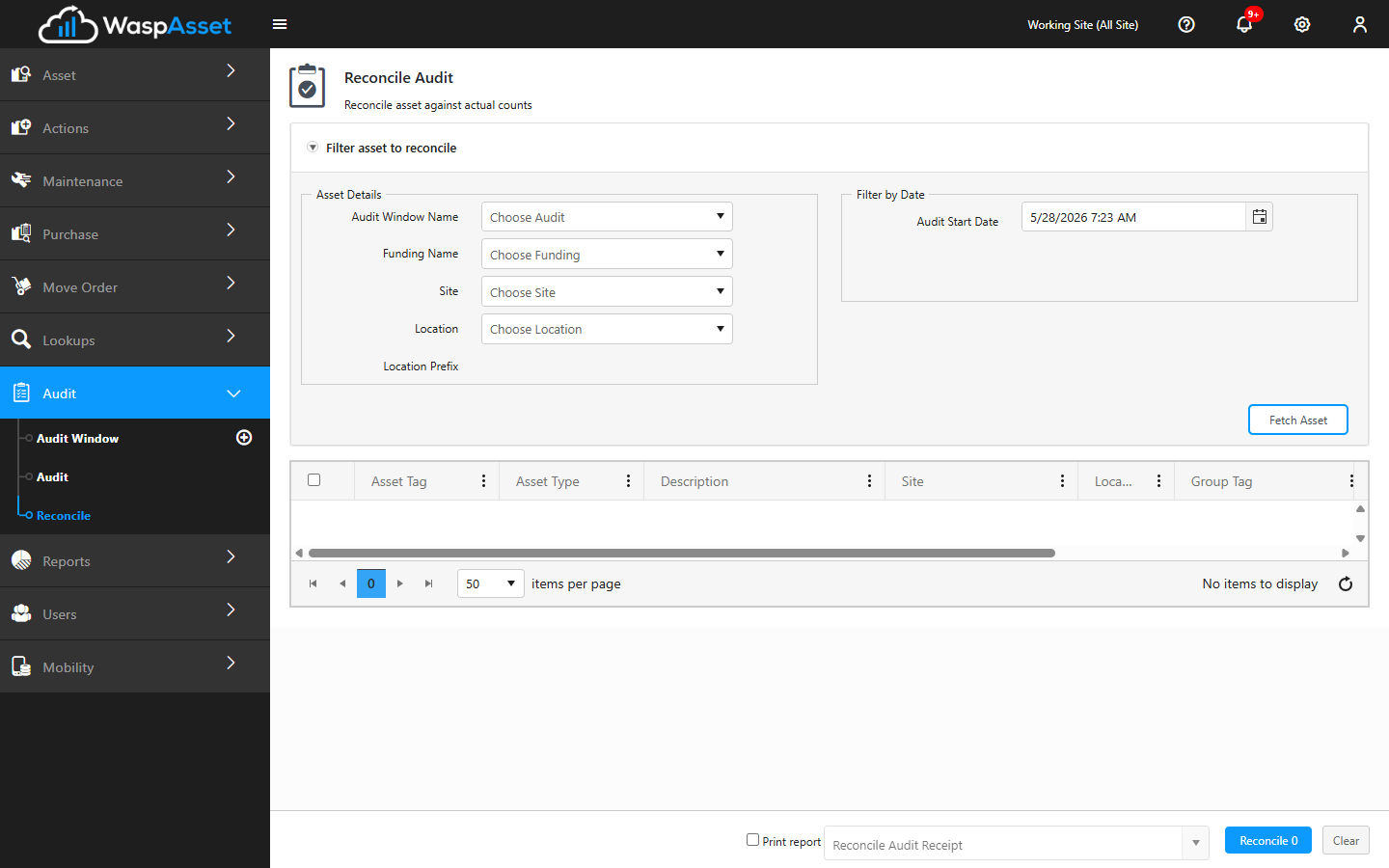
Section titled “Open the Reconcile page”From the left sidebar, open Audit and choose Reconcile. As with the Audit page, there’s a filter section at the top for choosing which results to review, and a results area below.
Load the assets to reconcile
Section titled “Load the assets to reconcile”Tell Wasp Asset which audit results you want to work through:
- Choose the Audit Window you counted against. (This field is hidden on the Basic edition.)
- Narrow by Funding, Site, or Location to match what you counted.
- Set the start date — a cutoff that pulls in audit counts from that date forward, so you’re reconciling the right session rather than an older one. It defaults to six weeks before today, so recent counts show up automatically.
- Click Fetch Assets to load the audited assets.
The list shows each asset alongside its Expected quantity, Checked Out quantity, any audit Discrepancy, and a Reconcile quantity you can adjust — so the differences between what the system thought was there and what you counted are easy to spot. Click an asset’s audit date to view its transaction History.
Review and resolve discrepancies
Section titled “Review and resolve discrepancies”Work through the loaded assets and decide what needs correcting:
- Assets found where expected simply confirm the record — no change needed.
- Missing assets (expected but not counted) can be resolved so the record reflects that they weren’t found.
- Misplaced assets (found somewhere other than expected) can be updated to their actual location.
- Quantity differences on Multi-Quantity Assets are adjusted to the amount you actually counted.
Select the assets you want to reconcile, then click Reconcile to apply the corrections. Use Clear if you’d rather start the review over.
Confirm and keep a record
Section titled “Confirm and keep a record”When you reconcile, Wasp Asset asks you to confirm the assets you’re updating and tells you how many were reconciled successfully. To keep a paper trail, select Print Receipt and choose a receipt template before you reconcile — the receipt generates as part of the same action.
Once reconciliation is complete, your asset data reflects reality again — and the audit is finished. If you were working from a scheduled Audit Window, you can mark that window Complete on the Audit Window page.
Troubleshooting
Section titled “Troubleshooting”- Fetch Assets returns nothing to reconcile. Confirm you selected the same window, site, or location you counted against, and that the start date is early enough to include your count. Assets that matched perfectly may already be reconciled.
- The Reconcile quantity won’t change a value. Only the reconcile quantity is editable; expected, checked-out, and discrepancy figures are read-only. Edit the reconcile cell, then reconcile.
- I need to see how a number was reached. Click the asset’s audit date to open its History — every audit and reconcile transaction for that asset and location, with dates and users.
- Nothing changed after I clicked Reconcile. Make sure the assets you wanted are selected (checked) before confirming; only selected rows are updated.
Related
Section titled “Related”- Running an audit — count your assets before reconciling.
- Audits overview — the full audit cycle and Audit Windows.
- Receipts — reprint or generate the reconciliation receipt separately.