

Audits
An audit is how you confirm that the assets in your records are actually where they’re supposed to be. In Wasp Asset you define when and where you want to count, walk through and verify (or scan) each asset, then resolve anything that doesn’t add up — so your database reflects the real world.
Before you begin
Section titled “Before you begin”- Auditing and reconciling are permission-controlled. If the Audit section doesn’t appear in the left sidebar, or a page tells you access is insufficient, ask your administrator to grant audit and reconcile access to your role.
- Audit Windows (the scheduled, recurring setup described below) are available on the Complete edition of Wasp Asset. On the Basic edition you can still audit and reconcile directly without a window.
- Auditing by Funding requires the Funding feature. If you don’t see a Funding filter, that feature isn’t part of your edition.
- Have your sites and locations set up first so the assets you count resolve to the right place — see Sites and locations.
How an audit works
Section titled “How an audit works”An audit in Wasp Asset moves through three stages, each with its own page under the Audit section of the left sidebar:
- Audit Window — set up the audit. An Audit Window defines the period you’re auditing and the assets it covers (by site or by funding). Think of it as the “assignment” that says what needs to be counted and by when.
- Audit — do the count. Open the window, scope it to the assets you’re verifying, and mark or scan each one you find.
- Reconcile — clean up the results. Compare what you actually found against what was expected, then resolve anything missing, extra, or in the wrong place so your records are accurate again.
Audit Windows
Section titled “Audit Windows”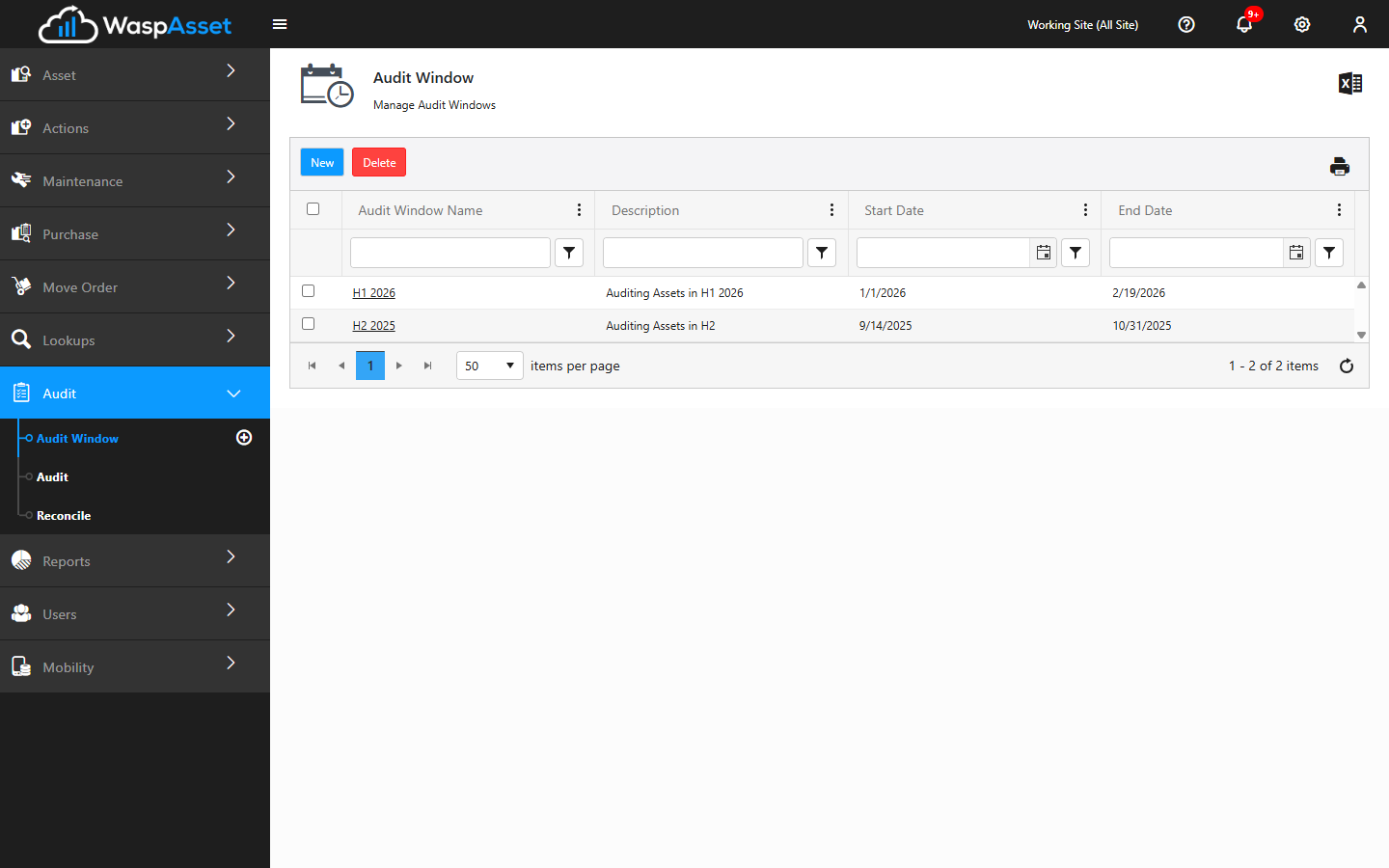
The Audit Window page lists every window you’ve created, along with its description, start date, and end date. From here you can:
- Click New to create a window.
- Click a window’s name to open and edit it.
- Select one or more windows and click Delete to remove them.
- Use the print and Export to Excel options to share an audit window progress summary.
When you create a window you give it a Name, an optional Description and Notes, and a Start Date and End Date. You then choose what the window covers by picking either Sites or Funding, and selecting the specific sites or funding sources to include. You can also set a Schedule so the window recurs automatically, and mark a window Complete once the audit is finished.
Why audits matter
Section titled “Why audits matter”Assets move, get checked out, and occasionally go missing. Regular audits keep your records trustworthy, which in turn keeps depreciation, reporting, and check-in/check-out accurate. A typical cycle looks like this:
- Set up an Audit Window for the area and time period you want to verify.
- Audit the assets by scanning or marking each one you physically find.
- Reconcile the results to correct any differences between what the system expected and what you actually counted.
Common questions
Section titled “Common questions”- I don’t see the Audit Window page. Audit Windows are an edition-gated feature. On the Basic edition, skip straight to the Audit page and count without a window.
- My audit window covers the wrong assets. A window is scoped by either Sites or Funding — not both. Re-open the window and confirm you picked the right scope and the specific sites or funding sources you meant to include.
- A finished window still shows as open. Marking the audit Complete is a manual step. Open the window and set it to Complete once you’ve reconciled everything.
Next steps
Section titled “Next steps”- Running an audit — scope a window and count your assets.
- Reconciling an audit — resolve discrepancies so your records match reality.
- Sites and locations — set up the places your assets live.
- Reports — run audit progress and reconciliation reports.