

Disposed assets
When you retire an asset it moves off your active lists and onto the Disposed Asset list. This page explains what that list shows and how to bring an asset back if you disposed of it by mistake or it returns to service.
Before you begin
Section titled “Before you begin”- You need access to the Asset area to open the Disposed Asset list. Recovering an asset is permission-controlled — if Recover is missing, your role doesn’t have recover access.
- Disposing and recovering are separate actions. To retire an asset, use Dispose; this page covers what happens afterward and how to reverse it.
Viewing disposed assets
Section titled “Viewing disposed assets”Open Disposed Asset from the Asset sidebar.
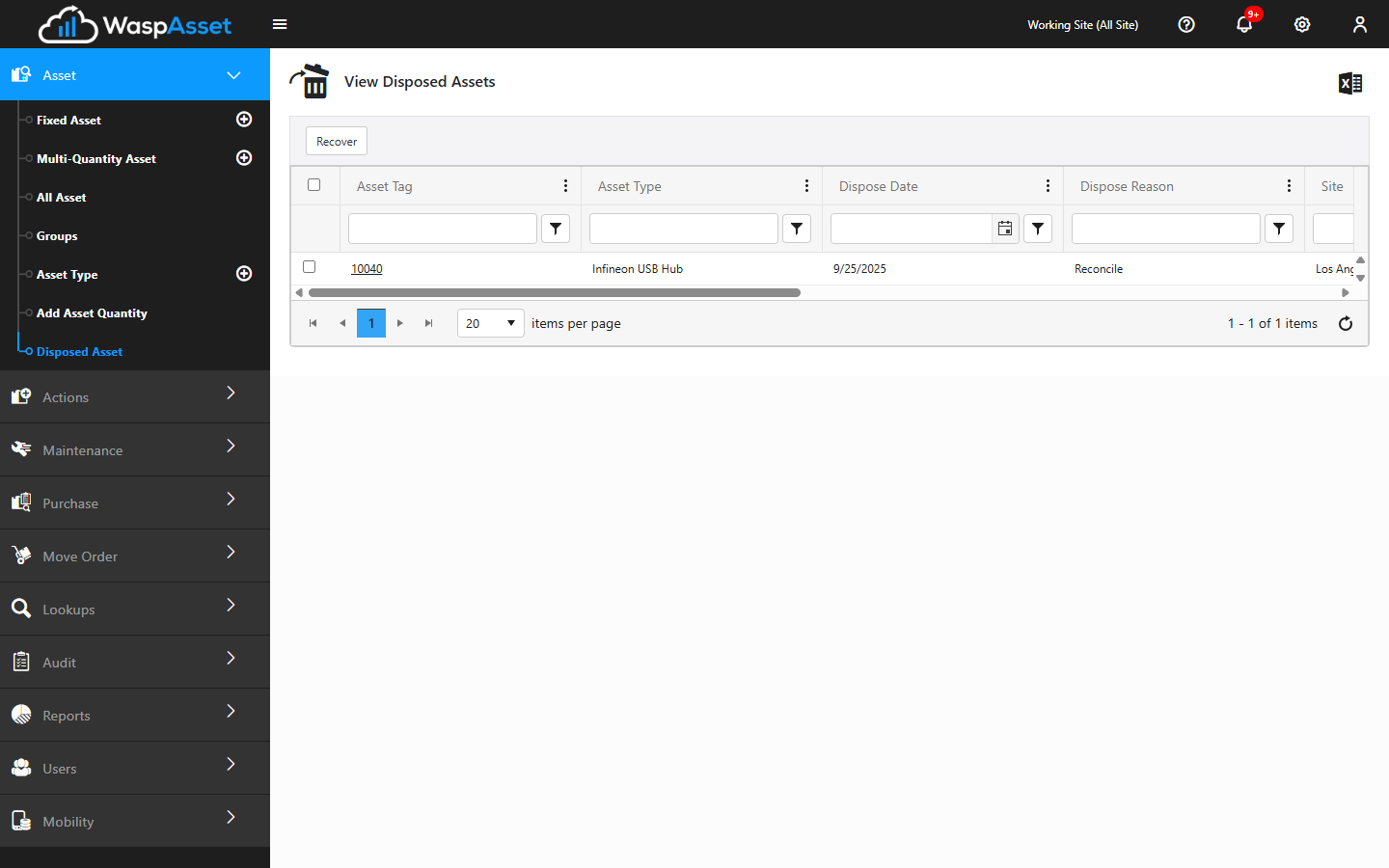
The list shows every asset that has been disposed, with columns for Asset Tag, Asset Type, Site, Location, Department, Dispose Reason, Dispose Date, Purchase Date, and Purchase Cost. You can:
- Sort and filter using the column headers.
- Export to Excel to download the list (there’s no CSV option here, unlike the active asset lists).
- Click an Asset Tag to open a disposed asset and review its details (in view-only mode — editing is turned off until the asset is recovered).
Recovering an asset
Section titled “Recovering an asset”If an asset was disposed by mistake, or a retired asset comes back into use, you can recover it:
- On the Disposed Asset list, tick the asset (or assets) you want to bring back.
- Click Recover.
- Complete the recovery — you’ll be asked for a recovery reason.
Once recovered, the asset returns to your active lists. For the full walkthrough, see Recover.
Troubleshooting
Section titled “Troubleshooting”- An asset vanished from my lists. If someone disposed of it, it’s on the Disposed Asset list, not gone. Open that list to find and, if needed, recover it.
- I don’t see the Recover button. Recovering is permission-controlled. If it’s missing, your role doesn’t include recover access — ask whoever manages your account.
- Clicking Recover does nothing. Tick at least one asset on the list first — Recover needs a selection to act on.
- I recovered an asset but its location or assignee looks wrong. Recovery brings the asset back but doesn’t replay its prior transactions. Open the asset and update its location, owner, or check-out status as needed.
- I got an error trying to recover a large batch of assets at once. There’s a limit on how many assets you can act on in a single transaction. Recover them in smaller batches if you hit it.