

Company details
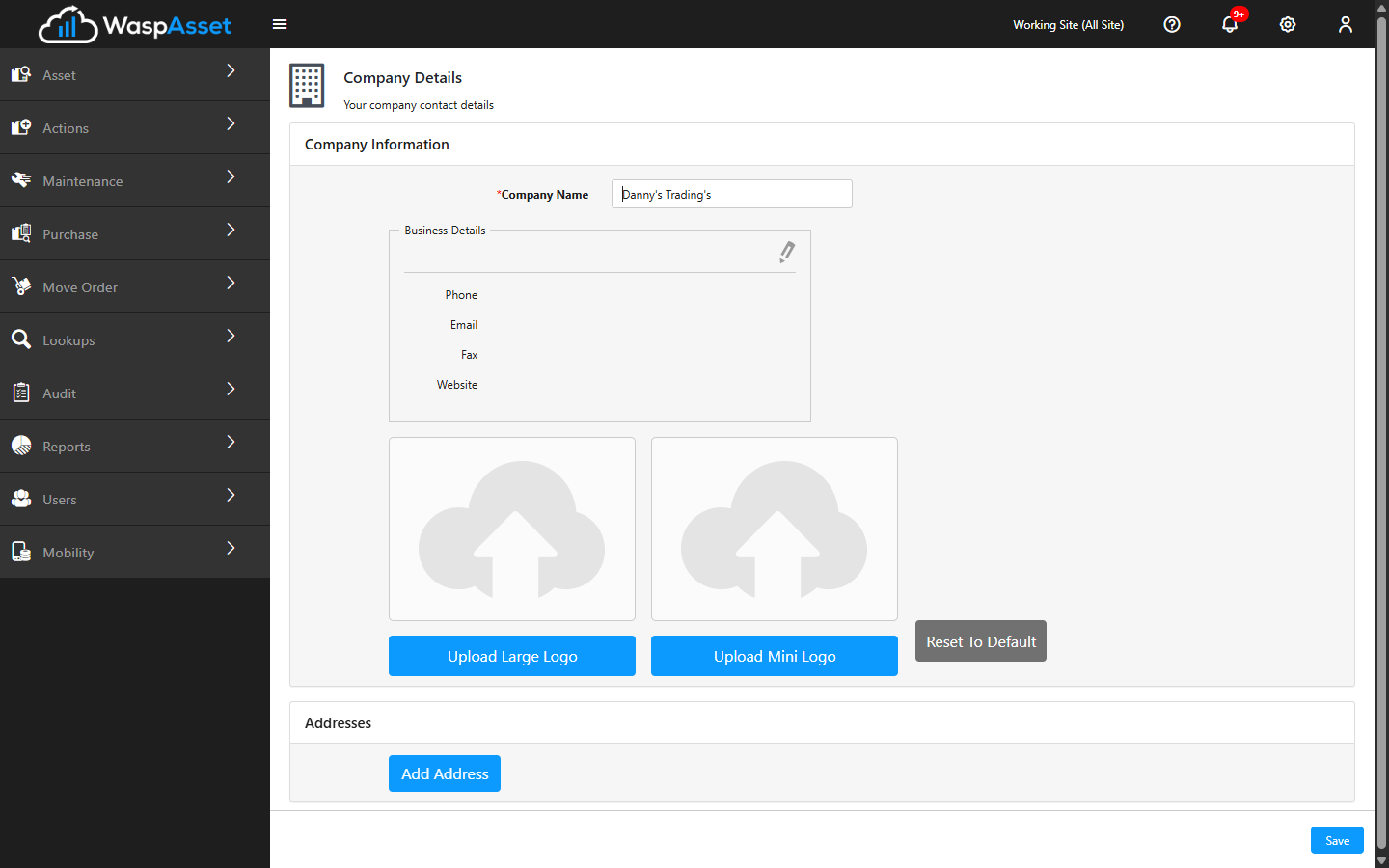
Company Details is your company profile. The name, contact information, addresses, and logo you enter here are used across Wasp Asset — most visibly on the printouts and documents you generate, such as receipts and reports. Open it from the Settings (gear) menu in the top-right corner.
Before you begin
Section titled “Before you begin”- Permission to edit company information. Editing is controlled by your role. If you don’t see the pencil (edit) icon or the upload buttons, your role is view-only here — everything still appears, just in read-only form.
- A logo image ready to upload. Have a clean, high-resolution image on hand for the best-looking printed documents.
Company information
Section titled “Company information”At the top of the page you’ll set your Company Name. Alongside it are your Business Details:
- Phone
- Fax
- Website
To change the business details, click the pencil (edit) icon next to that section, make your changes, and click Update. If you don’t see the edit icon, your role doesn’t include permission to edit company information.
Company logo
Section titled “Company logo”You can upload two versions of your logo:
- Large logo — used where there’s more room, such as document headers.
- Small logo — used in tighter spaces.
Use the Upload button under each to attach an image, or Reset to Default to remove your custom logos and go back to the standard artwork.
Address details
Section titled “Address details”Under Address Details you can manage the addresses associated with your company. Click Add Address to add another one — for example, a separate billing or shipping address.
Troubleshooting
Section titled “Troubleshooting”- I don’t see any edit (pencil) icons or Upload buttons. Your role doesn’t include permission to edit company information. Ask an administrator to update your role or make the change for you.
- My logo looks blurry or squashed on printouts. Re-upload a higher-resolution image. Use the Large logo for document headers and the Small logo for tighter spaces. You can always Reset to Default to start over.
- The wrong address is printing on a document. Company Details can hold more than one address. Confirm the address you intend to use is entered correctly here; the details flow onto receipts and reports from this page.
Related
Section titled “Related”- Settings & options — account-wide preferences and email setup
- Receipts — documents that show your company details and logo
- Reports — reporting that uses your company profile