

Categories, conditions & reasons
These lookups give you the short, standardized labels that keep your asset records consistent. Categories classify assets into groups, Conditions describe an asset’s state, and Dispose and Recovery Reason codes explain why an asset was retired or brought back. Each is a simple list you manage from the Lookups menu.
Before you begin
Section titled “Before you begin”- These lists live under the Lookups menu and are usually maintained by an administrator; you’ll need a role with access. Your role can also be restricted more finely — some users can view a list but not create, edit, or delete entries in it.
- Set them up before you start disposing of or recovering assets — a reason code has to exist before you can pick it.
- Keep each list short and standardized. A handful of clear values keeps filtering and reporting clean; a long list of near-duplicates makes it harder.
Categories
Section titled “Categories”A category classifies your assets into meaningful groups — for example, “Computers”, “Vehicles”, or “Furniture”. Categories make it easy to filter, report on, and organize your assets.
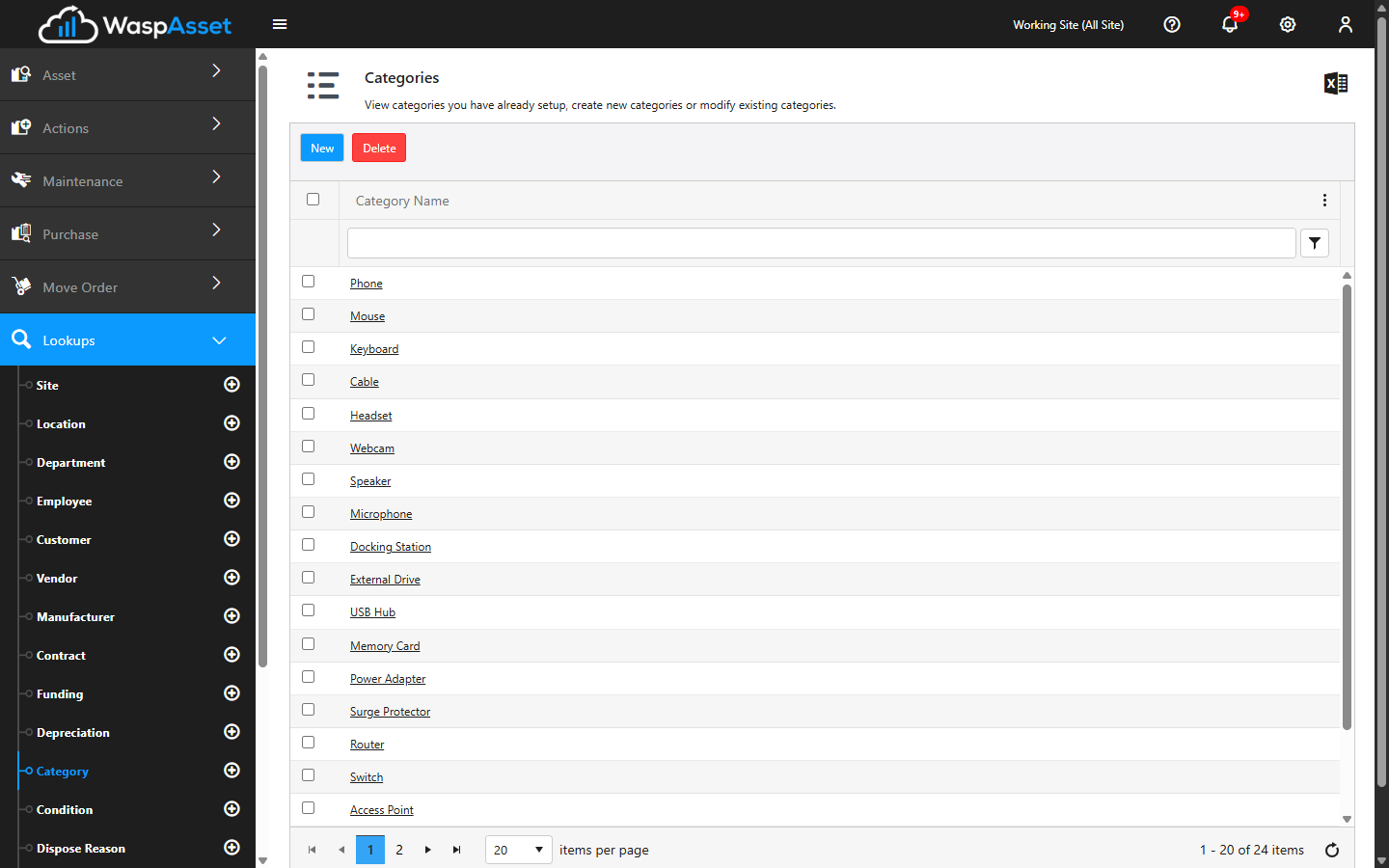
Add or edit a category
Section titled “Add or edit a category”- Open Category from the Lookups menu.
- Click New, or click an existing category to edit it.
- Enter the Category Description.
- Click Save.
Conditions
Section titled “Conditions”A condition describes the physical state of an asset — such as New, Good, Fair, or Damaged. Recording condition helps you track wear, plan replacements, and report on the health of your equipment.
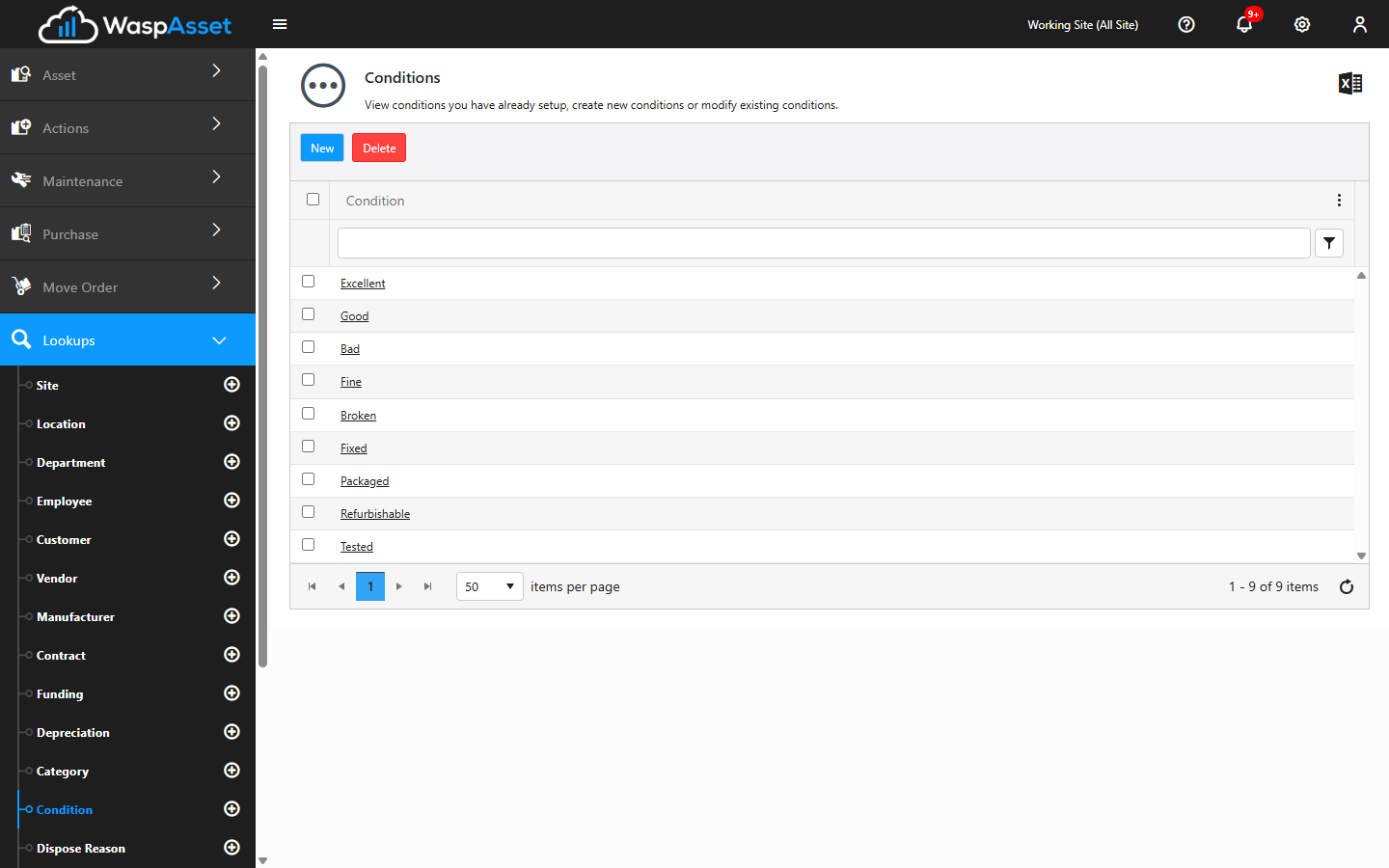
Add or edit a condition
Section titled “Add or edit a condition”- Open Condition from the Lookups menu.
- Click New, or click an existing condition to edit it.
- Enter the Condition Description.
- Click Save.
Dispose and Recovery reasons
Section titled “Dispose and Recovery reasons”Reason codes explain why an asset was retired or reinstated:
- A Dispose Reason is chosen when you dispose of an asset — for example, “Sold”, “Scrapped”, or “Lost”.
- A Recovery Reason is chosen when you recover a previously disposed asset — for example, “Found” or “Returned to service”.
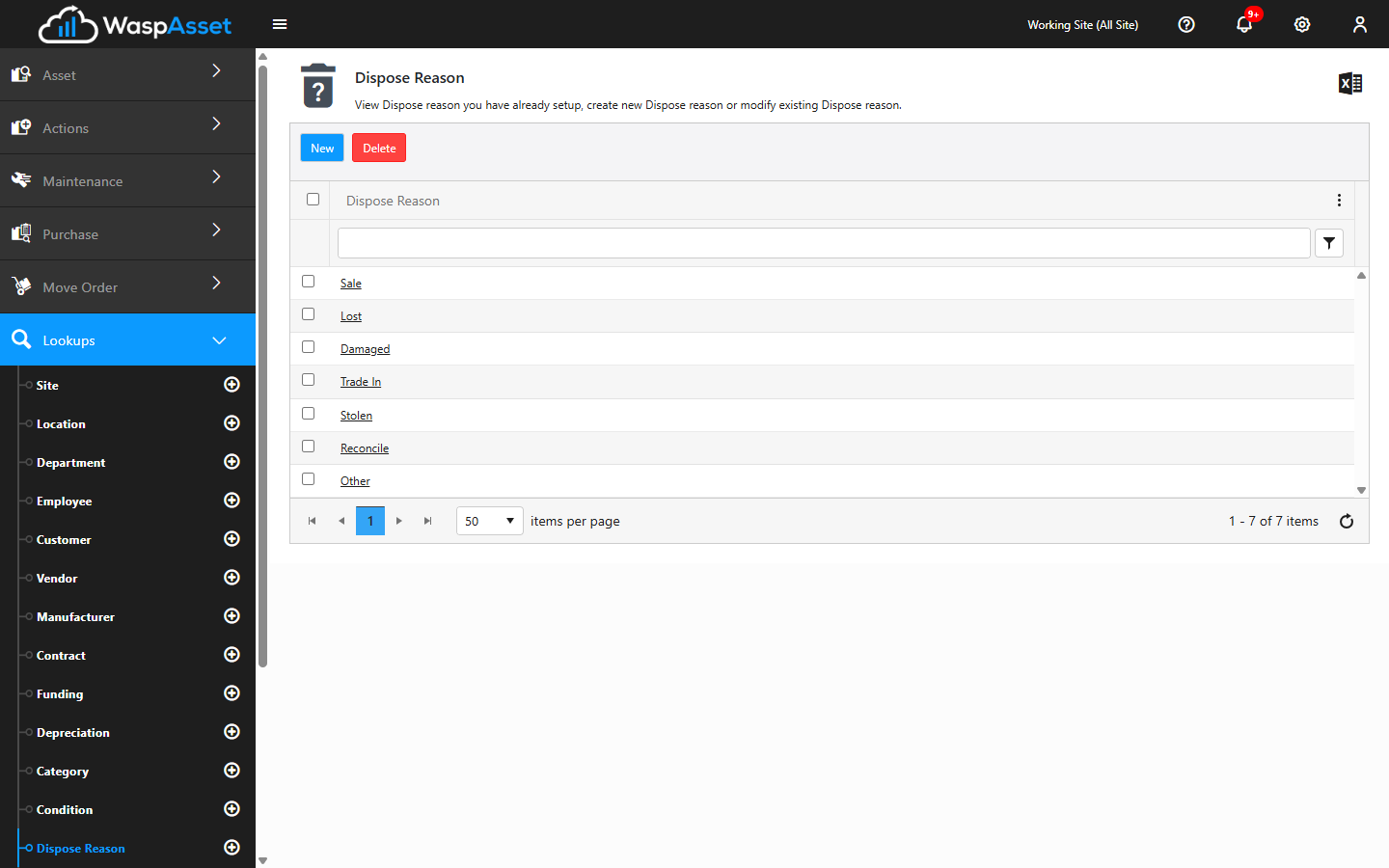
Add or edit a reason code
Section titled “Add or edit a reason code”- Open Dispose Reason or Recovery Reason from the Lookups menu.
- Click New, or click an existing reason to edit it.
- Enter the reason description.
- Click Save.
Delete a category, condition, or reason
Section titled “Delete a category, condition, or reason”From the list for any of these lookups, select the checkbox next to one or more records, click Delete, and confirm. You can select multiple rows at once to clean up several unused values in one pass.
Troubleshooting
Section titled “Troubleshooting”- There’s no reason to choose when I dispose or recover an asset. The reason lists start empty. Add at least one Dispose Reason and one Recovery Reason here first.
- I can’t delete a category, condition, or reason. If it’s still applied to an asset or appears in history, it’s protected. Reassign the affected assets or leave the value in place.
- The Delete button is greyed out, or nothing happens when I click it. Select at least one row’s checkbox in the list first — Delete acts on whatever rows are checked. You may also be missing delete permission for this lookup.
- What’s the difference between a category and a condition? A category groups assets by kind (Computers, Vehicles), while a condition describes their state (New, Good, Damaged). Both are used for filtering and reporting.
Related
Section titled “Related”- Dispose — retire an asset using a dispose reason.
- Recover — reinstate a disposed asset using a recovery reason.
- Viewing assets — filter and group by category and condition.
- Lookups overview — how the reference lists fit together.