

Number Series
Number Series lets you set up auto-generated, sequential numbers for key records, so Wasp Asset assigns them for you instead of someone typing a number by hand. You build a format out of segments — a counting number, a counting letter, and/or fixed text — and every new record of that type gets the next number in the series (for example, ASSET-1001, ASSET-1002, and so on).
Before you begin
Section titled “Before you begin”- Number Series is an administrator area under the Settings gear, gated by your role’s permissions.
- Turn on automatic numbering first. A record type only appears here once its Automatically assign … number option is turned on under Settings & options. Each of those options also links straight here.
- Purchase Order and Move Order numbering are available only on editions above Basic.
Records you can number
Section titled “Records you can number”Once their automatic-numbering option is enabled, you can set up a series for:
- Asset Tag numbers
- Employee numbers
- Customer numbers
- Supplier (vendor) numbers
- Work Order numbers
- Purchase Order numbers (editions above Basic)
- Move Order numbers (editions above Basic)
Build a number series
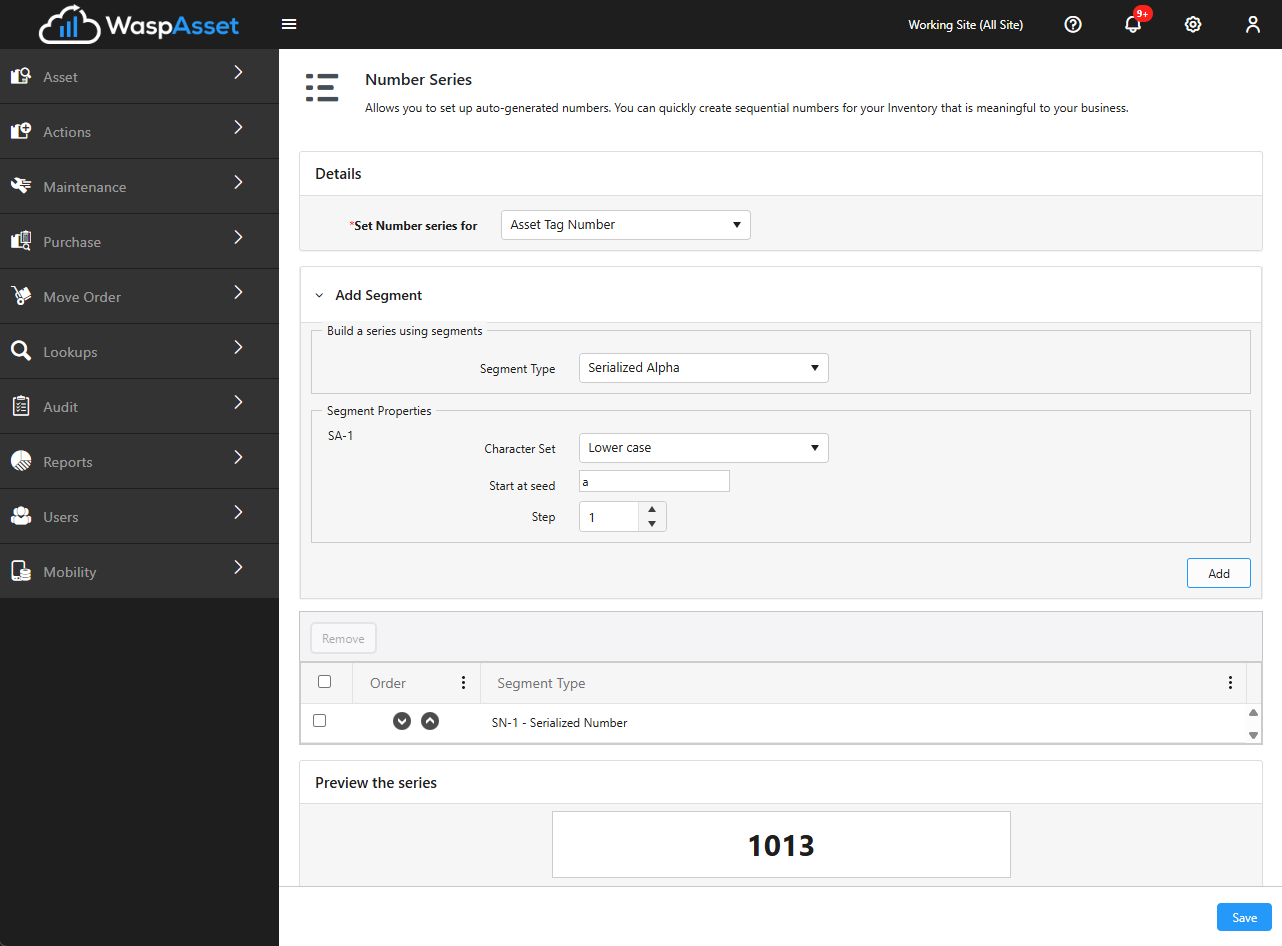
Section titled “Build a number series”- Open the Settings gear → Number Series.
- Choose the record type from Number Series For. (Only types whose automatic-numbering option is turned on appear in the list.)
- Under Add Segment, add one or more segments in the order you want them:
- Serialized Number — a counting number. Set the Seed (the number to start from) and the Step (how much to increase by each time).
- Serialized Alpha — a counting letter. Choose the character set (for example, uppercase) and a starting point.
- Static — fixed text, such as a prefix like
ASSET-.
- Reorder segments with the up/down arrows, and watch the Preview update to show an example of the resulting number.
- Click Save.
A series must include at least one counting segment (a Serialized Number or Serialized Alpha) — a format made only of static text isn’t allowed.
How auto-numbers appear on records
Section titled “How auto-numbers appear on records”When automatic numbering is on for a record type, its number field on a new record shows Automatically Assigned and is locked; Wasp Asset fills in the next number, guaranteed unique, when you save. To enter your own value instead on a particular record, click the pencil icon next to the field to unlock it.
Troubleshooting
Section titled “Troubleshooting”- The record type I want isn’t in the “Number Series For” list. Turn on its Automatically assign … number option under Settings & options first.
- Save won’t accept my format. A series needs at least one counting segment — add a Serialized Number or Serialized Alpha segment, not just static text.
- A number field is locked on a record. That’s automatic numbering at work. Click the pencil icon beside it to enter your own value for that record.
- I don’t see Purchase Order or Move Order numbering. Those are available only on editions above Basic.
Related
Section titled “Related”- Settings & options — turn on automatic numbering for each record type
- Purchase orders — where auto-assigned PO numbers appear
- Move orders — where auto-assigned move order numbers appear
- Departments & employees — employee numbering