

Contracts, funding & depreciation methods
These three lookups support the financial side of asset tracking. Contracts capture agreements and leases tied to your assets, Funding records the sources of money used to acquire them, and Depreciation methods define how an asset loses book value over time. Together they help your finance and accounting teams keep asset value and obligations accurate.
Before you begin
Section titled “Before you begin”- These finance lookups are usually maintained by your finance or accounting team, so you’ll need a role with access to the Lookups menu — view, add, and edit access are each granted separately.
- Contracts require the Complete edition — on Basic, the page tells you the feature isn’t included in your license.
- Funding is a licensed add-on feature of its own; if it isn’t part of your account, the page shows the same insufficient-license message.
- Depreciation methods are available in every edition — only the permission to view, add, or edit them is role-based.
- Set up the vendor a contract is with before creating the contract, so you can select it.
- Create a depreciation method before you can assign it to an asset type and run Calculate Depreciation.
Contracts
Section titled “Contracts”A contract records an agreement or lease — such as a service contract, warranty, or software license — that you want to associate with assets.
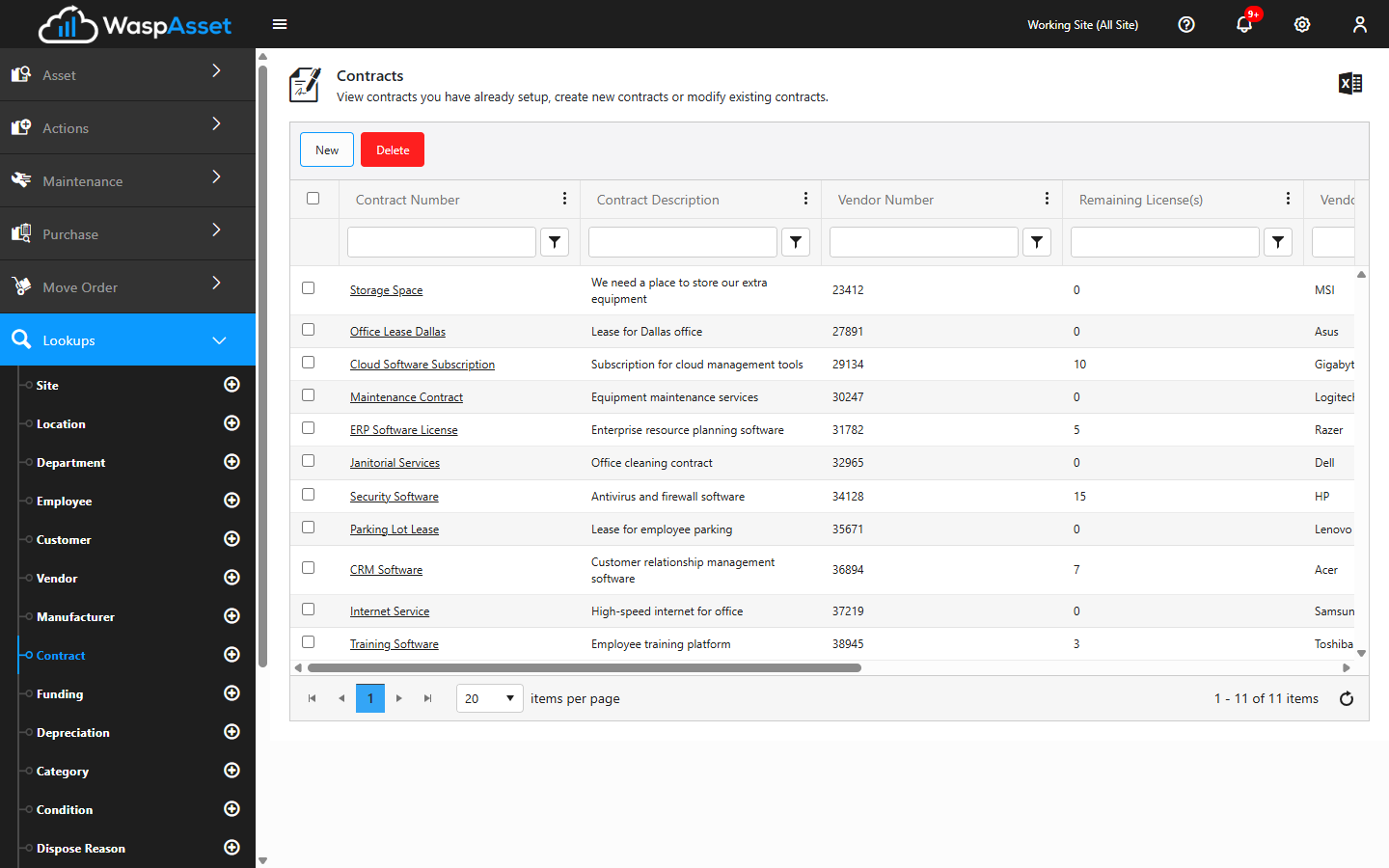
Add or edit a contract
Section titled “Add or edit a contract”- Open Contract from the Lookups menu.
- Click Add, or click an existing contract to edit it.
- Fill in the Contract Details:
- Contract Number and Description.
- Cost — the contract’s value.
- Begin Date and End Date — the contract term. Tick No End Date for an open-ended agreement.
- Vendor — the supplier the contract is with. Their contact details appear when selected.
- For software contracts, mark it as software and enter the Number of Licenses; Wasp Asset tracks how many remain.
- Notes — any additional information.
- Use the Associated Assets grid to attach the assets this contract covers.
- Click Save.
Funding
Section titled “Funding”A funding record represents a source of money — such as a grant, budget, or capital fund — used to acquire assets. Tracking funding lets you see how much of a source has been spent and how much remains.
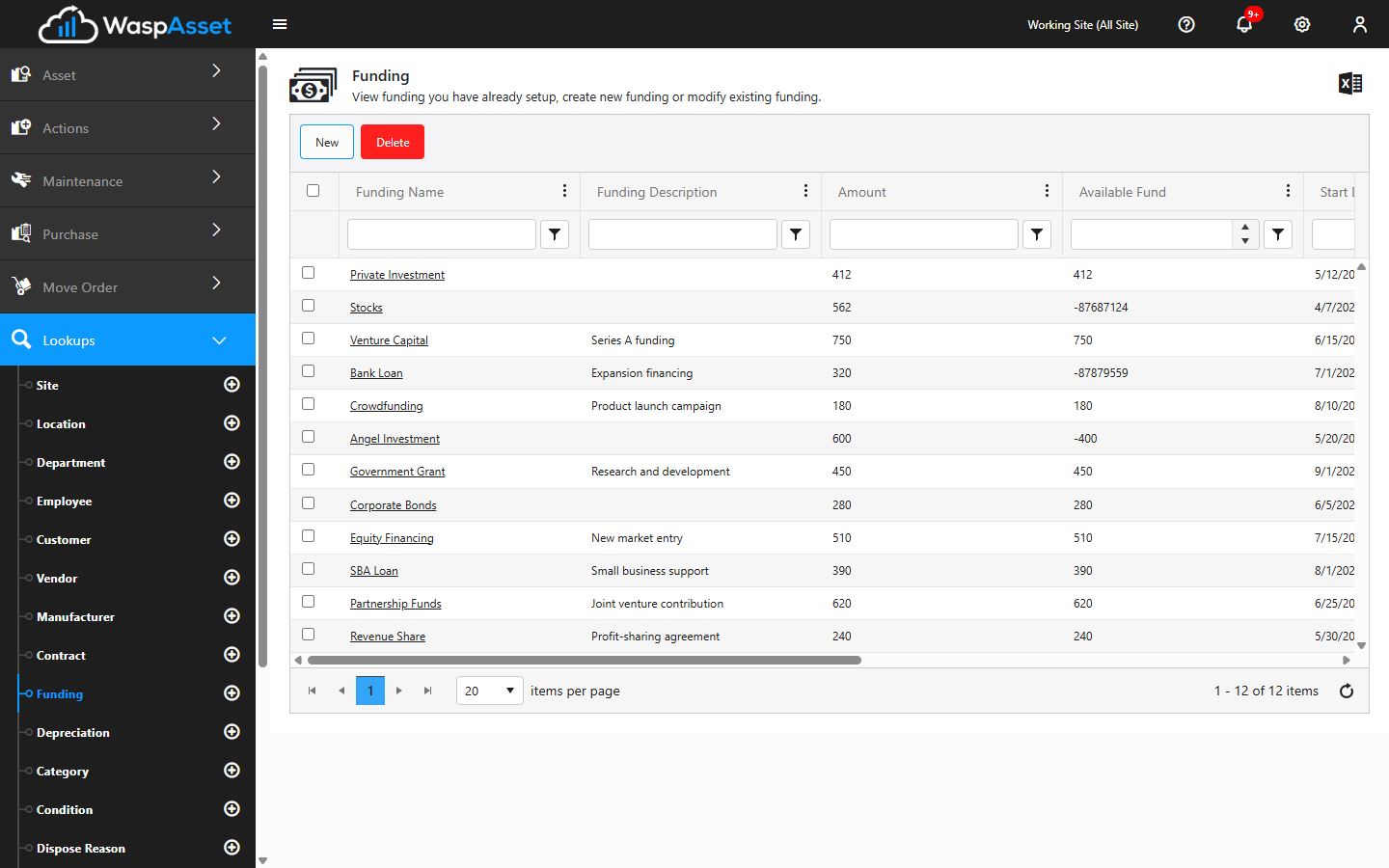
Add or edit a funding source
Section titled “Add or edit a funding source”- Open Funding from the Lookups menu.
- Click Add, or click an existing funding source to edit it.
- Fill in the details:
- Funding Name and Description.
- Amount — the total funds available.
- Start Date and End Date — the period the funding applies to.
- Notes — any additional information.
- Use the assets grid to attach the assets this funding source paid for.
- Click Save. Wasp Asset shows the total spent and the Available Funds remaining.
Depreciation methods
Section titled “Depreciation methods”A depreciation method (or depreciation class) defines how an asset’s book value decreases over its useful life. You assign a method to an asset type — not to individual assets — so every asset of that type starts out with the same depreciation setup. From there, each asset’s Purchase Detail tab lets you turn depreciation on for that asset and set its own Depreciation Begin Date and Salvage Value; running Calculate Depreciation is what actually updates book values.
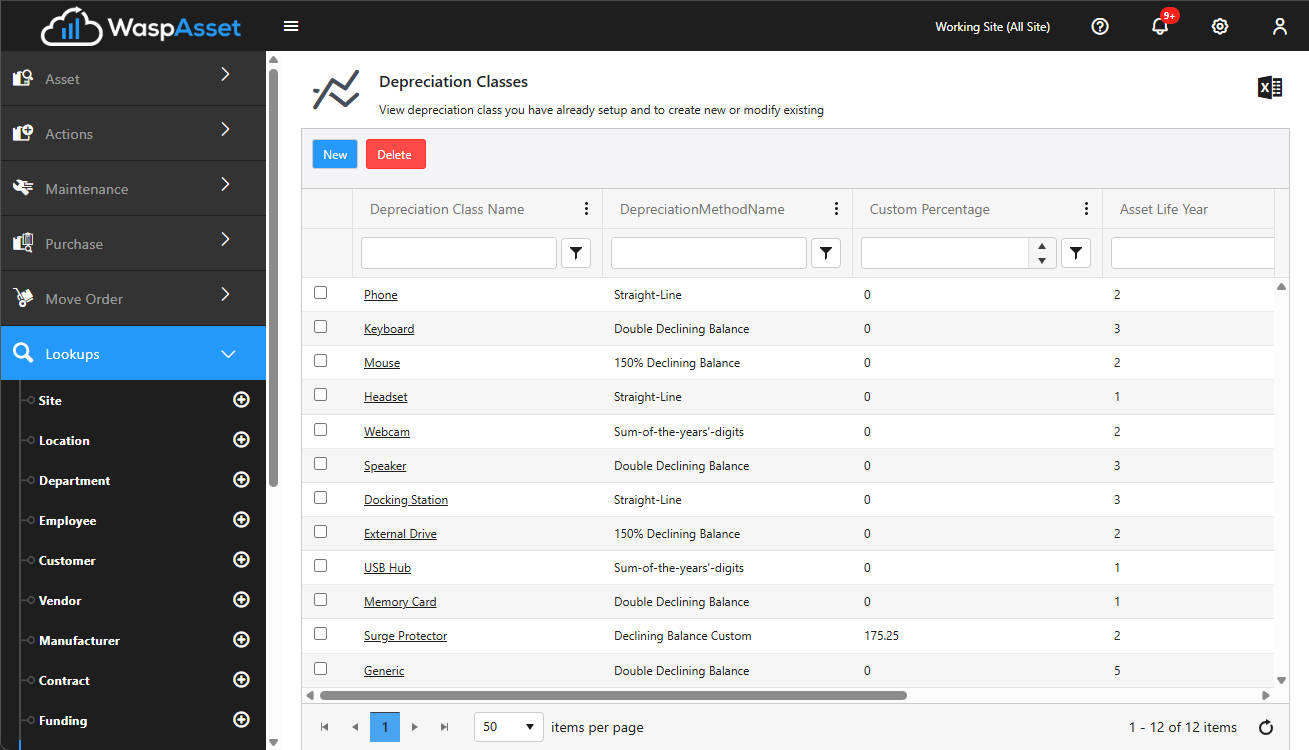
Add or edit a depreciation method
Section titled “Add or edit a depreciation method”- Open Depreciation from the Lookups menu.
- Click Add, or click an existing method to edit it.
- Fill in the Depreciation Class Details:
- Name — a name for the method.
- Depreciation Method — the calculation type (for example, straight-line).
- Custom Percentage — a custom rate, where the method allows one.
- Asset Life — the useful life in Years and Months.
- Optionally, mark whether assets should fully depreciate to salvage value.
- Click Save.
Troubleshooting
Section titled “Troubleshooting”- An asset’s book value hasn’t changed. Assigning a method doesn’t recalculate value by itself. Run Calculate Depreciation to update book values.
- An asset doesn’t show a depreciation class at all. The method is set on the asset type, not on the asset directly. Assign it to the type, or check that depreciation is turned on for the individual asset under its Purchase Detail tab.
- The Vendor list is empty on a contract. Add the vendor first — a contract’s vendor must already exist.
- My software license count isn’t tracking. Make sure the contract is marked as software and the Number of Licenses is entered; Wasp Asset then shows how many remain as you assign them.
- Available Funds looks wrong. The remaining amount is the funding Amount minus the cost charged against each associated asset — not necessarily each asset’s full purchase cost. Check the cost entered for each asset attached to that source if the number is unexpected.
Related
Section titled “Related”- Calculate Depreciation — apply a method to update asset book values.
- Asset types — where a depreciation method is actually assigned.
- Asset details & tabs — the Contract, Funding, and Purchase Detail tabs on an asset.
- Vendors — the supplier a contract is with.
- Lookups overview — how the reference lists fit together.