

Groups
Groups let you organize related assets together — for example, all the equipment that makes up a workstation, or a kit of tools that travels as a set. This page explains how to view groups and work with the assets inside them.
Before you begin
Section titled “Before you begin”- Groups is a Complete edition feature. If you don’t see Groups in the Asset sidebar, it isn’t included in your edition or hasn’t been enabled for your company.
- The transactions you can run on grouped assets (Check Out, Move, Dispose, and so on) still follow your role’s permissions — you can only run an action you’d be allowed to run on those assets individually.
Viewing groups
Section titled “Viewing groups”Open Groups from the Asset sidebar to see your groups and the assets they contain.
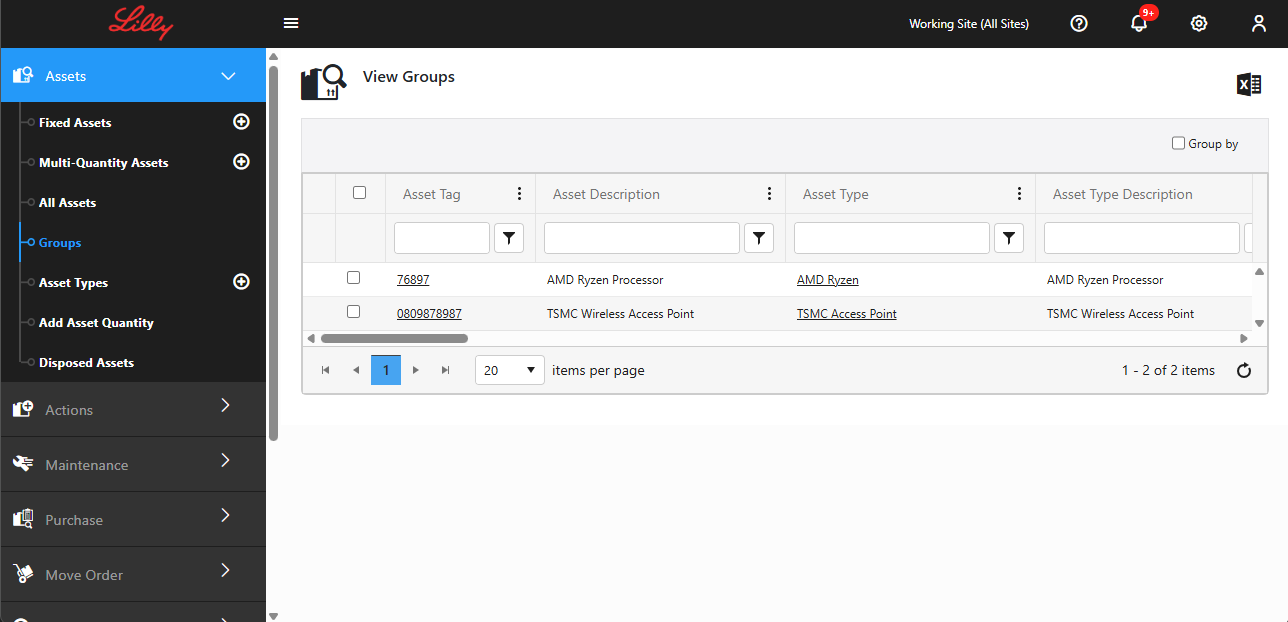
Groups are shown in an expandable list. Click a group to expand it and see the assets inside; groups can be nested, so you can drill down through several levels to reach individual assets. Each asset row shows familiar columns such as Asset Tag, Description, Asset Type, Quantity, serial number, owner, and purchase details.
From this view you can:
- Sort and filter using the column headers, and Group By a column.
- Export to Excel to download the group contents.
- Click any Asset Tag to open that asset’s detail page.
Creating a group and adding assets
Section titled “Creating a group and adding assets”The Groups page itself is read-only — for viewing and acting on groups you already have. You build a group from a fixed asset’s own page instead:
- Add or open a fixed asset to act as the group — use Add Asset to create one just as you would any other fixed asset, or open an existing fixed asset’s Edit page. Only a fixed asset can be the “parent” that other assets are grouped under.
- In the Group section, turn on the Is Group toggle. Its tooltip explains what it does: it allows you to associate other assets to this asset as a group.
- Two more options appear once Group is on:
- Transact As Whole — when you perform an action (Check Out, Check In, Move, Dispose, and so on) on any asset in the group, the whole group is transacted along with it.
- Audit As Whole — when you audit any asset in the group, the whole group is audited along with it.
- Use the Search assets by tag or type box to find an asset to add. Select it from the results to add it as a group member.
- If you add a multi-quantity asset, enter the Qty to include — you can’t add more than what’s available at that asset’s location.
- Click Save to add the members you selected.
To remove an asset from the group, click Ungroup next to its row in the Group section, then Save.
Acting on assets in a group
Section titled “Acting on assets in a group”Select one or more assets inside a group, then right-click to open the actions menu. From there you can run transactions on the selected assets together:
- Check Out and Check In
- Move
- Dispose
- Mass Update to change a field across all the selected assets at once
Troubleshooting
Section titled “Troubleshooting”- Groups isn’t in my sidebar. It’s a Complete feature. If it’s missing, your edition doesn’t include it or it hasn’t been enabled — check with whoever manages your account.
- I don’t see a way to add assets from the Groups page. That’s expected — the Groups page is for viewing and acting on groups. To build a group or change its members, open the fixed asset that’s set up as the group and use its Group section instead. See Creating a group and adding assets.
- Save won’t let me add and remove members at the same time. Group adds and removals have to be saved separately. Cancel one set of changes, save the other, then come back and make the remaining change.
- The right-click menu doesn’t appear. Select at least one asset row inside a group first; the actions menu acts on the assets you’ve selected.
- An action I want is missing from the menu. The menu only offers transactions your role is allowed to run, and some actions (like Calculate Depreciation) don’t apply to every asset. Select assets that all support the action.
- Mass Update tells me I’ve selected too many assets. There’s a maximum number of assets you can transact at once; select fewer assets and try again.