

Mass update
Mass Update lets you change one or more fields across many assets in a single step — instead of editing each asset one at a time. It’s the fastest way to apply the same change, such as a new department or category, to a whole batch of assets.
Before you begin
Section titled “Before you begin”- Mass Update must be enabled for your role. If it’s missing from the Actions menu, ask your administrator.
- The fields you’re allowed to change, and any custom fields that appear, depend on your role’s permissions and how your organization has set up Wasp Asset.
- If you’re setting a value that comes from a list — a department, category, or condition — make sure that value exists in Lookups first.
- Selecting a mix of fixed and multi-quantity assets limits what you can change at once — see the note below.
Update many assets at once
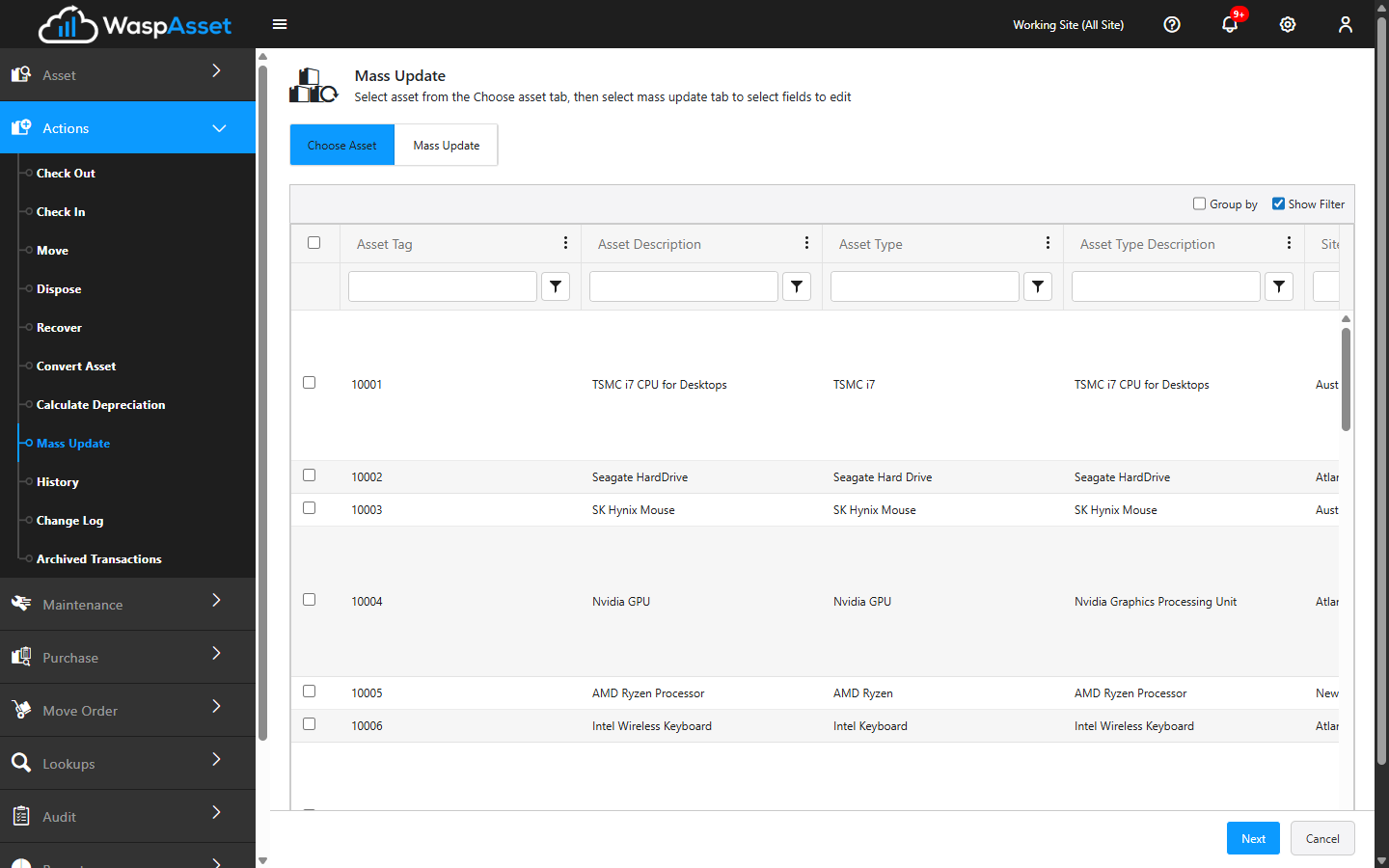
Section titled “Update many assets at once”- Open Actions → Mass Update.
- On the Choose Assets tab, find the assets you want to change. Use Show Filter to narrow the list and Group By to organize it, then select the assets to include. Wasp Asset shows a running count of how many assets you’ve selected.
- Click Next to move to the Mass Update tab.
- Tick the checkbox next to each field you want to change, and enter the new value. Only the fields you tick are touched — everything else on each asset stays as it was.
- To make the selected assets depreciate (or stop depreciating), tick Should Depreciate and choose All or None. Choosing All also requires a Salvage Value and Depreciation Begin Date — and a Purchase Cost and Purchase Date, if the selected assets don’t already have them.
- Click Save to apply your changes to every selected asset. Use Cancel to back out without saving.
Troubleshooting
Section titled “Troubleshooting”- The Next button won’t advance. You haven’t selected any assets. Tick at least one on the Choose Assets tab before clicking Next.
- “Please select at least one field to update.” Ticking assets isn’t enough — you also need to tick at least one field checkbox on the Mass Update tab before saving.
- Asset Type, Owner, Condition, Department, or Purchase Details are greyed out. Your selection mixes fixed and multi-quantity assets. Reselect assets of a single kind on the Choose Assets tab to change these fields.
- A value I want to set isn’t available. List-driven fields (department, category, condition) only offer values that exist in Lookups. Add the value there first.
- Only some assets updated. A change may not apply to every asset — for example, a value that conflicts with an asset’s type. Wasp Asset reports how many updated so you can review the rest.
- “Transaction can be performed only for N assets at a time.” Your administrator has capped how many assets a single Mass Update can touch. Select a smaller batch and repeat as needed.
- I changed the wrong field. There’s no single undo. Run Mass Update again to set the field back, or correct the affected assets individually.
Related
Section titled “Related”- Asset actions overview — the full Actions menu
- Lookups — manage the values available in list fields
- Dispose — retire many assets at once instead of editing them
- Change log — review field-level edits after a mass update