

Checking out an asset
Checking out an asset records that someone has taken it — an employee, a customer, or a vendor. Wasp Asset tracks who has it, where it went, and when it’s due back, so you always know an asset’s current whereabouts.
Before you begin
Section titled “Before you begin”- Check Out must be enabled for your role. If the action isn’t in your Actions menu, ask your administrator to grant it.
- The person or company you’re checking out to needs to exist first. Add employees, customers, and vendors under Lookups before you check assets out to them.
- Have the asset’s barcode or Asset Tag handy — that’s how you’ll pull it up.
Check out an asset
Section titled “Check out an asset”- Open Actions → Check Out.
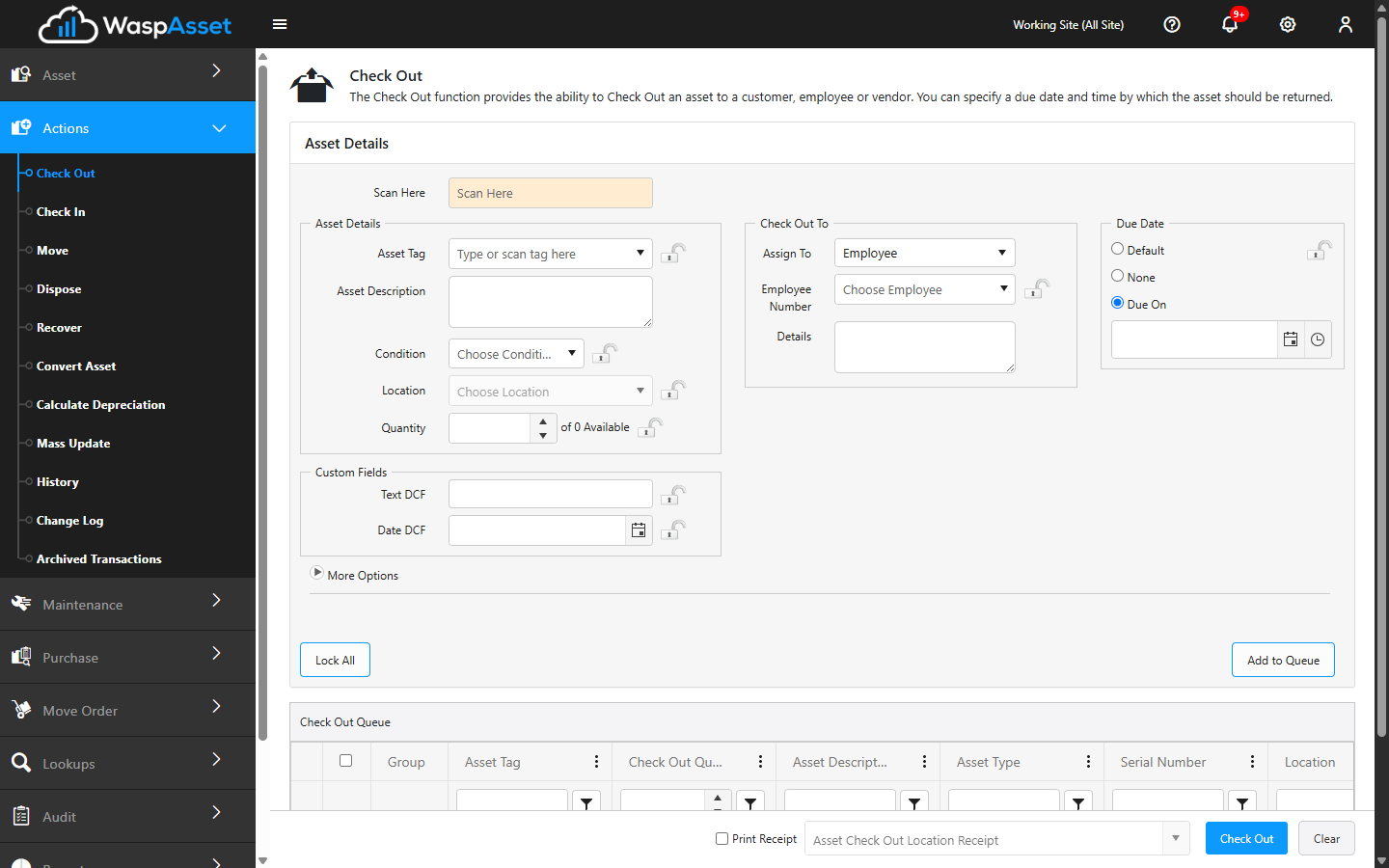
- In the Scan box, scan the asset’s barcode, or type its Asset Tag and pick it from the list. The asset’s details fill in automatically.
- Check the Condition and Location shown, and adjust them if needed.
- Under Check Out To, use the Assign To dropdown to choose whether you’re checking the asset out to an Employee, a Customer, or a Vendor, then pick the specific person or company. This is the required field — the check out won’t save without someone to assign it to.
- Add any Details you want kept with the transaction — a reason, a job number, or anything worth remembering.
- Choose a Due Date (see below).
- Click Check Out to complete the transaction. The asset is now shown as checked out to that person until you check it back in.
Set the due date
Section titled “Set the due date”The Due Date panel controls when the asset is expected back:
- Default — uses the standard check-out length configured for that asset.
- None — no due date; the asset stays checked out until you check it in.
- Due On — pick an exact date and time from the calendar.
An overdue asset is flagged in your lists and reports so it’s easy to follow up.
Multi-quantity assets
Section titled “Multi-quantity assets”If you’re checking out a multi-quantity asset, a Quantity box appears so you can check out just part of the on-hand amount. The page shows how many units are available.
More options
Section titled “More options”Click More Options to set a Move Asset To location — this moves the asset to a new location as part of the check out — and to add Notes. Neither is required for a standard check out.
Reassigning an asset that’s already checked out
Section titled “Reassigning an asset that’s already checked out”If you scan or select an asset that’s currently checked out to someone else, Wasp Asset shows who has it and a Force Check Out checkbox right on the page.
Your administrator can also set an option that pre-selects Force Check Out for everyone, so double-check the box before saving if you don’t want to override the current holder.
Troubleshooting
Section titled “Troubleshooting”- “This asset is already checked out.” Someone else still has it. Check it in first, or tick Force Check Out (shown automatically with the current assignee) to override and reassign it.
- The asset won’t come up when I scan or type its tag. Confirm you’re using the Asset Tag, not the serial or barcode label, and that the asset is active (a disposed asset won’t appear — recover it first).
- I can’t pick the employee/customer/vendor I need. They may not be set up yet. Add them under Lookups, then return to the check out.
- A required field is highlighted on save. Fill in every field marked with an asterisk — your organization can make Condition, Due Date, or custom fields required.
- An asset is overdue and I don’t want to check it in yet. You don’t have to redo the check out — extend or clear its due date from Transaction history instead.
Related
Section titled “Related”- Checking in an asset — bring a checked-out asset back
- Moving an asset — change where an asset lives without assigning it to a person
- Employees & departments — set up who you check assets out to
- Viewing assets — see what’s currently checked out and to whom