

Form Customization
Form Customization lets an administrator tailor the forms your team fills in. You can change how the built-in fields behave — rename a label, hide a field you never use, make one required, or lock it read-only — and you can add your own custom fields when the built-in ones don’t capture everything you track. Your changes apply to the actual Add and Edit forms right away, for everyone in your company.
Before you begin
Section titled “Before you begin”- Form Customization is an administrator area, gated by your role’s permissions. If you don’t see it under the Settings gear, your role doesn’t include access — ask whoever manages your account.
- It works across most record types — assets, asset types, and lookups like employees, customers, vendors, locations, sites, contracts, funding, and work orders — not just assets.
- On the Basic edition, the number of custom fields you can add is capped, and a few custom-field options are only available on the Complete edition (noted below).
Open Form Customization
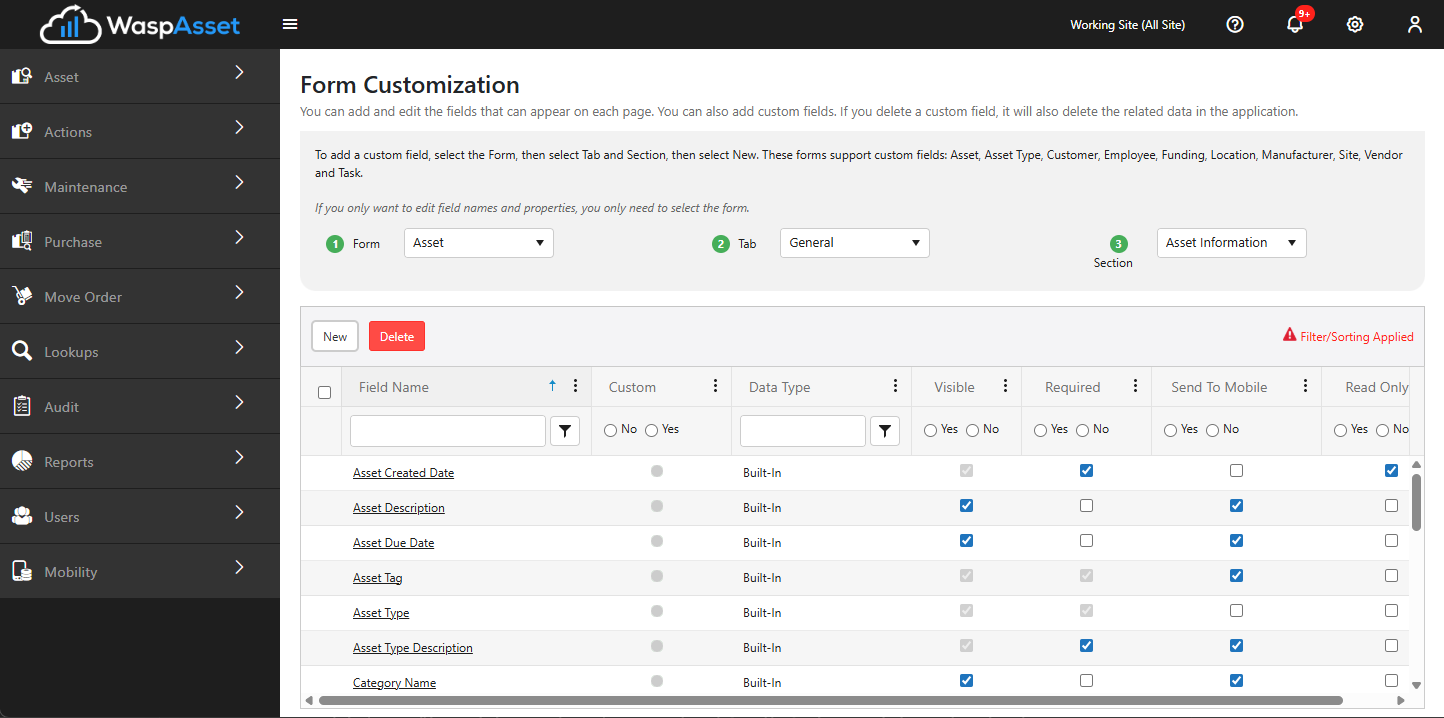
Section titled “Open Form Customization”Open the Settings gear in the top bar and choose Form Customization. Use the three dropdowns at the top to narrow to the fields you want:
- Module — the record type whose form you’re customizing (for example, Asset).
- Tab — the tab on that form.
- Section — the section within the tab.
Once all three are chosen, the field list shows every field in that section — both built-in fields and any custom fields you’ve added.
Customize a built-in field
Section titled “Customize a built-in field”Each row in the field list has quick toggles that save as soon as you change them:
- Visible — show or hide the field on the form.
- Required — force a value before the record can be saved. Turning Required on also turns Visible on (a required field can’t be hidden).
- Read Only — show the field but prevent edits.
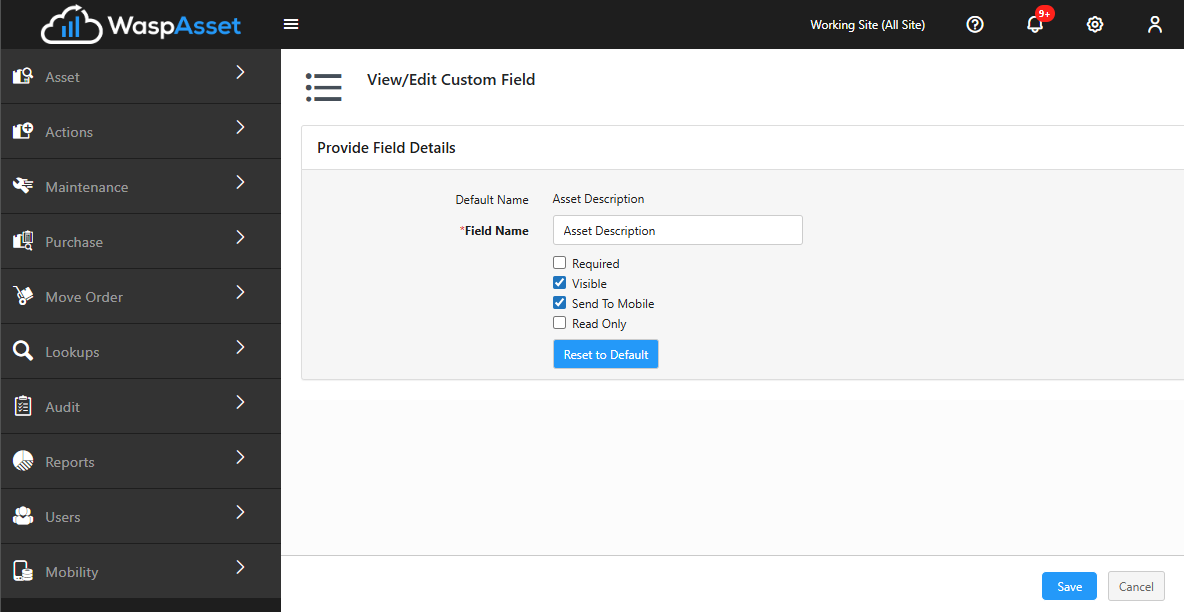
Click the pencil icon on a row to rename the field’s label. You can’t change a built-in field’s data type or delete it — only relabel it and toggle the options above.
Add a custom field
Section titled “Add a custom field”When you need to capture something Wasp Asset doesn’t ship a field for, add a custom field:
- With a Module, Tab, and Section selected, click New.
- Choose a Data Type — one of:
- Text — a single line of text.
- Number — a numeric value; you can set the number of decimal places.
- Date — a date.
- Date/Time — a date and time.
- Pick List — a dropdown you fill with your own values (one per line). You can mark the first value as the default and choose whether users may enter a value that isn’t in the list.
- Extended Text — a longer, multi-line text field.
- Hyperlink — a clickable link.
- Enter the field’s Label and set Visible and Required as needed.
- Click Save. The field appears on that record type’s form immediately.
On the Asset form only, a Place Field section lets you decide whether a custom field appears on all asset types or only on specific ones you select — handy when a field only makes sense for certain kinds of assets.
Reset to default
Section titled “Reset to default”Built-in fields show a Reset to Default option that returns the label and the Visible/Required settings to Wasp Asset’s original defaults. To remove a custom field entirely, select its row in the list and click Delete (built-in fields can’t be deleted).
Troubleshooting
Section titled “Troubleshooting”- I don’t see Form Customization in the menu. It’s permission-controlled. Ask an administrator to grant your role access.
- The New button is greyed out. Choose a Module, Tab, and Section first — New stays disabled until all three are selected. On the Basic edition, you may also have reached your custom-field limit.
- My required field is also forced visible. That’s expected — a required field can’t be hidden, so turning on Required turns on Visible too.
- A field I hid is still in the page source. Hidden fields are simply not shown; that’s expected behavior.
Related
Section titled “Related”- Asset types — custom fields can be scoped to specific asset types
- Number Series — auto-generate the values in number fields like asset tags
- Settings & options — other account-wide preferences
- Roles & permissions — control who can customize forms