

Roles & permissions
A role is a reusable set of permissions you assign to users. It controls which menus a person can open, what they can create, edit, or delete, and — if you like — which asset types and sites they’re allowed to work with. Manage roles under Users → Role in the left sidebar.
Before you begin
Section titled “Before you begin”- Permission to manage roles. Editing roles is itself a permission. If you can’t reach the Role page, ask an administrator to grant your role access, or to make the change for you.
- Plan around your team, not individuals. Roles work best when they mirror the jobs people do (for example, “Warehouse staff” or “Read-only auditor”) rather than one role per person.
- Know your edition. Site restrictions are only available on the Complete edition; on Basic everyone works across all sites.
How roles work
Section titled “How roles work”Instead of setting permissions person by person, you build a role once and assign it to as many users as you need. Change the role, and everyone who has it is updated at the same time. Each user has one role, plus the optional Application Admin setting for full access.
View and create roles
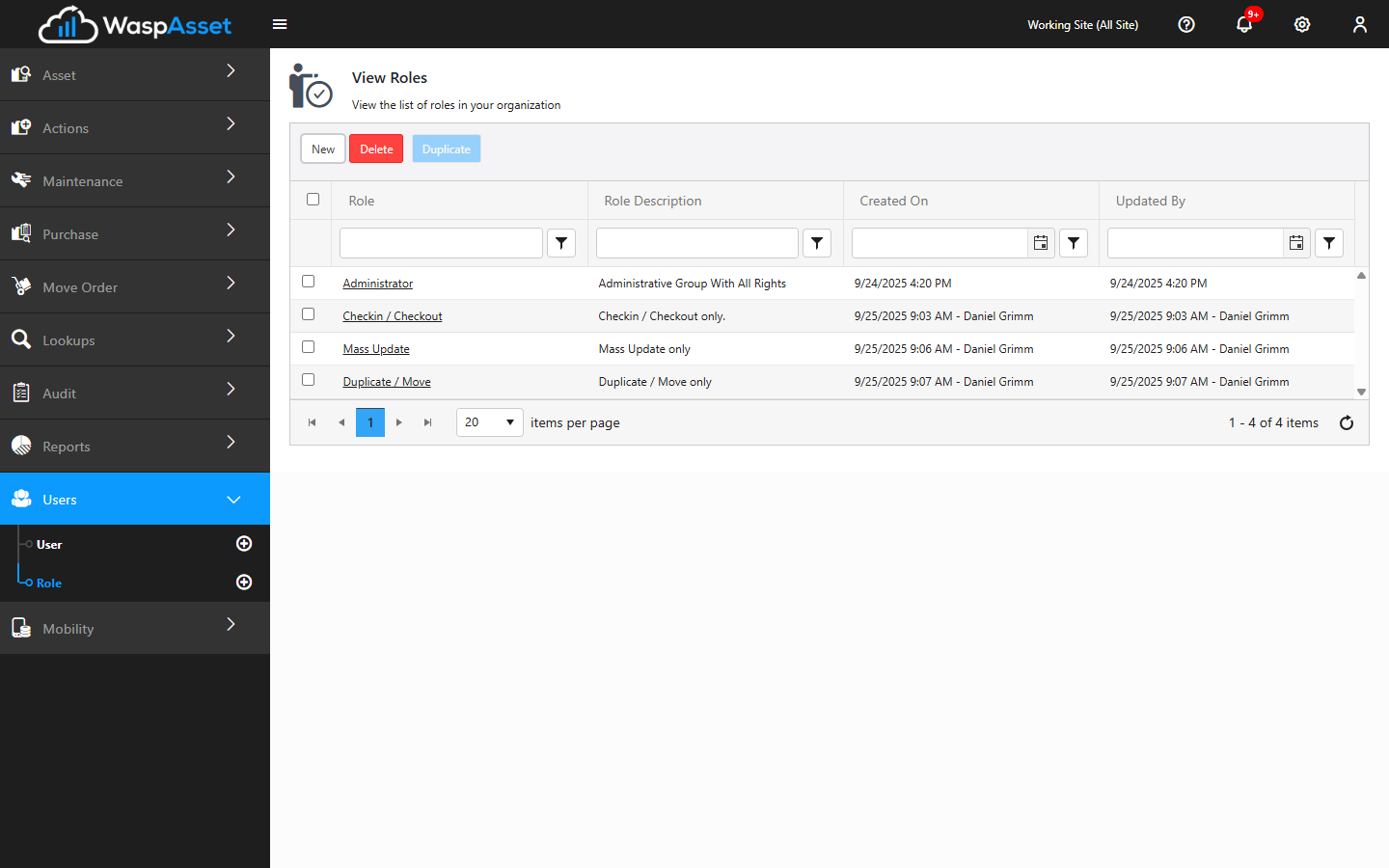
Section titled “View and create roles”Open Users → Role to see your existing roles with their names, descriptions, and when they were created or last changed. From here you can:
- New — create a role from scratch.
- Duplicate — copy an existing role as a starting point, then adjust it.
- Delete — remove one or more selected roles.
Click a role’s name to open it for editing.
Set what a role can see and do
Section titled “Set what a role can see and do”A role has two tabs:
- Role Details — the role’s name and description, plus the users, asset types, and sites it applies to (below).
- Permission — the heart of the role. It lists every area of the app as its own row, with columns for Allow Access, Create, Edit, and Delete. Turn on Allow Access to let the role see that area at all, then use the other three columns to control what it can do there. Denying access to an area hides its menu entirely for those users.
Assign users to a role
Section titled “Assign users to a role”On the Role Details tab, the Available Users list lets you tick the people who should have this role. The count of selected users is shown below the list. You can also assign a role to a person from their profile — see Managing users.
Limit a role to certain asset types
Section titled “Limit a role to certain asset types”Under Asset Type Restrictions, you can let a role work with all asset types, or select just the specific asset types it should see. There’s also an option to automatically include any new asset types created in the future, so you don’t have to revisit the role each time.
Assign sites to a role
Section titled “Assign sites to a role”Under Site Restrictions, choose whether the role can access all sites or only the sites you select. As with asset types, you can automatically grant access to any new sites added later.
Remember to click Save when you’re done.
Troubleshooting
Section titled “Troubleshooting”- A user can’t see a menu they need. Open their role, go to the Permission tab, and make sure that area is allowed. Denying an area hides its menu entirely for everyone in the role.
- A user can see records but can’t save changes. They likely have view access to that area but not create/edit, or they’re in a read-only role. Adjust the permission on the Permission tab.
- A user can’t find certain assets or sites. Check the role’s Asset Type Restrictions and Site Restrictions — the role may be limited to a subset. Turn on the “include new” options so future asset types or sites are covered automatically.
- I changed a role but the user still can’t get in. Permission changes apply on their next sign-in. Have them sign out and back in.
Related
Section titled “Related”- Managing users — assign a role to each person and grant Application Admin
- Asset types — the asset types you can restrict a role to
- Sites & locations — the sites available for Site Restrictions