

Callouts
Callouts let Wasp Asset send asset events to another system automatically. When an event you care about happens — an asset is checked out, moved, purchased, an audit window closes, a contract is about to expire — a callout fires an HTTP request to a URL you specify, so you can push those events into an ERP, a ticketing system, or your own integration.
A callout works like a notification, but instead of emailing someone or posting an in-app alert, it calls an external web address.
Before you begin
Section titled “Before you begin”- Callouts require the Complete edition. If you don’t see Callouts under the Settings gear, your account isn’t on an edition that includes it.
- Callouts are administrator-managed and gated by your role’s permissions (separate permissions control viewing, creating, editing, and deleting).
- You’ll need the details of the endpoint you’re sending to — its URL, the HTTP method it expects, any headers, and the body format (JSON, XML, or form data).
Set the triggers
Section titled “Set the triggers”Open the Settings gear → Callouts, then New. On the Set Triggers tab, choose what the callout responds to — the same When / With / Is (as soon as an event occurs) and Before (an advance window before an event) options used by notifications. Give the callout a name and set it Enabled.
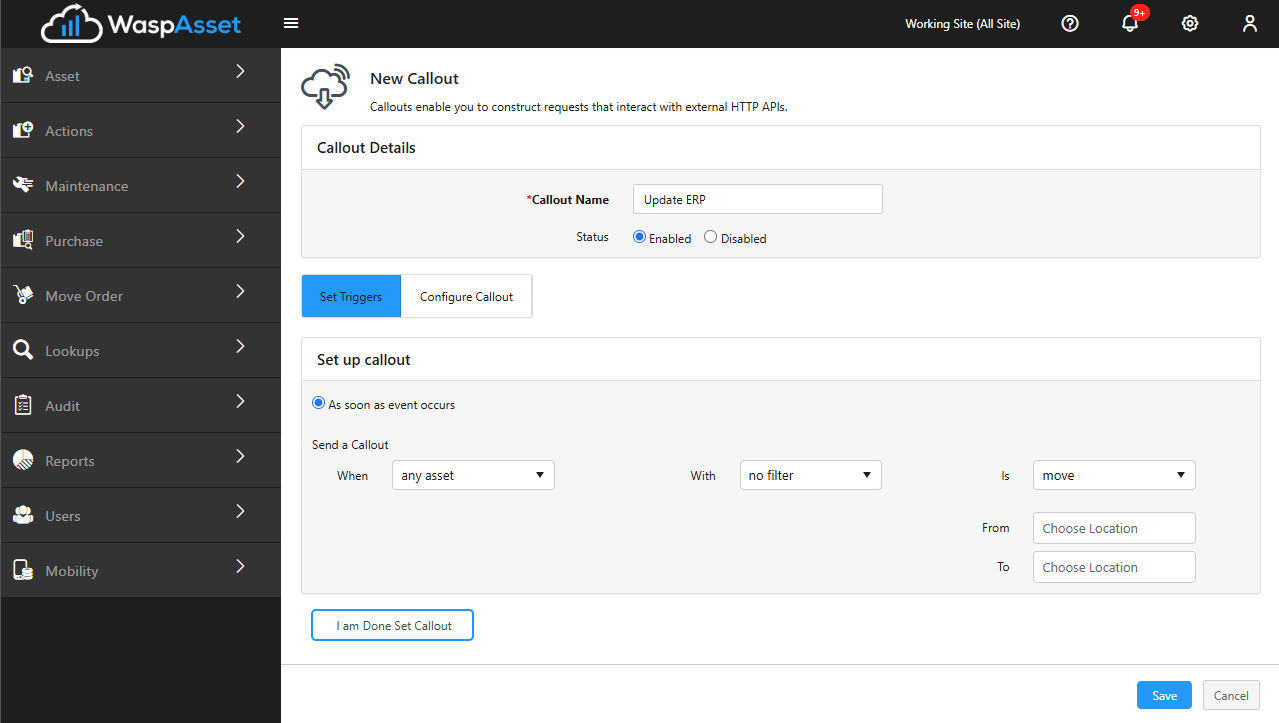
Configure the callout
Section titled “Configure the callout”On the Configure Callout tab, build the HTTP request:
- Verb and URL — the HTTP method (GET, POST, PUT, DELETE) and the address to call. The URL can include
{Variable}placeholders that are filled in with the event’s data when the callout fires. - Headers — add any request headers your endpoint needs. A panel of available variables (asset tag, description, and so on) lets you drop placeholders into the URL, headers, or body.
- Values (body) — the request body, in JSON, XML, or Form Data, again using variables. You can view a sample and validate the format.
- Security — a Private Key used to sign each request, so the receiving system can confirm the request genuinely came from your Wasp Asset account. Wasp Asset adds signing headers automatically.
Use Save & Test to save the callout and immediately fire a test request with sample values, so you can check the URL, headers, and body and see the raw response before going live.
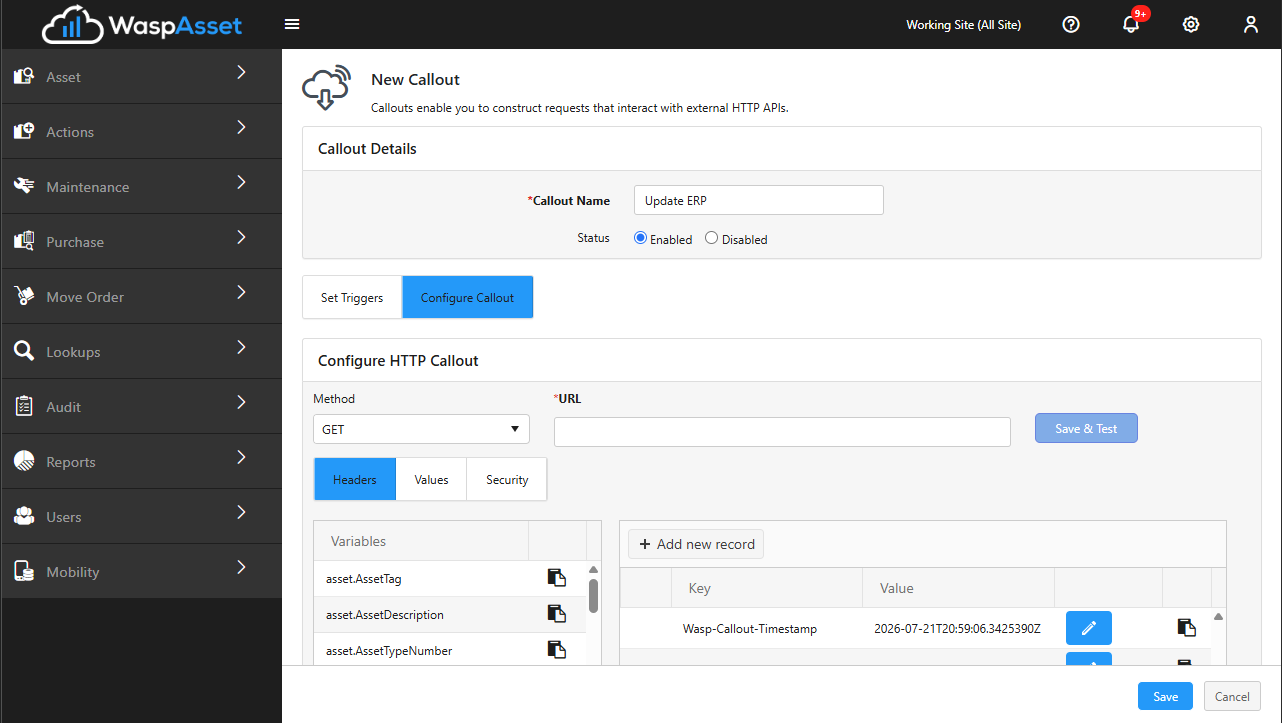
Callout Results
Section titled “Callout Results”Callout Results (from the Callouts menu) logs every time a callout fired, across all your callouts. Each entry shows the callout name, verb, URL, when it ran, and its status, and expands to show each delivery attempt with its HTTP status code and response. If a call failed — or even if it succeeded and you want to send it again — use the Retry / Resend action on that entry. You can also see a Recent Calls history on each individual callout’s edit page.
Troubleshooting
Section titled “Troubleshooting”- I don’t see Callouts. It’s a Complete-edition feature and is also permission-controlled. Check your edition and ask an administrator about your role.
- My test call fails. Use Save & Test to see the raw response, and confirm the URL, verb, headers, and body match what your endpoint expects.
- A callout didn’t fire. Make sure the callout is Enabled and its triggers match the event, then check Callout Results for the attempt and its status. Use Retry to send it again.
Related
Section titled “Related”- Notifications — alert people by email or in the app instead of calling an external system
- Roles & permissions — control who can manage callouts
- Zapier integration — Zaps that use Wasp Asset triggers create callouts automatically
- API result codes — what the status codes in Callout Results mean