

Calculating depreciation
Calculating depreciation updates the book value of your depreciating assets as of a date you choose. Run it whenever you need current values — for month-end, year-end, or a finance report.
Before you begin
Section titled “Before you begin”- Calculate Depreciation must be enabled for your role. If it’s missing from the Actions menu, ask your administrator.
- Assets only depreciate if they have a depreciation method, a purchase cost, and a depreciation begin date set. Define methods under Lookups → Depreciation and assign them to assets or asset types first.
- This runs in one pass across every asset you have permission to access — not a single asset you pick. If your role is restricted to certain sites or assets, only those are affected; an administrator with full access will touch the whole asset base.
Run depreciation
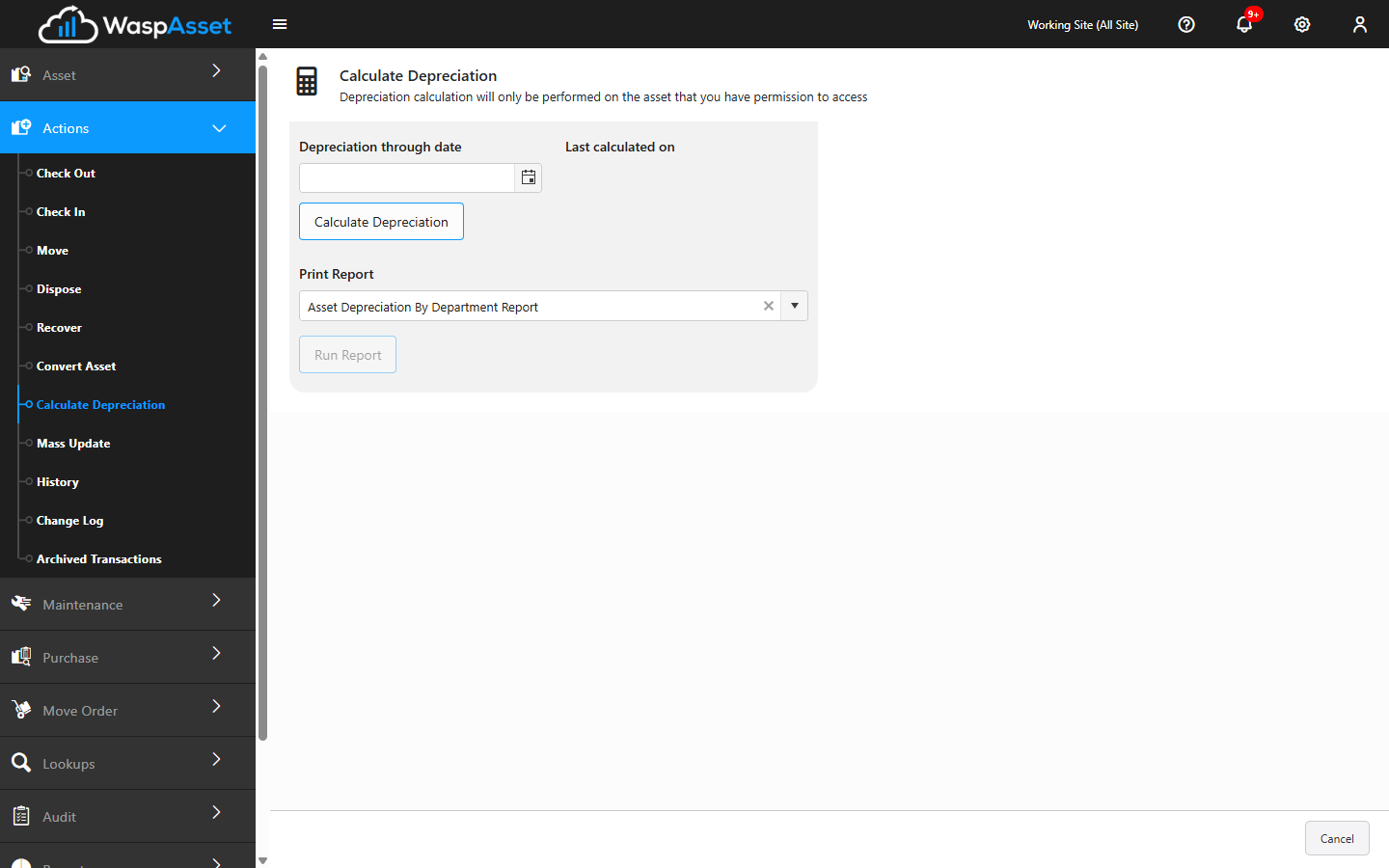
Section titled “Run depreciation”- Open Actions → Calculate Depreciation.
- Choose the date to calculate depreciation through. Wasp Asset shows when depreciation was last calculated so you can see how far forward you’re bringing it.
- Click Calculate Depreciation. A progress indicator shows the calculation running across your assets — let it finish before leaving the page, or click Cancel to stop the run partway through.
- When it finishes, each depreciating asset’s book value is updated as of the date you chose.
Print a depreciation report
Section titled “Print a depreciation report”After calculating, you can review the results:
- Under Print Report, choose a depreciation report from the list.
- Click Run Report to open it, then review, print, or export the book values.
Troubleshooting
Section titled “Troubleshooting”- “No assets to depreciate.” None of your assets have a depreciation method assigned, or none are eligible for the date chosen. Assign methods under Lookups → Depreciation and confirm assets have a purchase cost and begin date.
- An asset’s value didn’t change. It’s likely missing a depreciation method, is already fully depreciated, or its begin date is after the date you calculated through.
- The report list is empty or won’t run. Choose a depreciation report from the Print Report list first — Run Report stays disabled until one is selected.
- The calculation seems stuck. Large asset bases take time. Wait for the progress indicator to finish rather than re-running it.
Related
Section titled “Related”- Depreciation lookups — set up depreciation methods
- Asset details — see an individual asset’s depreciation settings and book value
- Reports — pull valuation and finance reports